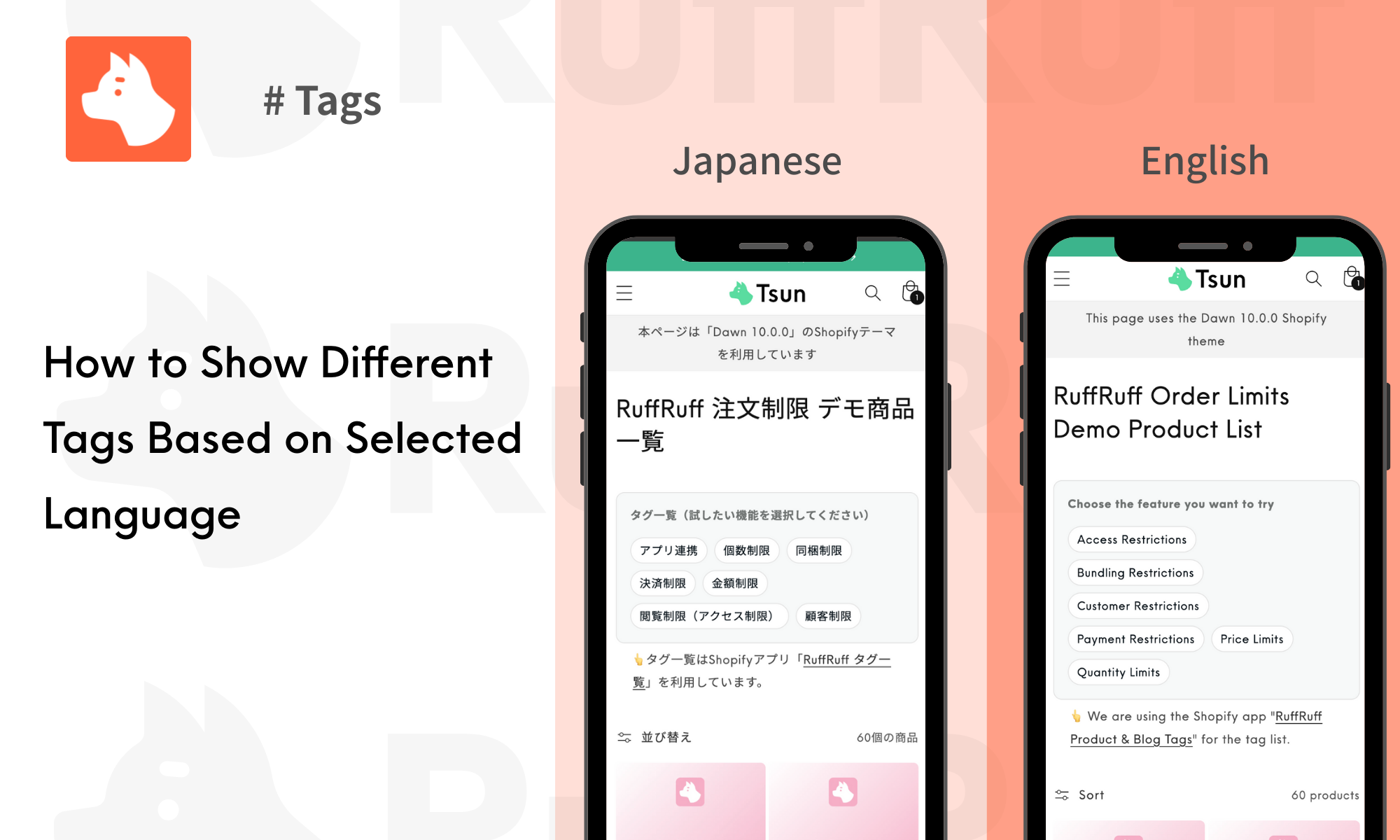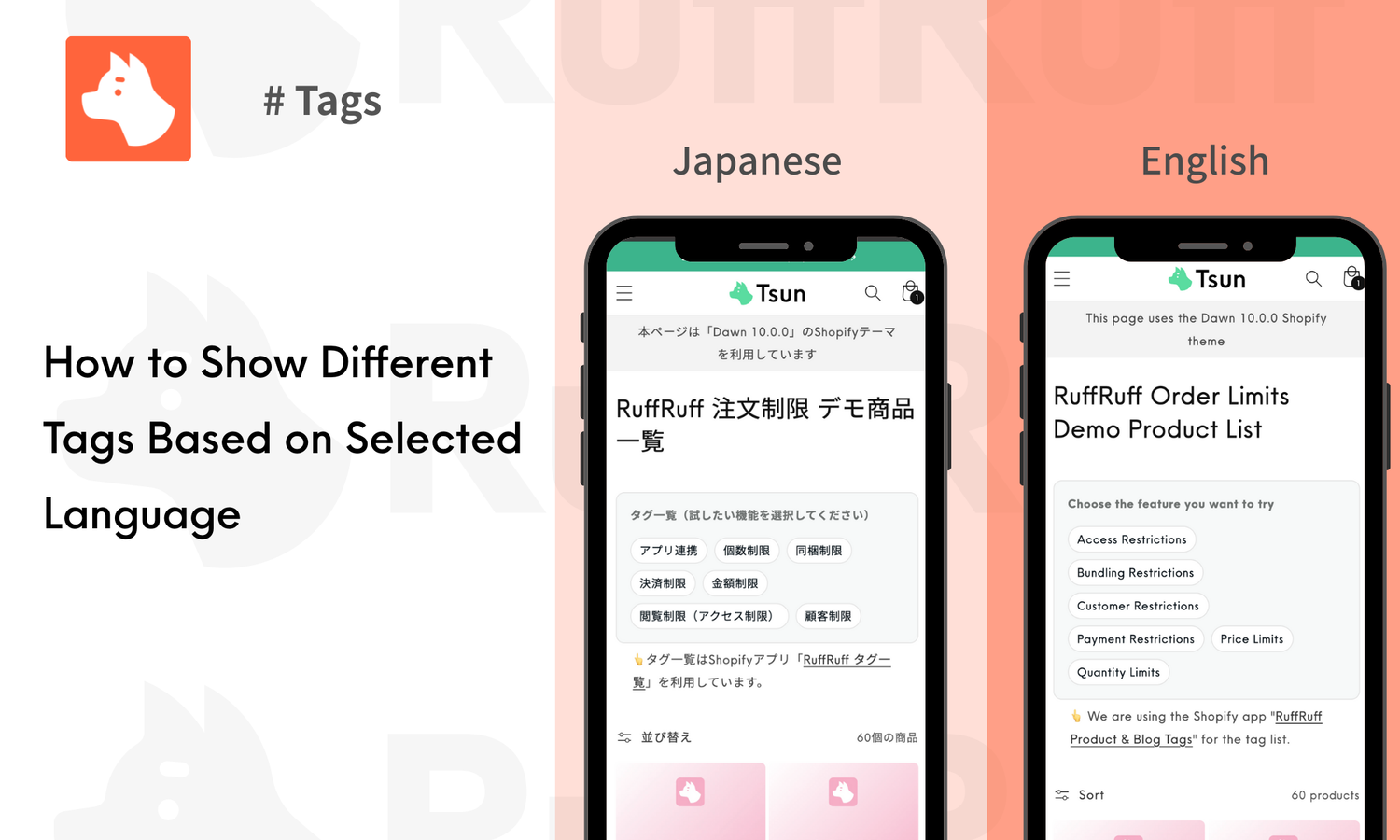
In Shopify, you can assign arbitrary tags to products and articles to organize and filter them. However, standard features alone do not allow you to automatically switch the tag list display, such as showing "only Japanese tags" or "only English tags," based on the viewer's display language.
In this article, we will explain the specific steps to display tag lists on collection pages according to the user's language by combining the app block functionality of the Shopify app "RuffRuff Product & Blog Tags" with the translation settings of "Shopify Translate & Adapt." Note that these steps assume the use of the app's Regular Plan features. The following blog post explains the benefits of utilizing tags in Shopify. Please use it as a reference.

What is RuffRuff Product & Blog Tags?
"RuffRuff Product & Blog Tags" displays tags set for products and blog posts in a list on your online store, supporting "improved accessibility to target information" and "increased site navigation rates." It can be easily implemented in 3 steps with no code, and the tag list design can be freely customized to match your online store's theme design.
Pricing: From Free
What is Shopify Translate & Adapt?

An app developed by Shopify for translating your Shopify store. It allows for bulk translation using Google Translate with just one click from within the app. You can also manually correct translations after bulk processing.
Pricing: Free *Automatic translation is available for up to 2 languages; manual translation is required for the 3rd language onwards.
The following blog post introduces the features of Shopify Translate & Adapt and other translation apps. Please use it as a reference.

The Output
By applying the settings introduced in this article, the tag list displayed on the collection page will function as follows: when Japanese is selected from the language selector, only Japanese tags will be shown; when English is selected, only English tags will be shown.
You can check the actual operation from the link below for your reference.

How to Display Tag Lists by Language in Shopify
Preparation: Set Up the Tag List App
The method introduced in this article uses the Shopify app "RuffRuff Product & Blog Tags."
This section explains the steps from installing "RuffRuff Product & Blog Tags" to subscribing to the appropriate plan.
Install the App

(1) Access the "RuffRuff Product & Blog Tags" page from the Shopify App Store.
You can also install it from this link: https://apps.shopify.com/ruffruff-tags
(2) Click "Install."
Subscribe to the Regular Plan
This procedure requires a subscription to the Regular Plan to use the app block functionality.

(1) Click "Plans" in the left menu of the app.
(2) Click "Start 3 Day trial" under the Regular Plan.

(3) Review the plan details and click "Approve."
In this example, we are showing the annual billing screen for the Regular Plan ($99.6/year). A monthly billing option ($9.99/month) is also available.
Step 1: Set Both Japanese and English Tags for Products

(1) Go to "Products" and access the target product.
(2) Add both the Japanese tag and the English tag in the tag input form.
For this example, we have set "個数制限" as the Japanese tag and "Quantity Limits" as the English tag.
(3) Click "Save."
(4) Set tags for other products using the same procedure.
Step 2: Add the App Block

(1) Navigate to "Online Store > Themes."
(2) Click "Customize" for the theme where you want to display the tag list.

(3) From the theme customization screen, open the collection page.
(4) Click "Add section."
(5) Select the "Apps" tab.
(6) Select the app block named "Tags (Regular Plan)."

(7) Drag and drop the app block to the location where you want the tag list to be displayed.
Step 3: Hide English Tags when Japanese is Selected
Here, we will show you how to configure the settings so that English tags are hidden for customers who select Japanese on the online store.

(1) Open the settings page for the app block inserted in Step 2.
(2) In the "Exclude tags" field, add the "English tags" you set in Step 1.
If there are multiple tags, please add them with line breaks.
(3) Click "Save."
Step 4: Hide Japanese Tags when English is Selected
Here, we will show you how to configure the settings so that Japanese tags are hidden for customers who select English on the online store.

(1) Click on "Shopify Translate & Adapt."
(2) Select English.
(3) Click "Themes > Templates."

(4) Select the "Collection" template from the template list on the left.
(5) In the reference where the "English tags" set in the Exclude tags field in Step 3 are displayed, add the "Japanese tags" set in Step 1 as the English translation.
If there are multiple tags, please add them with line breaks.
(6) Click "Save."
The setup is now complete.
Finally
In this article, we explained the procedure to achieve language-specific tag list display, which is not supported by standard Shopify, by combining the RuffRuff Product & Blog Tags app (Regular Plan) with translation settings.
The key points of the implementation are to place the app block on the collection page and appropriately set the excluded tags for each language.
After implementation, your operations will remain stable if you verify the display when switching languages and establish tagging rules to prevent inconsistencies.
Lastly, the following blog post introduces how to implement tag lists and tag filtering features in Shopify. Please use it as a reference.