When running an online store, discount campaigns that capture customers' interest and encourage purchases are one of the key strategies available. Among these, setting a "maximum discount amount" lets you offer a reasonable discount while still maintaining sales and protecting your profit margins.
This article explains in detail how to set a maximum discount amount on an order discount in Shopify, as well as how to use a related Shopify app. We hope this helps you run effective promotions and improve customer satisfaction.
What Is a Maximum Discount Amount?
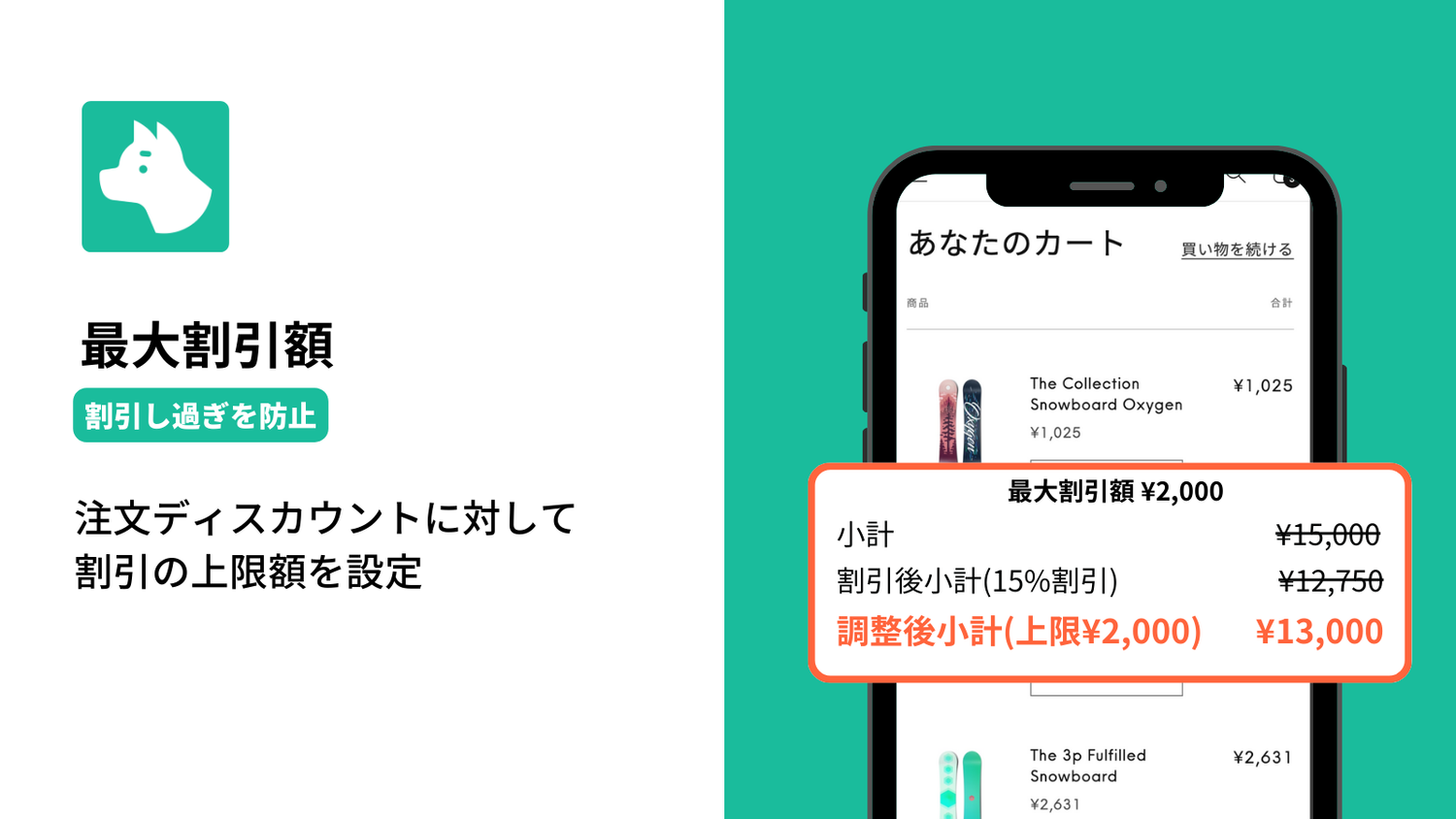
A maximum discount amount refers to the upper limit on the discount applied to a purchase. In e-commerce discount campaigns, setting a maximum discount amount in addition to a fixed discount percentage helps prevent excessive discounting.
For example, with a discount coupon of "20% OFF (maximum discount amount $300)," if the purchase amount is $1,000, the discount is $200, resulting in a payment of $800. However, if the purchase amount is $2,000, the $400 discount that 20% would normally provide is capped at $300, so the final payment is $1,700. This encourages customers to make larger purchases while allowing the business to maintain its profit margin.
Shopify Apps That Let You Set a Maximum Discount Amount
RuffRuff Order Bonus
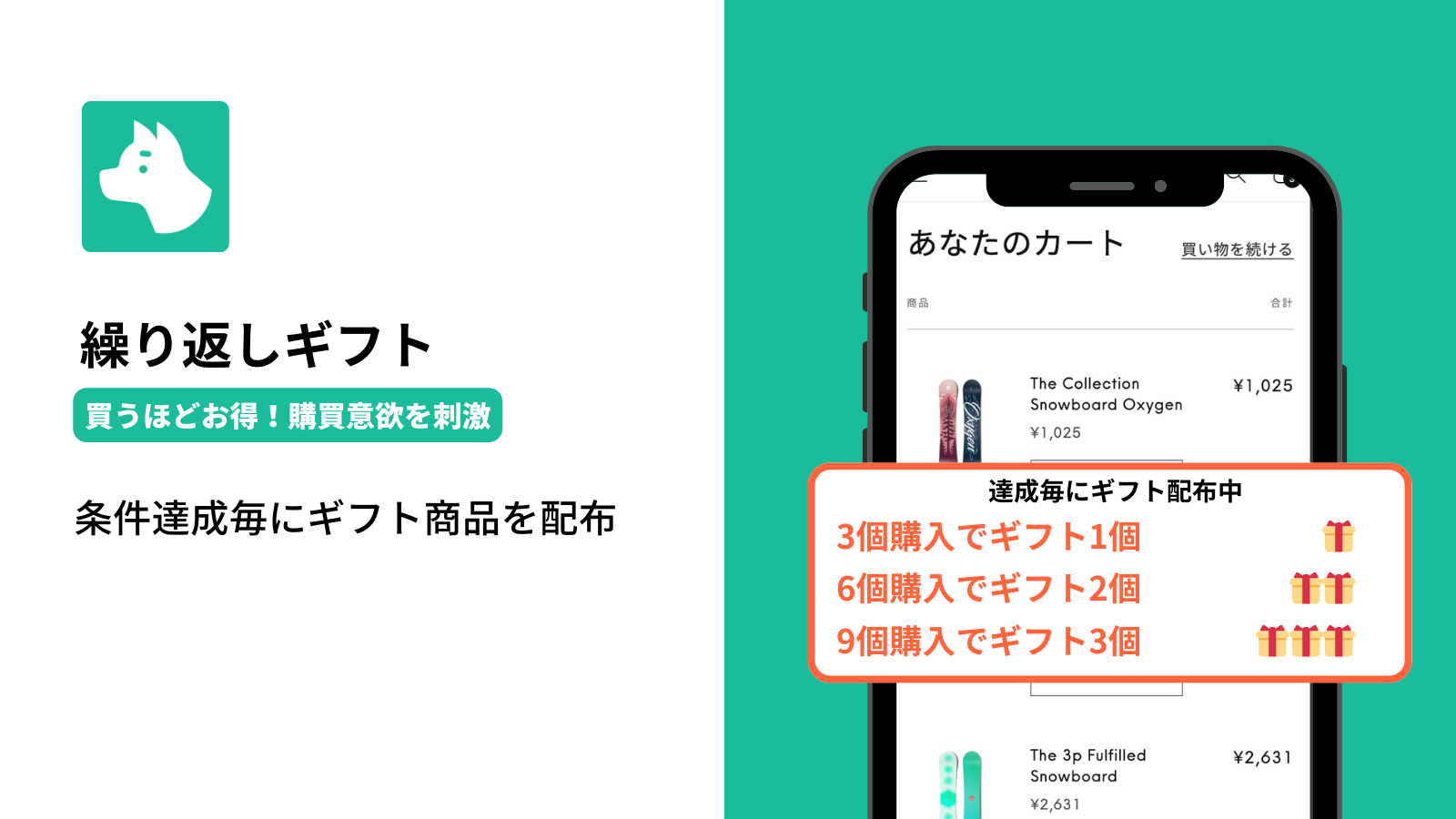
RuffRuff Order Bonus is a Shopify app that lets you easily run discount and gift-giveaway campaigns based on a variety of conditions.
- Choice of discount application method: Choose between two types — automatic discounts and manual discounts — allowing you to set up effective discounts tailored to a variety of situations.
- A wide range of discount settings: Set up product discounts, order discounts, and shipping discounts — all three types can even be combined, enabling efficient promotions.
- Advanced discount options: By making use of features such as setting a maximum discount amount and rounding adjustments, you can deploy flexible discount strategies.
By using RuffRuff Order Bonus, you can offer customers appealing deals that also help boost your sales. Strengthen your store's marketing even further through a variety of campaigns.
How to Set a Maximum Discount Amount
This section introduces how to set a "maximum discount amount for an order discount."
In this example, a 20% OFF order discount is being run, with the maximum discount amount set to $300.
As a result, depending on the cart subtotal, the outcome is as follows.
When the cart subtotal is $1,000
- Subtotal: $1,000
- Subtotal after discount: $800 (20% OFF)
When the cart subtotal is $2,000
- Subtotal: $2,000
- Subtotal after discount: $1,600 (20% OFF)
- Adjusted subtotal: $1,700 (due to the $300 maximum discount amount)
The page below features a demo product configured with the same settings described in this article. If you'd like to try it out for yourself, please take a look.

Preparation: Setting Up the App
This article uses the Shopify app "RuffRuff Order Bonus." If you haven't installed RuffRuff Order Bonus yet, please install it first.

(1) Click "Enable app embed in your live theme" from the Setup guide on the app's top page.
(2) From the select box, choose the Shopify theme you want to add the app to.
(3) Click "Enable app."

(4) Enable "RuffRuff Order Bonus" on the left side of the theme editor screen.
(5) Click "Save" in the top right of the screen.
Step 1: Create a Discount Campaign

(1) Select "Discounts" from the left menu of the app.
(2) Click "Create campaign."

(3) Configure the following settings in the campaign overview.
- Campaign name: Any name used to manage the campaign within the app
- Discount title: The coupon code name shown to customers
(4) Set the period during which you want to run the discount in Active dates.

(5) Add "Order discount" in the discount settings.
(6) Configure the following settings for the order discount.
- Select "Percentage" and enter "20."
- Enter "300" in "Maximum discount amount."

(7) Configure Display settings as needed.
Configure this if you want to display campaign information within the widget.
(8) Configure Restrictions as needed.
Configure this if you want to fine-tune settings such as the eligible product types or whether the discount can be combined with other discounts.
(9) Click "Save."
Step 2: Activate the Discount Campaign

(1) Open the discount campaign you created in Step 1.
(2) Click "Activate."
That completes the setup.
In Closing
We've now covered in detail how to set a maximum discount amount on Shopify. By setting a maximum discount amount, you can offer customers appealing discounts while still protecting your profit margins as the store operator. The RuffRuff Order Bonus app makes it easy to run effective discount campaigns, so we encourage you to give it a try.
We hope this knowledge proves useful in your future marketing efforts.