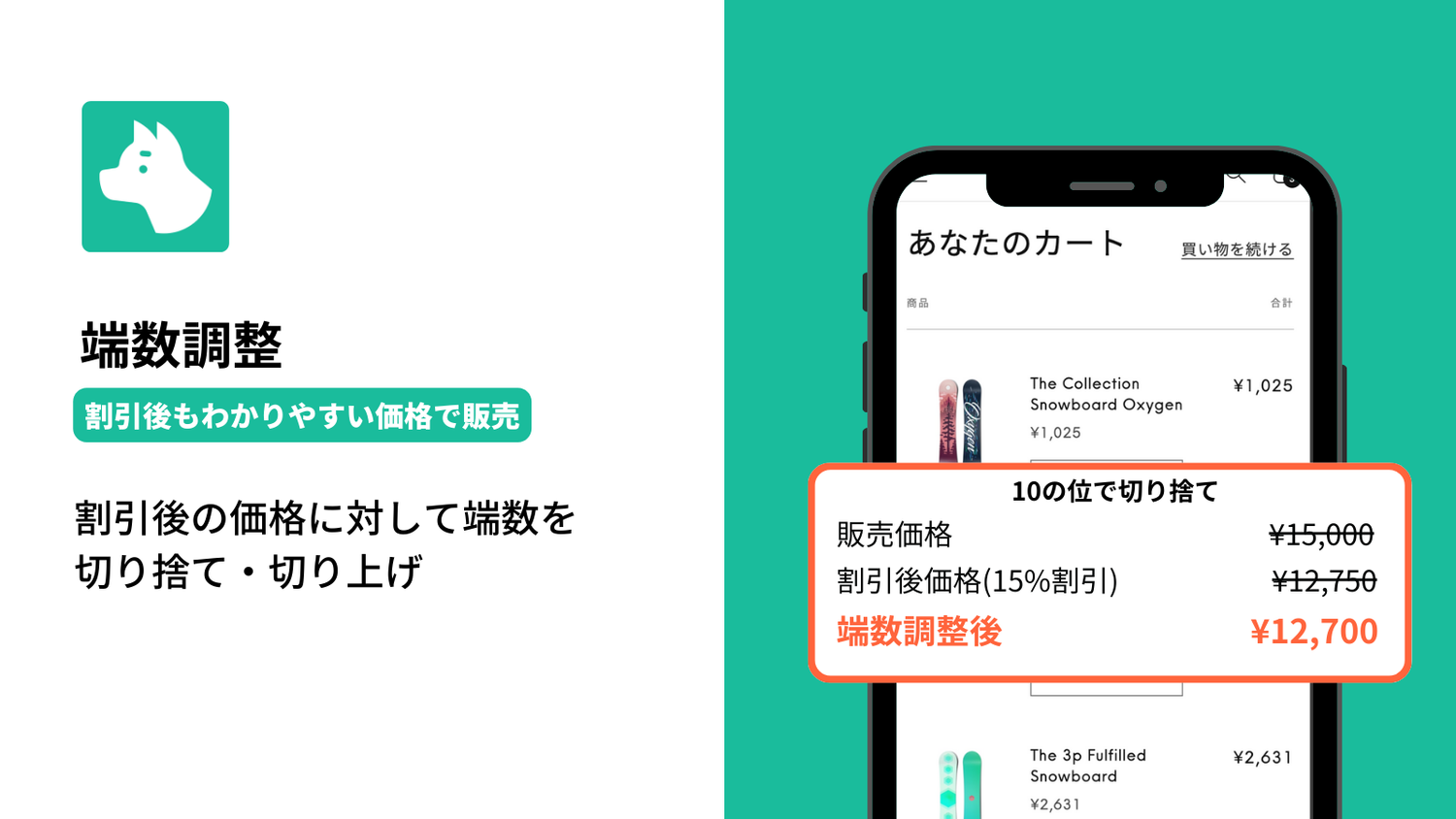
As online shopping continues to grow, consumers increasingly expect convenient and clear price displays. Rounding adjustment, in particular, is an important factor in improving the shopping experience — presenting prices that are easy to understand at a glance helps boost customers' purchase intent.
In this article, we'll explain in detail how to round discounted prices in Shopify.
What Is Rounding Adjustment?
Rounding adjustment refers to the process of rounding product prices or transaction amounts in e-commerce (EC). It is essential not only for maintaining consistency in accounting and invoicing, but also for improving convenience and visual clarity for customers.
Main Methods of Rounding Adjustment
Round Down
This method rounds down a specific digit. For example, if the price is ¥12,850, rounding down the tens place results in ¥12,800.
Round Up
This method rounds up a specific digit. For example, if the price is ¥12,850, rounding up the tens place results in ¥12,900.
Round to Nearest (Standard Rounding)
This method determines whether to round up or down for a specific digit. For example, if the price is ¥12,850, the tens-place digit is "5", so the result of standard rounding is ¥12,900.
How to Perform Rounding Adjustment in Shopify
Using Shopify Markets' Rounding Feature

By enabling Shopify Markets' rounding rules, you can adjust the rounding of prices after currency conversion.
(Product price x currency conversion rate) + currency conversion fee (US$10.00 x 0.867519) + 1.5% = €8.81. If rounding rules are enabled, Shopify rounds the total, and the customer pays €8.90. Source: Shopify Help Center
Note that this feature does not adjust the rounding of discounted prices — it is designed specifically for stores selling in multiple currencies, adjusting the rounding that occurs when converting the store's currency into another currency. It also only supports rounding up.
Adjusting Rounding with a Shopify App
Shopify's native discount feature does have the ability to adjust rounding. For this reason, you need to use a discount app that can adjust rounding.
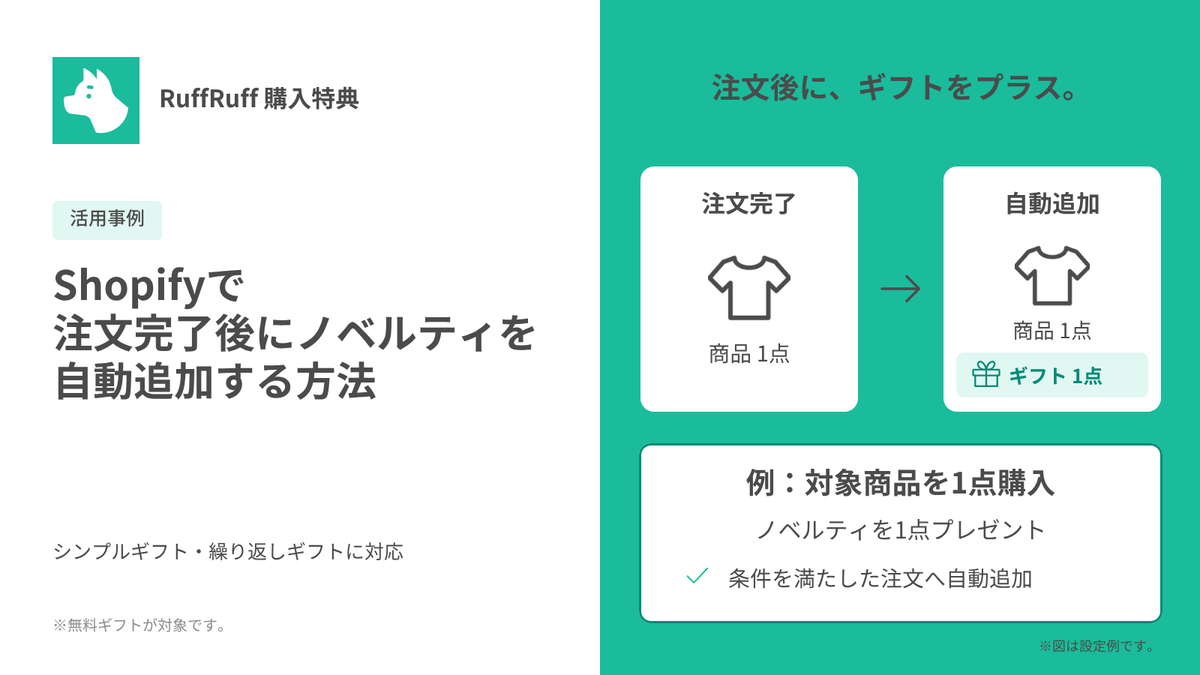
For example, "RuffRuff Order Bonus," an app that enables flexible discount campaigns and gift distribution, includes a feature for adjusting the rounding of discounted prices. With the app, you can specify which digit to round and choose between rounding up or rounding down.
A Shopify App That Can Round Discounted Prices
RuffRuff Order Bonus
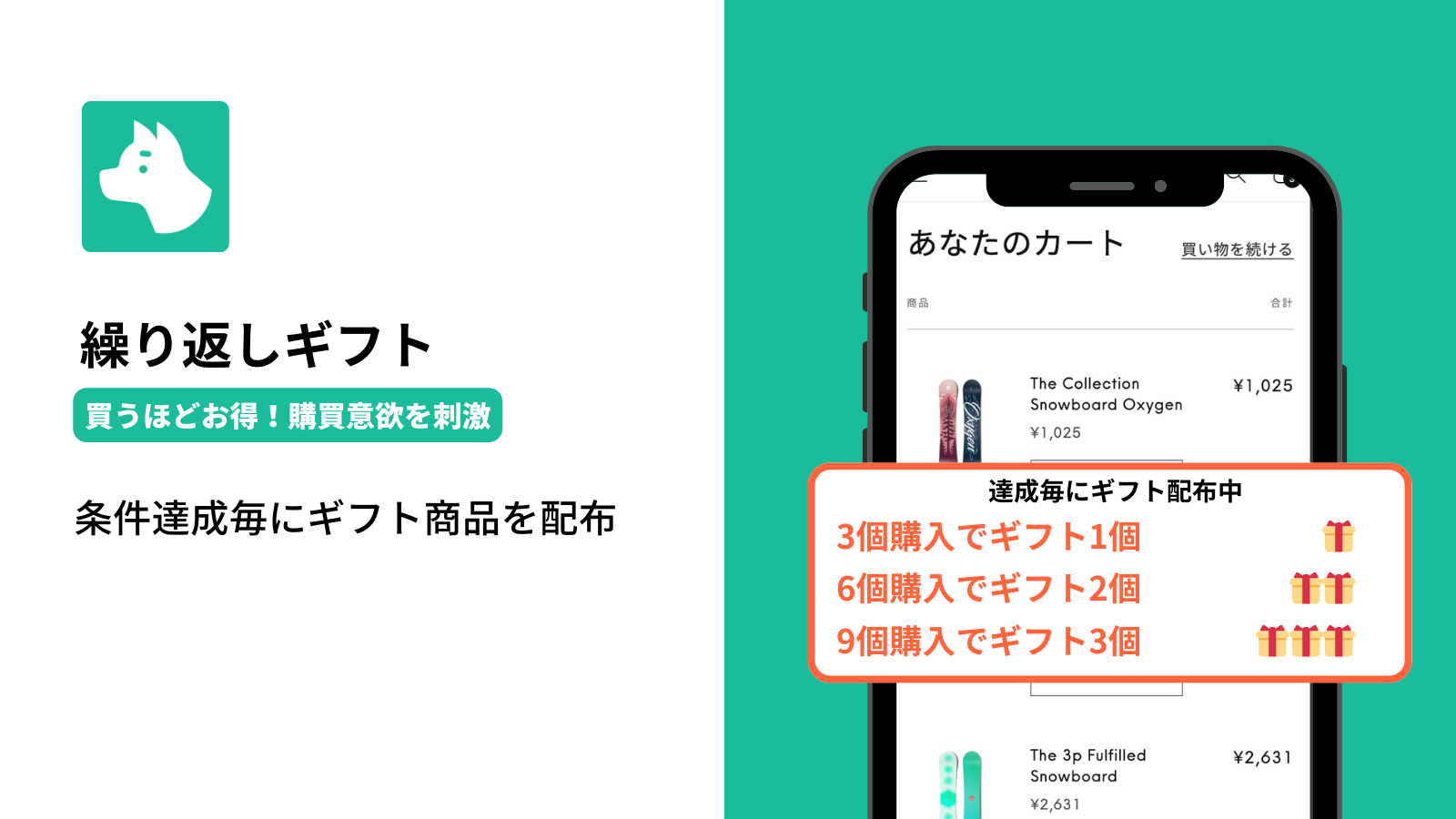
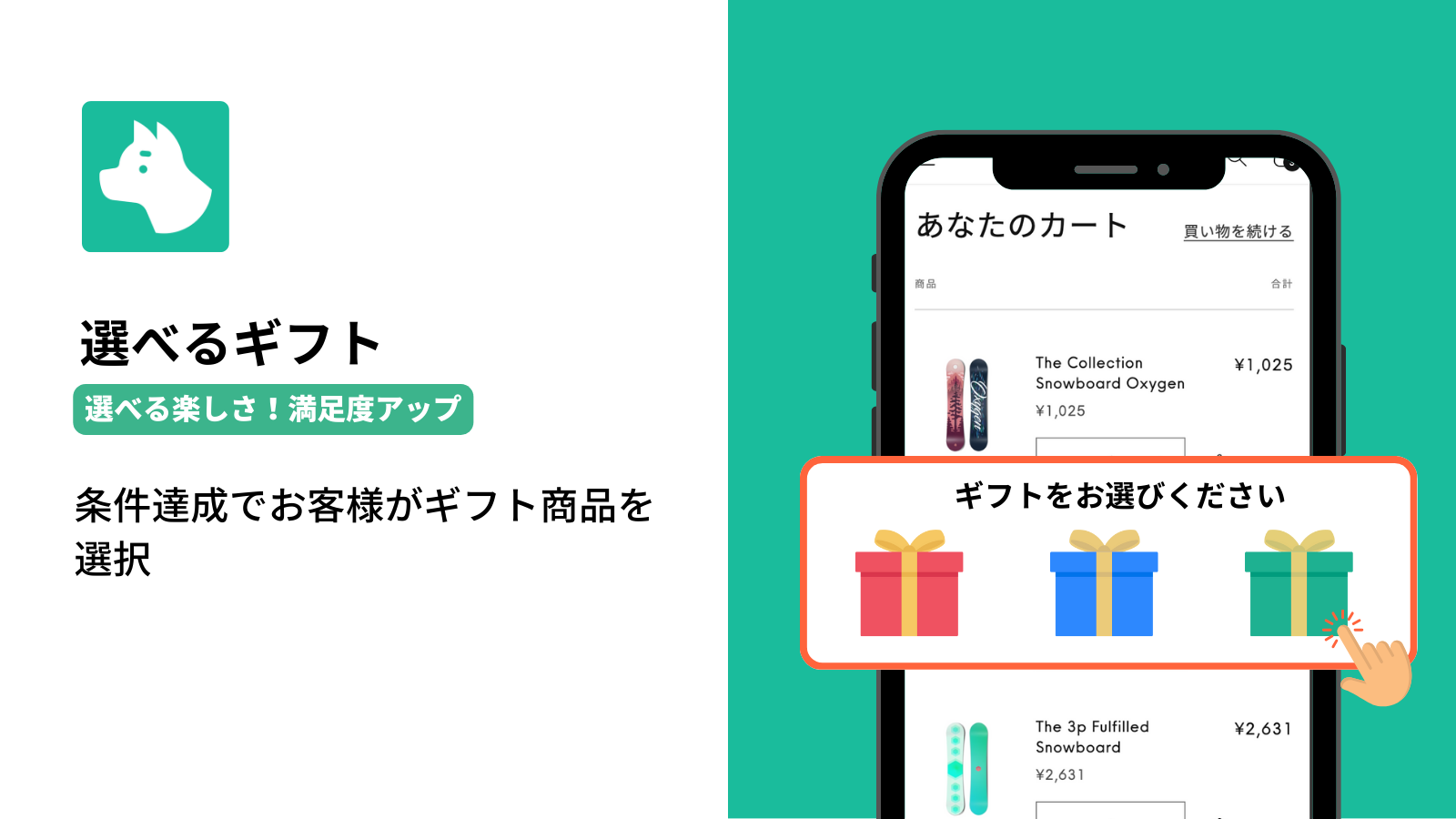
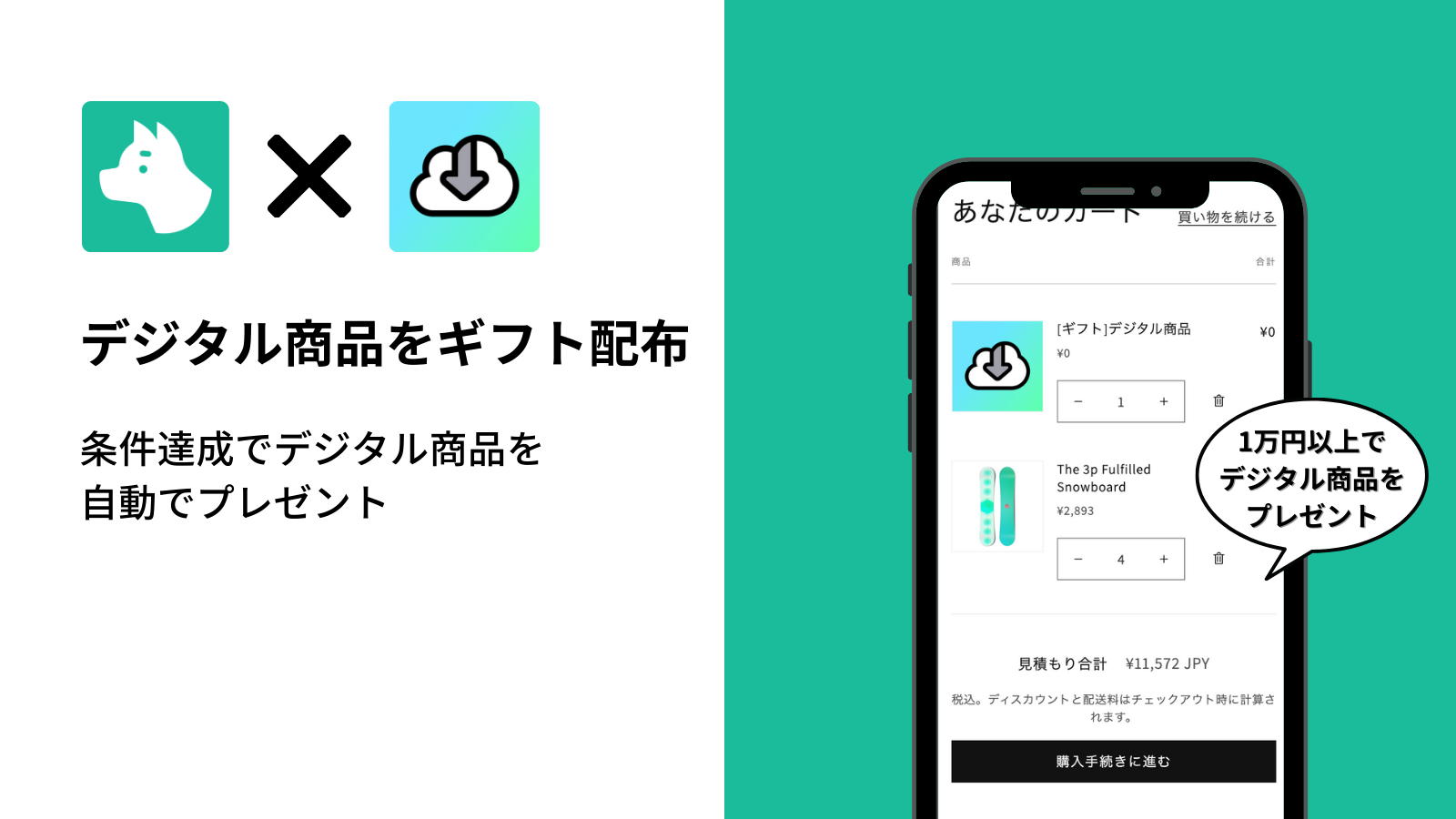
RuffRuff Order Bonus is a Shopify app that makes it easy to run discount and gift distribution campaigns based on a variety of conditions.
- Choice of discount application method: Choose between two types — automatic discounts and manual (code-based) discounts — allowing you to set up effective discounts for a variety of situations.
- Versatile discount settings: Set up product discounts, order discounts, and shipping discounts — all three can even be combined — enabling efficient promotions.
- Advanced discount options: Take advantage of features like maximum discount amount settings and rounding adjustment to deploy flexible discount strategies.
By using RuffRuff Order Bonus, you can offer customers attractive deals and contribute to increased sales. Strengthen your store's marketing even further with a wide range of campaigns.
How to Round Discounted Prices
In this section, we'll show you how to set up "rounding up the tens place of the discounted price."
In this example, we'll apply a 19% OFF product discount to a specific $1,000 product and set rounding up to the tens place.
As a result, the specific product will produce the following results depending on quantity.
For 1 unit
- Product price: $1,000
- Discounted price: $810 (19% OFF)
- Price after rounding: $900 (tens place rounded up)
For 2 units
- Product price: $2,000
- Discounted price: $1,620 (19% OFF)
- Price after rounding: $1,700 (tens place rounded up)
For 3 units
- Product price: $3,000
- Discounted price: $2,430 (19% OFF)
- Price after rounding: $2,500 (tens place rounded up)
The page below features a demo product configured with the same settings as this article. If you'd like to try the actual behavior, please check it out.

Prerequisite: Set Up the App
This article uses the Shopify app "RuffRuff Order Bonus." If you haven't installed RuffRuff Order Bonus yet, please install it first.

(1) Click "Enable app embed in your live theme" from the Setup guide on the app's top page.
(2) From the select box, choose the Shopify theme where you want to add the app.
(3) Click "Enable app".

(4) Enable "RuffRuff Order Bonus" on the left side of the theme editor.
(5) Click "Save" in the top right of the screen.
Step 1: Create a Discount Campaign

(1) Select "Discounts" from the left menu of the app.
(2) Click "Create campaign".

(3) Configure the following settings in the Campaign overview
- Campaign name: An arbitrary name used to manage the campaign within the app
- Discount title: The coupon code name displayed to customers
(4) In Active dates, set the period during which you want to run the discount

(5) In the discount settings, add a "Product discount"
(6) Configure the following settings for the product discount
- Select "Percentage" and enter "19"
- Select "Specific products" and choose the products you want to discount
- Check "Enable rounding adjustment"
- Select "Round up" for the rounding method
- Select "Adjust to the tens place" for the rounding unit

(7) Configure Display settings as needed
Configure this if you want to display campaign information within the widget.
(8) Configure Restrictions as needed
Configure this if you want to fine-tune settings such as the product types eligible for the discount or combinability with other discounts.
(9) Click "Save"
Step 3: Activate the Discount Campaign

(1) Open the discount campaign you created in Step 2
(2) Click "Activate"
That completes the setup.
In Conclusion
Rounding adjustment is not simply a matter of rounding prices — it's an important process for improving customer understanding and service quality. By implementing rounding adjustment effectively in Shopify, you can build greater trust in your business and improve customer satisfaction. Use this method to further strengthen your online store's competitiveness. We hope this article helps support your discount strategy.