When selling pre-order items in your Shopify store, have you ever wanted to collect only a partial payment (deposit) upfront instead of the full amount, and collect the remaining balance later? This approach is especially effective for items that take time to manufacture, custom-order items, and high-priced items.
This guide introduces how to use the RuffRuff Pre Order app to collect only a portion of the amount (e.g., 20%) upfront at checkout, and collect the remaining amount (e.g., 80%) at any time you choose, such as before shipping.
How to sell pre-order items with a partial upfront payment (deposit)
By completing the settings in this section, you can set up a system where "20% of the subtotal is paid upfront at checkout, and the remaining 80% is collected at any time you choose, such as before shipping." This is useful for pre-order items with a long lead time between order and shipping, or items with frequent cancellations.
The page below is a demo product that actually uses RuffRuff Pre Order to sell as a pre-order with a partial upfront payment (deposit). Please try it out for yourself.

Preparation: Enable the app embed
* If you have already completed the preparation for RuffRuff Pre Order, please skip this preparation and proceed to Step 1.

(1) Install RuffRuff Pre Order from the Shopify App Store
You can find "RuffRuff Pre Order" by searching for "ruffruff" in the Shopify App Store.

(2) Open the app and select "Plans" from the left menu
(3) Review the terms of service and check "I agree to the Terms of Service"
(4) Click "Change Plan" for the plan you want to subscribe to

(5) Review the plan details and click "Approve"

(6) From the Shopify admin, go to Online Store > Themes
(7) Click "Customize" on the Shopify theme you want to add the app to

(8) Select "App embeds" on the left side of the screen
(9) Enable the app embed named "RuffRuff Pre Order"
(10) Click "Save"
Step 1: Create a pre-order rule

(1) Click "Pre-order rules" in the left menu
(2) From the Pre-order rules page, click "Create rule"

(3) From the popup that appears, select "Pre order with purchase options"

(4) Enter any name you like for the rule name
(5) Configure the following settings under Conditions
- Inventory conditions: leave blank
- Start date: a date in the past
- Frequency: Daily
ℹ️ These conditions configure the rule to always run as a pre-order.

(6) Configure the following settings under Actions (Pre-order)
- Cart button text: Pre-order
- Product message: optional
- Order tag: optional
ℹ️ Actions (Pre-order) configures the behavior applied to the item during a pre-order. Setting the order tag to something like "Partial upfront payment" makes it easier to manage orders.

(7) Under Purchase options, configure partial upfront payment (deposit) settings
- Enable purchase options: check the box
- Pre-order plan name: enter any name you like
- Pre-order plan description: enter any description you like
- Balance due date: set the expected payment collection date
- Checkout amount (Deposit): 20%
ℹ️ The due date is only an estimate. To give customers a rough idea of when payment will be finalized, set as clear a date as possible.

(8) Configure checkout validation
- Enable: check the box
- Out of conditions limit alert message: any message you like
ℹ️ This setting displays an alert message on the checkout page and blocks the purchase if the item was unintentionally added to the cart without being in a pre-order state.
(9) Click "Save"
Step 2: Apply the pre-order rule to the relevant product

(1) Click "Products" in the left menu
(2) Check the products you want to apply the pre-order rule to
(3) Click "Apply rule"

(4) Select the rule you created in Step 1
(5) Click "Apply rule"
That completes the setup.
What happens when you set up a partial upfront payment (deposit)?
What happens to the product?

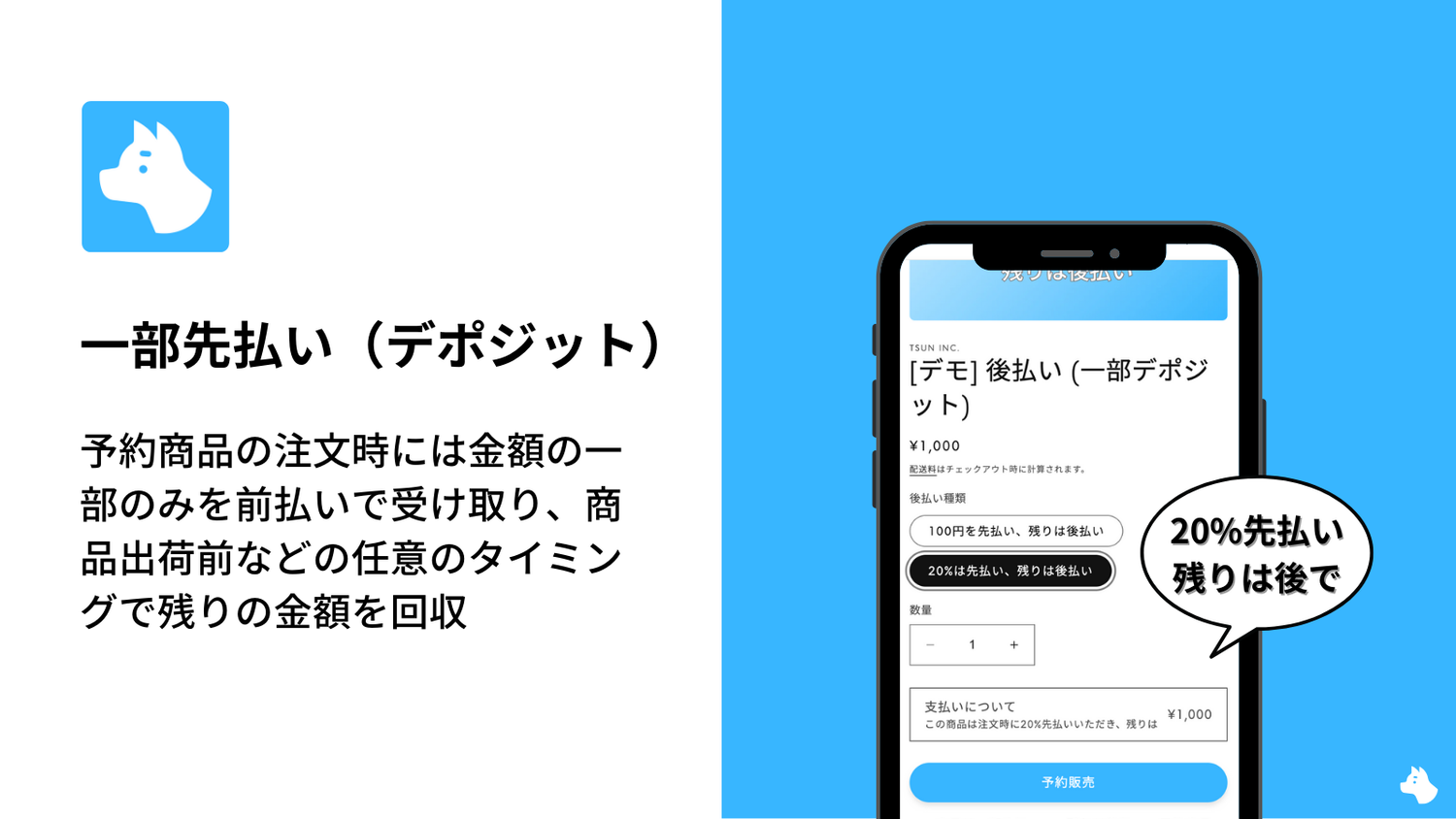
On the product page, the pre-order plan name and description configured under Purchase options are displayed above the cart button.
What happens at checkout?
When you add a pre-order item with a partial upfront payment (deposit) to your cart, the checkout page will look like this.

① At checkout, 20% of the subtotal is charged upfront, and the total due today shows the upfront amount. Below that, the due date and the total balance (80% of the subtotal plus tax and shipping) are displayed.
ℹ️ The subtotal is the total amount of items in the cart. Please note that shipping and tax are not included.

② The only available payment method is Shopify Payments.
③ Purchase option policy information is displayed.
What happens to the order?

The upfront payment amount and balance amount are displayed.
How do you collect payment for a partial upfront payment (deposit) order?
How to collect payment one order at a time
(1) Access the relevant order from Orders

(2) Click "Collect payment"
(3) Click "Charge $XX"
![In the dialog that appears, click 'Charge amount: ¥[amount]'](https://cdn.shopify.com/s/files/1/0660/8358/6101/files/TsunShot_2025-04-08_at_17.03.14_2x_84e70d19-cdea-4a31-8a6d-2e83a4ed3b34.png?v=1744101265)
(4) In the dialog that appears, click "Charge amount: ¥[amount]"
How to collect payment in bulk

(1) From Shopify Orders, select the orders you want to charge in bulk
(2) Click "⋯" (the more actions menu)
(3) Click "Charge deferred payments"

(4) You will be taken to the pre-order app's Charge deferred payments page, so click "Charge"
(5) A confirmation dialog will appear, so click "Charge"
Partial upfront payment (deposit) frequently asked questions (FAQ)
Q: Can I change the deposit percentage?
A: Yes, you can adjust the checkout amount percentage in RuffRuff Pre Order's settings. Set the optimal ratio based on the characteristics and price range of the item.
Q: What happens if the balance due date passes?
A: The order is not automatically canceled even after the due date passes. You can still collect the payment afterward.
Q: Are there any restrictions on payment methods?
A: For pre-orders with a partial upfront payment (deposit), only Shopify Payments (or PayPal Express) is available. Other payment services are not currently supported.
In closing
The steps above explained in detail how to set up pre-orders with a partial upfront payment (deposit). By using this, you can build a system that collects a portion of the amount upfront at checkout and collects the remaining balance later as a deferred payment. This mechanism could be the key to making your pre-orders successful.
If you have any questions or run into issues during setup or operation, please make full use of RuffRuff's Help Center and support features. You will find concrete solutions and tips for improving your operations.