In this article, we'll introduce how to run various sales based on login status and customer tag information using the Shopify app "RuffRuff Pre Order," which lets you achieve a variety of sales with simple settings.
What is RuffRuff Pre Order?

RuffRuff Pre Order is a Shopify app that makes it easy to run pre-orders on your online store. It is the only pre-order app in Japan chosen by Shopify itself as a top-quality app.
Beyond pre-orders, a single app also lets you run member-only sales, limited-time sales, member-only discounts, VIP member-only sales, limited-time sales, early-bird discounts, deferred payments, purchase restrictions, and quantity limits.
👇️ Click the table of contents below to find the sale method you'd like to implement in your own store.
How to run a member-only discount
Result

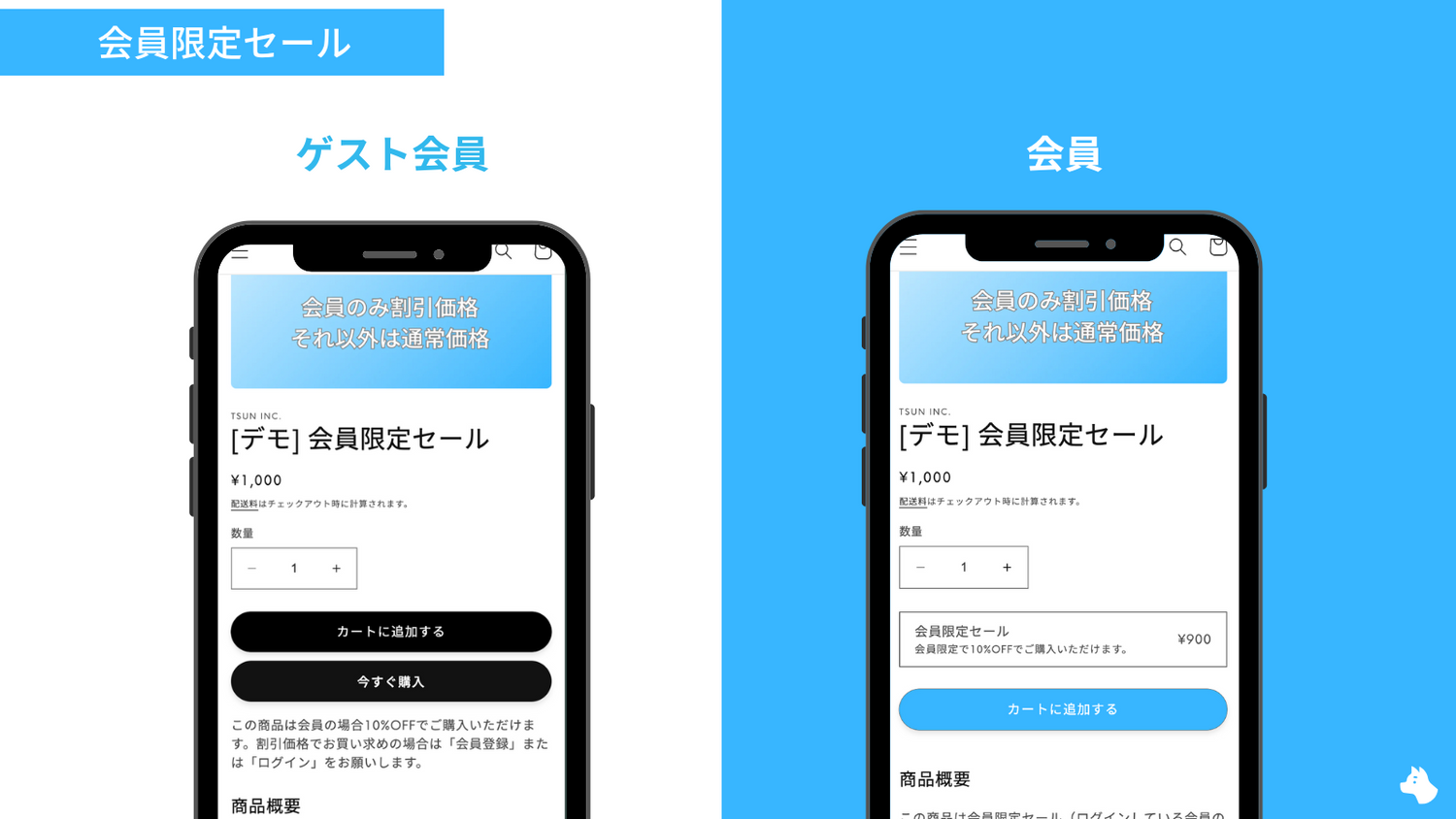
With this section's settings in place, the product will behave as follows depending on the visiting user's status.
Guest members (users who are not logged in)
- Sold at the regular price
Members (logged-in users)
- Sold at a 10% discounted price
- Displays a message indicating this is a member-only sale
The demo product below uses the same settings as this section. Please check out how it actually works.

Steps to set up a member-only discount
Preparation: Enable the App embed
※ If you have already completed the preparation for RuffRuff Pre Order, skip this preparation step and proceed to Step 1.

(1) Install RuffRuff Pre Order from the Shopify App Store
You can find "RuffRuff Pre Order" by searching "ruffruff" in the Shopify App Store.

(2) Open the app and select "Plans" from the left menu
(3) Review the Terms of Service and check "I agree to the Terms of Service"
(4) Click "Change Plan" for the plan you want to subscribe to

(5) Review the plan details and click "Approve"

(6) From the Shopify admin, go to Online Store > Themes
(7) Click "Customize" on the Shopify theme where you want to add the app

(8) Select "App embeds" on the left of the screen
(9) Enable the app embed named "RuffRuff Pre Order"
(10) Click "Save"
Step 1: Create a pre-order rule
First, create a pre-order rule. This defines "which users" get "how much" of a discount sale.

(1) Click "Pre-order rules" in the left menu
(2) From the pre-order rules page, click "Create rule"

(3) From the pre-order rule type, select "Pre order with purchase options"
Since we'll be using RuffRuff Pre Order's discount feature this time, be sure to select "Pre order with purchase options."

(4) Configure the following in Conditions
- Inventory: blank
- Start date/time: the date and time you want the member-only sale to begin
- Frequency: Daily
- Check "Sell only to customers have registered for an account."

(5) Configure the following in the "Pre-order" actions tab
- Cart button text: Add to cart
ℹ️ The "Pre-order" actions tab is the setting for members.

(6) Configure the following in the "If not met" actions tab
In this example, the following settings are used.
- Cart button appearance: Show cart button
- Product message: This product is 10% OFF for members. To purchase at the discounted price, please "sign up for an account" or "log in".
ℹ️ The "If not met" actions tab is the setting for guest members.

(7) Configure the discount percentage, etc. in Purchase options
- Enable purchase options: check the box
- Pre-order plan name: Member-only sale
- Pre-order plan description: Members only get 10% OFF.
- Discount: select Percentage and enter 10%
ℹ️ Purchase options is where you configure the discount.

(8) Optional: Enable Checkout validation
With this setting enabled, if a discounted product was added to the cart during the sale period, the checkout page will block the order from being placed after the sale has ended.
(9) Click "Save"
Step 2: Apply the pre-order rule to products

(1) Click "Products" in the left menu
(2) Check the products you want to apply the pre-order rule to
(3) Click "Apply rule"
(4) Select the rule you want to apply
(5) Click "Apply"
Step 3: Check the behavior
(1) Visit the product as a guest member (a user who is not logged in)
(2) Confirm that the price remains at the regular price
(3) Visit the product as a member (a logged-in user)
(4) Confirm that the 10% discounted price is displayed
How to run a VIP member-only sale
Result

With this section's settings in place, the product will behave as follows depending on the visiting user's status.
Guest members (users who are not logged in)
- Sold at the regular price
VIP members (users assigned the "VIP" tag)
- Sold at a 10% discounted price
- Displays a message indicating this is a VIP member-only sale
Regular members (logged-in users who are not VIP members)
- Sold at the regular price
The demo product below uses the same settings as this section. Please check out how it actually works.

Steps to set up a VIP member-only sale
Preparation: Enable the App embed
※ If you have already completed the preparation for RuffRuff Pre Order, skip this preparation step and proceed to Step 1.
(1) Install RuffRuff Pre Order from the Shopify App Store
You can find "RuffRuff Pre Order" by searching "ruffruff" in the Shopify App Store.
(2) Open the app and select "Plans" from the left menu
(3) Review the Terms of Service and check "I agree to the Terms of Service"
(4) Click "Change Plan" for the plan you want to subscribe to
(5) Review the plan details and click "Approve"
(6) From the Shopify admin, go to Online Store > Themes
(7) Click "Customize" on the Shopify theme where you want to add the app
(8) Select "App embeds" on the left of the screen
(9) Enable the app embed named "RuffRuff Pre Order"
(10) Click "Save"
Step 1: Create a pre-order rule
First, create a pre-order rule. This defines "which users" get "how much" of a discount sale.
(1) Click "Pre-order rules" in the left menu
(2) From the pre-order rules page, click "Create rule"
(3) From the pre-order rule type, select "Pre order with purchase options"
Since we'll be using RuffRuff Pre Order's discount feature this time, be sure to select "Pre order with purchase options."

(4) Configure the following in Conditions
- Inventory: blank
- Start date/time: the date and time you want the member-only sale to begin
- Frequency: Daily
- Check "Sell only to customers have registered for an account."
- Customer tags: enter "VIP"

(5) Configure the following in the "Pre-order" actions tab
- Cart button text: Add to cart
ℹ️ The "Pre-order" actions tab is the setting for VIP members.

(6) Configure the following in the "If not met" actions tab
In this example, the following settings are used.
- Cart button appearance: Show cart button
ℹ️ The "If not met" actions tab is the setting for guest members and regular members.

(7) Configure the discount percentage, etc. in Purchase options
- Enable purchase options: check the box
- Pre-order plan name: VIP member-only sale
- Pre-order plan description: VIP members only get 10% OFF.
- Discount: select Percentage and enter 10%
ℹ️ Purchase options is where you configure the discount.
(8) Optional: Enable Checkout validation
With this setting enabled, if a discounted product was added to the cart during the sale period, the checkout page will block the order from being placed after the sale has ended.
(9) Click "Save"
Step 2: Apply the pre-order rule to products
(1) Click "Products" in the left menu
(2) Check the products you want to apply the pre-order rule to
(3) Click "Apply rule"
(4) Select the rule you want to apply
(5) Click "Apply"
Step 3: Check the behavior
(1) Visit the product as a guest member (a user who is not logged in)
(2) Confirm that the price remains at the regular price
(3) Visit the product as a VIP member (a user assigned the "VIP" tag)
(4) Confirm that the 10% discounted price is displayed
(5) Visit the product as a regular member (a logged-in user who is not a VIP member)
(6) Confirm that the price remains at the regular price
How to run a sale limited to Silver members and above
Assumptions
Assume your Shopify store has implemented the following membership tier system.
- Normal members (no customer tag)
- Bronze members (users assigned the "Bronze" tag)
- Silver members (users assigned the "Silver" tag)
- Gold members (users assigned the "Gold" tag)
Result
With this section's settings in place, the product will behave as follows depending on the visiting user's status.
Guest members (users who are not logged in)
- Sold at the regular price
Silver members and above (Silver and Gold members)
- Sold at a 10% discounted price
- Displays a message indicating this sale is limited to Silver members and above
Bronze members and below (Normal and Bronze members)
- Sold at the regular price
Steps to set up a sale limited to Silver members and above
Preparation: Enable the App embed
First, install the Shopify app "RuffRuff Pre Order," which lets you run discount sales based on customer tags.

(1) Open the RuffRuff Pre Order page from the Shopify App Store
(2) Click "Install"

(3) Review the permissions the app requests and click "Install"

(4) Open the pre-order app and click "Plans" in the left menu
(5) Review the Terms of Service and check "I agree to the Terms of Service"
(6) Select the plan that fits your needs

(7) Review the plan details and click "Approve"

(8) Go to "Online Store > Themes"
(9) Click "Customize" on the theme where you'll use the app

(10) Click the app embeds icon on the left of the screen
(11) Enable the app embed named "RuffRuff Pre Order"
(12) Click "Save"
Step 1: Create a pre-order rule
Next, create a "pre-order rule" that applies the discount only to Silver and Gold members.

(1) Open the pre-order app and click "Pre-order rules" in the left menu
(2) Click "Create rule"

(3) From the pre-order type, choose "Pre order with purchase options"

(4) Configure the following in Conditions
- Inventory: blank
- Start date/time: the date and time you want the Silver-and-above member-only sale to start
- End date/time: the date and time you want the Silver-and-above member-only sale to end
- Frequency: Daily
- Check "Sell only to customers have registered for an account."
- From the Customer tags dropdown, select "If any customer tags are met"
- Customer tags: add the "Silver" and "Gold" tags
ℹ️ With this setting, only members assigned the "Silver" tag or the "Gold" tag will meet the condition (and be eligible for the discount).

(5) Configure the following in the "Pre-order" actions tab
- Cart button text: Add to cart
- Product message: any message you'd like
ℹ️ The "Pre-order" actions tab is the setting for users who are Silver members and above.

(6) Configure the discount percentage, etc. in Purchase options
- Enable purchase options: check the box
- Pre-order plan name: Silver-and-above member-only sale
- Pre-order plan description: Silver members and above get 10% OFF.
- Discount: select Percentage and enter 10%
ℹ️ Purchase options is where you configure the discount.
(7) Click "Save"
(8) Optional: Enable Checkout validation
With this setting enabled, if a discounted product was added to the cart during the sale period, the checkout page will block the order from being placed after the sale has ended.
(9) Click "Save"
Step 2: Apply the pre-order rule to products
Apply the pre-order rule created in Step 1 to the products you want to run the limited sale on.

(1) Open the pre-order app and click "Products" in the left menu
(2) Check the products you want to run the limited sale on
(3) Click "Apply rule"

(4) From the pop-up, choose the pre-order rule created in Step 2
(5) Click "Apply"
Step 3: Check the behavior
(1) Visit the product as a guest member (a user who is not logged in)
(2) Confirm that the price remains at the regular price
(3) Visit the product as a Silver or Gold member
(4) Confirm that the 10% discounted price is displayed
(5) Visit the product as a Normal or Bronze member
(6) Confirm that the price remains at the regular price
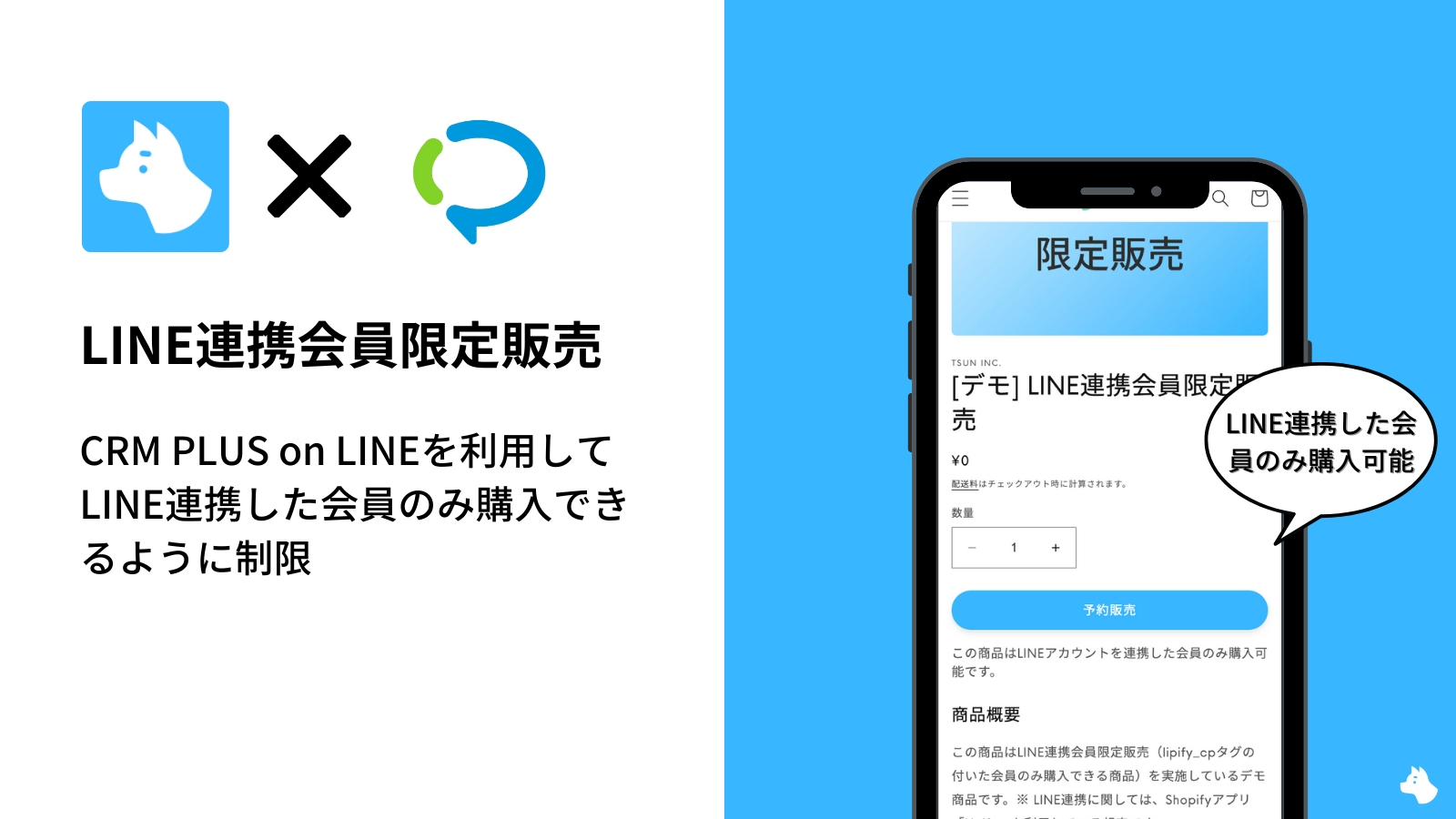
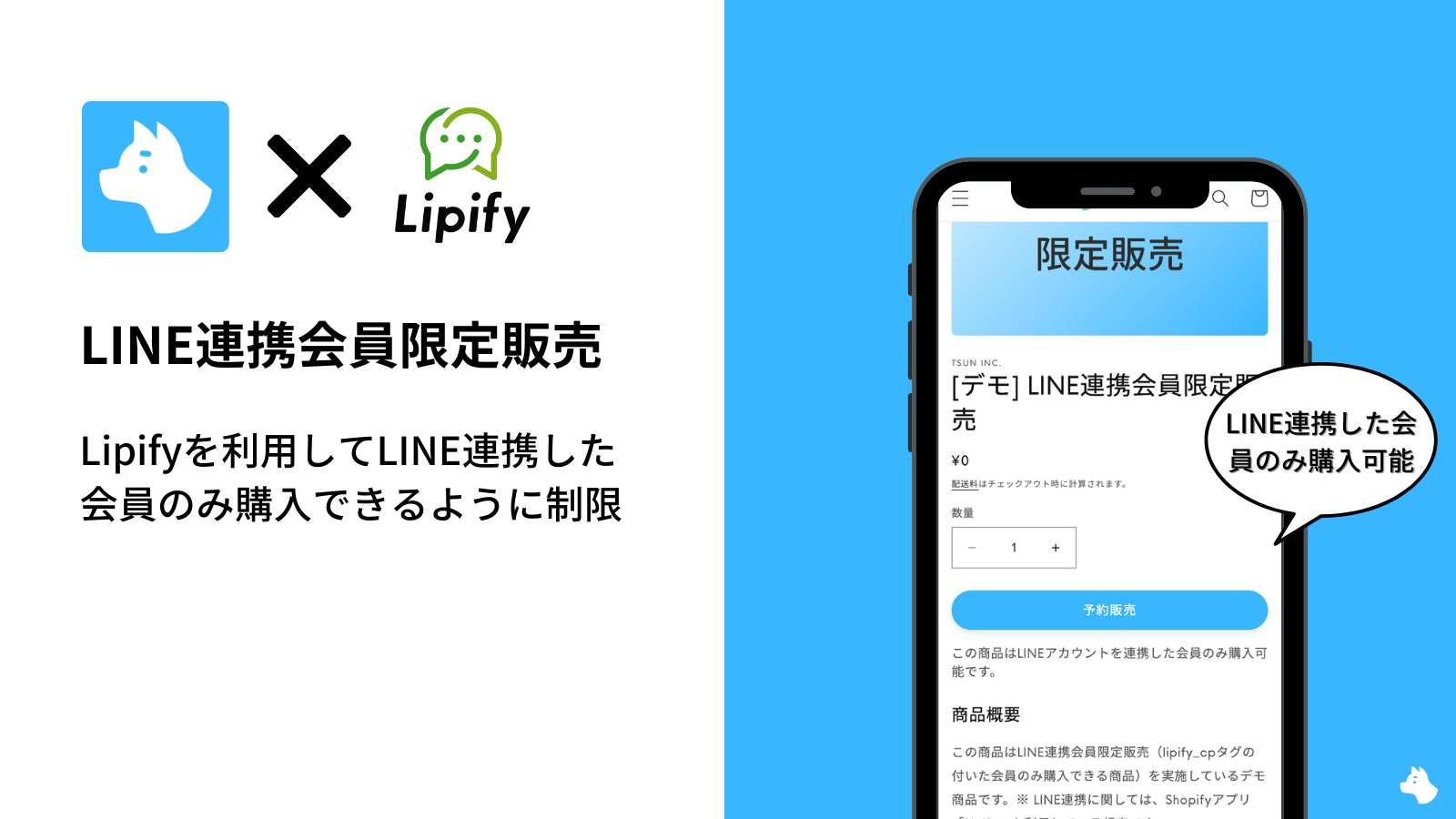
How to run a sale limited to LINE-linked members
Result

With this section's settings in place, the product will behave as follows depending on the visiting user's status.
Guest members (users who are not logged in)
- Sold at the regular price
LINE-linked members (users assigned the "line" tag)
- Sold at a 10% discounted price
- Displays a message indicating this is a VIP member-only sale
Regular members (logged-in users who are not LINE-linked members)
- Sold at the regular price
The demo product below uses the same settings as this section. Please check out how it actually works.

Steps to set up a LINE-linked member-only sale
Preparation: Enable the App embed
※ If you have already completed the preparation for RuffRuff Pre Order, skip this preparation step and proceed to Step 1.
(1) Install RuffRuff Pre Order from the Shopify App Store
You can find "RuffRuff Pre Order" by searching "ruffruff" in the Shopify App Store.
(2) Open the app and select "Plans" from the left menu
(3) Review the Terms of Service and check "I agree to the Terms of Service"
(4) Click "Change Plan" for the plan you want to subscribe to
(5) Review the plan details and click "Approve"
(6) From the Shopify admin, go to Online Store > Themes
(7) Click "Customize" on the Shopify theme where you want to add the app
(8) Select "App embeds" on the left of the screen
(9) Enable the app embed named "RuffRuff Pre Order"
(10) Click "Save"
Step 1: Create a pre-order rule
First, create a pre-order rule. This defines "which users" get "how much" of a discount sale.
(1) Click "Pre-order rules" in the left menu
(2) From the pre-order rules page, click "Create rule"
(3) From the pre-order rule type, select "Pre order with purchase options"
Since we'll be using RuffRuff Pre Order's discount feature this time, be sure to select "Pre order with purchase options."

(4) Configure the following in Conditions
- Inventory: blank
- Start date/time: the date and time you want the member-only sale to begin
- Frequency: Daily
- Check "Sell only to customers have registered for an account."
- Customer tags: enter "line"
ℹ️ If you use "CRM PLUS on LINE" as your LINE integration app, set the customer tag to "line"; if you use "Lipify," set the customer tag to "lipify_cp".

(5) Configure the following in the "Pre-order" actions tab
- Cart button text: Add to cart
ℹ️ The "Pre-order" actions tab is the setting for LINE-linked members.

(6) Configure the following in the "If not met" actions tab
- Cart button appearance: Show cart button
- Product message: This product can be purchased at a 10% discount only by LINE members. To buy at the discounted price, LINE integration is required. First, please "sign up for an account" or "log in".
ℹ️ The "If not met" actions tab is the setting for guest members and regular members.

(7) Configure the discount percentage, etc. in Purchase options
- Enable purchase options: check the box
- Pre-order plan name: LINE members only 10% OFF
- Pre-order plan description: LINE-linked members only get 10% OFF.
- Discount: select Percentage and enter 10%
ℹ️ Purchase options is where you configure the discount.
(8) Optional: Enable Checkout validation
With this setting enabled, if a discounted product was added to the cart during the sale period, the checkout page will block the order from being placed after the sale has ended.
(9) Click "Save"
Step 2: Apply the pre-order rule to products
(1) Click "Products" in the left menu
(2) Check the products you want to apply the pre-order rule to
(3) Click "Apply rule"
(4) Select the rule you want to apply
(5) Click "Apply"
Step 3: Check the behavior
(1) Visit the product as a guest member (a user who is not logged in)
(2) Confirm that the price remains at the regular price
(3) Visit the product as a LINE-linked member (a user assigned the "line" tag)
(4) Confirm that the 10% discounted price is displayed
(5) Visit the product as a regular member (a logged-in user who is not LINE-linked)
(6) Confirm that the price remains at the regular price
In closing
In this article, we explained in detail how to run member-only sales and VIP member-only sales using the "RuffRuff Pre Order" app.
By making use of the RuffRuff app, you can achieve flexible and effective member-only sales. We recommend configuring and operating it appropriately to match your own marketing strategy.