In this article, for those who have built a membership rank system using Ranky, we introduce how to set up a "gold-member-exclusive sale," which uses RuffRuff Order Limits to allow only customers with a Gold rank or higher to purchase specific products.
Prerequisites

This article assumes that you have built the following membership ranks using Ranky on your Shopify store. "Customers with a Gold rank or higher" refers to Gold members and Platinum members.
Membership Ranks
| Membership Rank | Condition |
|---|---|
| Platinum | Total purchase amount of ¥30,000 or more |
| Gold | Total purchase amount of ¥10,000 or more |
| Silver | Total purchase amount of ¥3,000 or more |
| Bronze | Total purchase amount of ¥500 or more |
| Standard | Total purchase amount of ¥0 or more |
What Is Ranky?

Source: Ranky | Shopify App Store
Ranky is a Shopify app that lets you start running a membership rank system on your Shopify store "easily."
You can assign ranks based on the total purchase amount or number of purchases within a specified period, such as the past month or past year, as well as by specific customer tags. Since ranks are stored in a customer metafield, they can also be used in your storefront or in integrations with external apps. Rank evaluation runs on a recurring schedule (daily, monthly, etc.) as well as on events (when an order is placed, when an order is cancelled, when a new customer registers, when a customer's tags are updated, etc.).
You can also add a membership card showing the membership rank and a barcode (1D or 2D) of the member ID to pages such as the customer account page, without any coding.
The blog article below explains Ranky's features, pricing plans, and setup process in detail. Please use it as a reference.

How to Build a Membership Rank System with Ranky

If you have not yet built a membership rank system using Ranky, please set it up via the Ranky help page.
Outcome
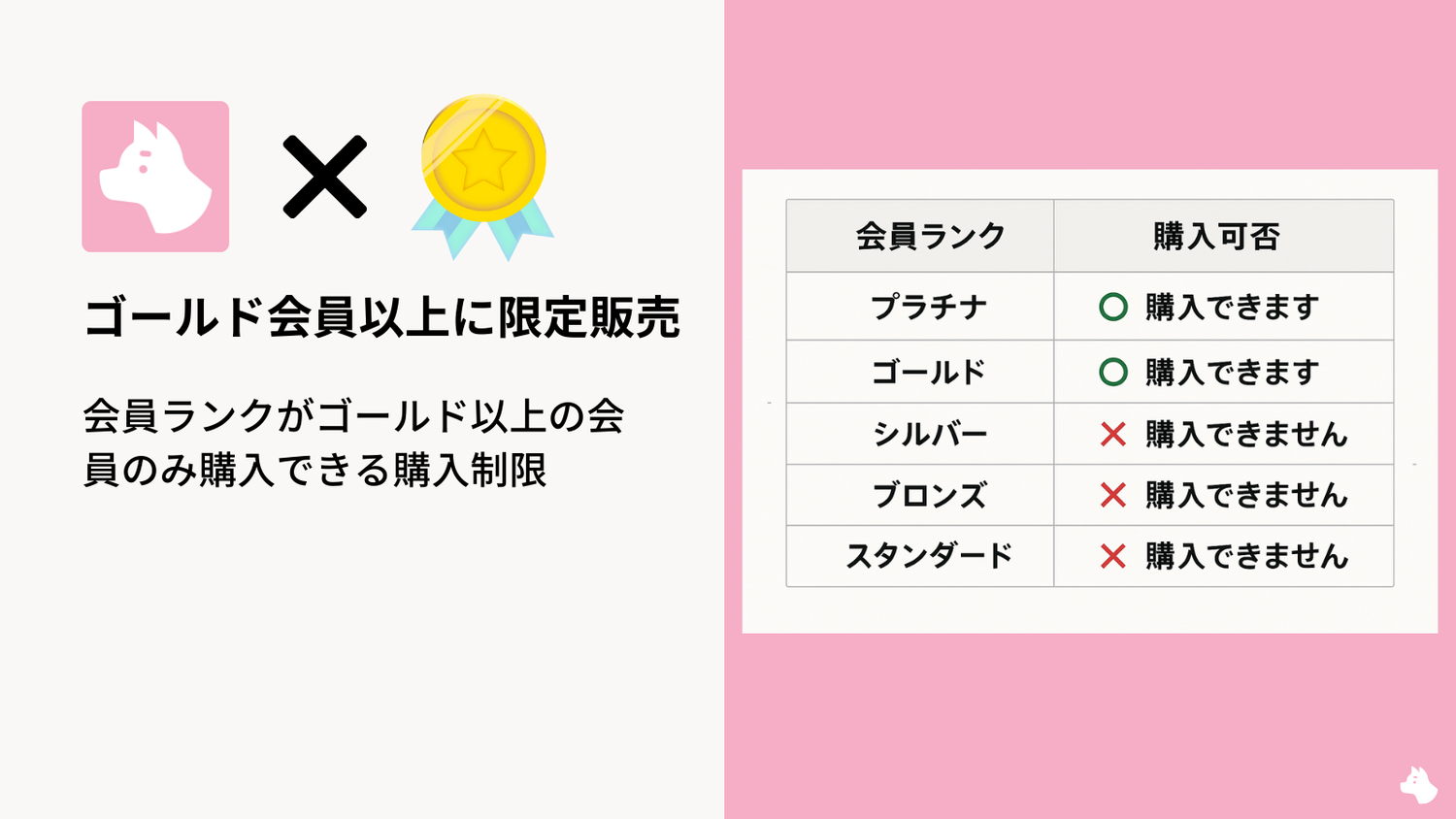
By making the settings described in this article, the target product will behave as follows depending on the membership rank of the customer who accesses it.
| Membership Rank | Can Purchase |
|---|---|
| Platinum | ◯ Can purchase |
| Gold | ◯ Can purchase |
| Silver | ✕ Cannot purchase |
| Bronze | ✕ Cannot purchase |
| Standard | ✕ Cannot purchase |
How to Set Up a Gold-Member-Exclusive Sale
This section explains how to set up a gold-member-exclusive sale, for those who have already built a membership rank system with Ranky and are setting up RuffRuff Order Limits for the first time.
If you are already using RuffRuff Order Limits, please refer to Steps 2, 3, and 5.
Step 1: Install the App

(1) Go to the RuffRuff Order Limits page on the Shopify App Store
(2) Click "Install"

(3) Open the app and click "Choose a plan" in the setup guide

(4) Select the plan you want to subscribe to, either monthly or annual billing

(5) Review the plan details and click "Approve"
Step 2: Create a Customer Rule

(1) Return to the app and expand "Create a rule" in the setup guide
(2) Click "Customer rule"

(3) Set any name you like for the title
The title is a name used to manage the rule within the app. It is therefore not shown to customers.
(4) Check "Require account"
If checked, customers will be required to log in in order to make a purchase. If a login is not required, leave this unchecked. (Note that if left unchecked, the check will only be performed on the checkout page.)
(5) Configure the customer metafield as follows
- Namespace: rw_ranky
- Key: rank
- Value: add Gold and Platinum
In Ranky, the rank name data is inserted into the customer metafield with the namespace and key "rw_ranky.rank."

(6) In Eligible items, set the products for which you want to run the exclusive sale
(7) Set any message you like in Product message
The Product message is displayed above (or below) the Add to cart button on the target product.
(8) Set any message you like in Alert message
The Alert message is displayed when a member who is not allowed to purchase attempts to purchase the target product.
(9) Click "Save"
Step 3: Enable the Customer Rule

(1) Return to the top page and expand "Enable rules" in the setup guide
(2) Click "Customer rule"

(3) Open the customer rule created in Step 2
(4) Click "Enable"
Step 4: Enable the App Embed

(1) Return to the top page and expand "Enable the app embed in your main theme" in the setup guide
(2) Click "Enable app"

(3) Enable the app embed named "RuffRuff Order Limits"
(4) Click "Save"

Return to the top page, and once all tasks in the setup guide are complete, the setup is finished.
Step 5: Verify the Behavior

(1) Access the product page of the target product and confirm that the Product message is displayed

(2) Try adding the product to the cart as a member with a Silver rank or lower, and confirm that the Alert message is displayed

(3) Try adding the product to the cart as a member with a Gold rank or higher, and confirm that it can be added to the cart
If (1) through (3) work as intended, everything is fine. If they do not work as intended, please refer to the help page below for troubleshooting.

Conclusion
The above is the setup process for running a gold-member-exclusive sale by using "Ranky" together with "RuffRuff Order Limits."
Be sure to test the behavior and check that the limit is working as expected.
If you have any questions about the settings or if something is not working correctly, please refer to the support desk or the manual for assistance.