Skip to content
Order Limits

How to limit Shopify campaign purchases to 2 items in total

How to limit Shopify campaign purchases to 2 items in total

Use Cumulative quantity rules in RuffRuff Order Limits to limit purchases to 2 items across separate orders during one campaign. Select Whole rule, require login, and set a start and end date and time.

This guide uses fictional anniversary mugs to explain the setup and the purchase checks to carry out.

This setup requires the Full plan and cumulative purchase limits to be enabled.

Allow up to 2 items per customer, across both colors

The collection contains an ivory mug (¥2,200) and a sage mug (¥2,600). A customer who buys one ivory mug can add one sage mug in a separate order. Both colors share the same allowance of 2 items.

Ivory and sage anniversary demo mugs
Illustrations of the fictional demo products used in this setup.
Anniversary mug product page
An example limiting the two eligible mugs to 2 items during the campaign. The screenshot shows the Japanese interface.

The examples below assume the customer is logged in during the campaign. Check additional purchases after the earlier order has appeared in the cumulative total.

Purchase scenarioAlready purchased during the campaignItems in this orderExpected decision
First purchase01 ivory mugAllowed
Another order1 ivory mug1 sage mugAllowed: total of 2
Over the limit1 ivory mug2 sage mugsBlocked at checkout: total of 3
Logged outNot yet evaluated1 eligible itemLogin required at checkout

Separate the purchase-limit window from the selling period

The “Set a date range” setting controls when the cumulative rule restricts and counts purchases. Once the end time is reached, the rule stops restricting purchases; it does not stop the product from being sold. Set up separate sales-period controls if sales must also end.

The campaign window is October 23, 2026 at 10:00 through October 30, 2026 at 10:00, in the store timezone Asia/Tokyo. The start is inclusive and the end is exclusive.

If sales must also end, see how to set up limited-time sales.

Before and after the window, this rule does not restrict or count purchases. The start is inclusive and the end is exclusive.
Conceptual diagram. Scroll horizontally to read it on smaller screens.

Set the date range and the limit of 2

1. Create a dedicated collection

Create an anniversary-mug collection containing ivory and sage. Leave unrestricted products out. Avoid changing collection membership immediately after an order, while its contribution may still be processing.

2. Select Whole rule, a limit of 2, and required login

  1. Create a cumulative quantity rule and target the anniversary-mug collection.
  2. Choose Whole rule and enter a limit of 2.
  3. Turn on Require customers to log in.

Product or Variant would give each product or variant its own allowance.

A limit of 2 across the collection
Whole rule combines the eligible products across the collection. The screenshot shows the Japanese interface.

3. Set a date range and leave scheduled resets off

  1. Turn on Set a date range.
  2. Enter the start and end date and time, then check the store timezone.
  3. Leave Reset totals on a schedule off.

The same allowance applies throughout the campaign, without a reset.

Create the rule at 18:21 on October 23, 2026 (Asia/Tokyo). Because this is after the campaign starts, orders from 10:00 through 18:21 that day are not counted retroactively. Check the target, aggregation unit, and dates before saving: these cannot be changed after tracking starts.

Campaign start and end settings
A fixed date range applies, without a scheduled reset during the campaign. The screenshot shows the Japanese interface.

4. Reopen the saved settings and check tracking

Reopen the saved rule and verify its target, limit, login requirement, dates, and tracking start. Check that it is enabled and that the product-page message appears. The theme app embed must also be enabled to display the message.

Check the first purchase, another order, and dates outside the window

Use the cart to check the current cart quantity against the limit. Check past purchases and the login requirement at checkout. The quantity picker's cap is not the customer's remaining allowance.

1. Wait for the first order to count before checking another purchase

With a dedicated test customer, buy one ivory mug and confirm that the cumulative total becomes 1. This can take a few minutes. Then check that one sage mug is allowed at a total of 2, while two sage mugs are blocked at a total of 3.

Compare these additional purchases without placing the second order. Completing it would change the purchase history and invalidate the comparison.

Checkout with 1 item purchased earlier and 1 more item
After 1 purchased item is reflected in the total, 1 different eligible item can proceed to checkout. This order was not placed. The screenshot shows the Japanese interface.
Restriction when the combined quantity reaches 3
1 item purchased earlier plus 2 more exceeds the limit of 2. The screenshot shows the Japanese interface.

2. Check logged-out customers and dates outside the window

Proceed to checkout while logged out and confirm that login is required. Do not finish testing at the cart.

Checkout when the customer is not logged in
Customer login is required at checkout for eligible products. The screenshot shows the Japanese interface.

Before the start and from the exact end onward, this cumulative rule neither restricts nor counts purchases. Inventory and other rules still apply. Also check orders near the end time to make sure the behavior fits your sales policy.

Account for earlier orders, cancellations, and simultaneous purchases

Canceling a whole counted order subtracts that order's quantity. Returns, refunds, and order edits do not update the cumulative total. A refund alone does not restore the allowance.

A repeat purchase before aggregation finishes, or simultaneous checkouts, may exceed the limit. The feature also does not identify the same person across separate customer accounts. It does not guarantee prevention of excess purchases through multiple accounts or simultaneous checkouts.

Changing the target or dates requires a new rule. Stopping a rule cannot be undone. This differs from temporarily disabling restrictions: counting continues while the rule is disabled.

Review the app and try a demo

Cumulative quantity rules require the Full plan. See the official cumulative quantity help (Japanese) for permissions and aggregation details. Explore the app and its purchase-limit demos below.

Shopify × Discounts

View all articles
How to Set Up Discounts on Subscription Products by Membership Rank in Shopify

How to Set Up Discounts on Subscription Products by Membership Rank in Shopify

Learn how to vary subscription prices by membership rank using Shopify Subscription. Using the RuffRuff Order Bonus app, this guide walks through — with screenshots — how to automatically apply a t...

【2026年最新】Shopifyディスカウント施策17選|無料の割引機能からアプリまで、売上UPとリピート促進を実現

[2026 Latest] 17 Shopify Discount Strategies | From Free Discount Features to Apps — Boost Sales and Drive Repeat Purchases

The complete guide to Shopify discount strategies. From free built-in features to advanced apps, this article covers 17 strategies that boost sales and drive repeat purchases at the same time. Expl...

How to Set Up Volume Discounts on Shopify | Simple Bulk-Purchase Discount Settings

How to Set Up Volume Discounts on Shopify | Simple Bulk-Purchase Discount Settings

This article explains how to set up volume discounts (bulk-purchase discounts) on Shopify using the easy-to-configure Shopify app "RuffRuff Order Bonus."

How to Set Up Tiered Shipping Discounts Based on Cart Quantity in Shopify | Free Shipping or Half-Price Shipping Based on Item Count

How to Set Up Tiered Shipping Discounts Based on Cart Quantity in Shopify | Free Shipping or Half-Price Shipping Based on Item Count

This article clearly explains, step by step, how to use the Shopify app "RuffRuff Order Bonus" — which is easy to use with simple settings — to set up half-price or free shipping when customers pur...

How to Set Discount Rates by Membership Rank in Shopify | Discounts Using Customer Tags

How to Set Discount Rates by Membership Rank in Shopify | Discounts Using Customer Tags

Learn how to set up membership-rank discounts using the simple, easy-to-configure Shopify app "RuffRuff Order Bonus." This guide walks through the setup steps in detail for applying tiered discount...

How to Offer Free Shipping Exclusively for VIP Members on Shopify | Simple Setup for Free Shipping When Customers Have the VIP Customer Tag

How to Offer Free Shipping Exclusively for VIP Members on Shopify | Simple Setup for Free Shipping When Customers Have the VIP Customer Tag

Boost customer loyalty by offering free shipping exclusively to VIP members! This article gives a beginner-friendly explanation of how to set up shipping discounts using customer tags with the easy...

Shopify × Pre-Orders

View all articles
Shopifyで期間限定セールを実施する3つの方法 - 純正機能からアプリ活用まで

Shopify Limited-Time Sale Guide: Comparing and Explaining 3 Methods

A thorough guide to the three ways to run a limited-time sale on Shopify. Compares the built-in feature, manual setup, and dedicated apps, along with the pros and cons of each and how to use RuffR...

Implementing VIP Member-Only Sales on Shopify | The Complete Guide with RuffRuff Apps

Implementing VIP Member-Only Sales on Shopify | The Complete Guide with RuffRuff Apps

A detailed guide to implementing VIP member-only sales on Shopify. A complete step-by-step setup guide using the RuffRuff Order Limits and RuffRuff Pre Order apps. Boost customer loyalty and increa...

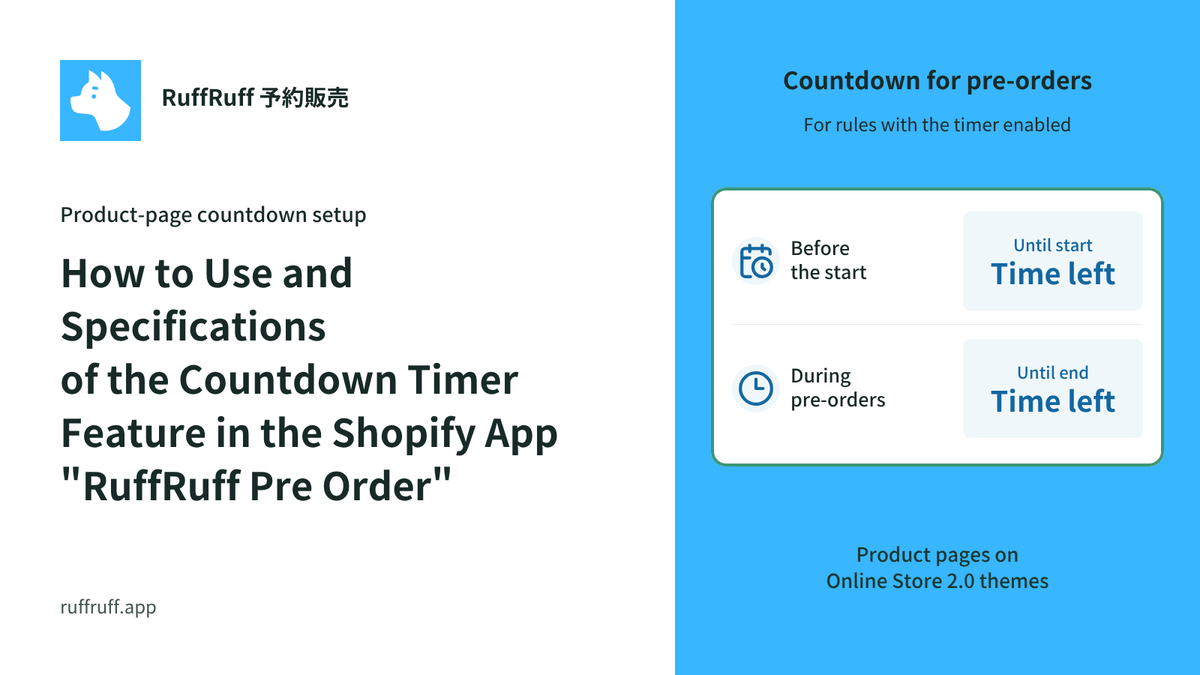
How to Use and Specifications of the Countdown Timer Feature in the Shopify App "RuffRuff Pre Order"

How to Use and Specifications of the Countdown Timer Feature in the Shopify App "RuffRuff Pre Order"

Explains the basic steps for installing the "Countdown Timer" feature of RuffRuff Pre Order on the product page. Assuming an Online Store 2.0 compatible theme, this briefly summarizes the key point...

[Shopify] How to Offer Exclusive Sales for LINE Members | Using CRM PLUS on LINE × RuffRuff Pre Order

[Shopify] How to Offer Exclusive Sales for LINE Members | Using CRM PLUS on LINE × RuffRuff Pre Order

Explains how to combine CRM PLUS on LINE with RuffRuff Pre Order to offer products exclusively to LINE-linked members and sell at discounted prices. This article introduces, step by step, effective...

[Shopify] How to Run Exclusive Sales for LINE-Linked Members | A Use Case of Lipify × RuffRuff Pre Order

[Shopify] How to Run Exclusive Sales for LINE-Linked Members | A Use Case of Lipify × RuffRuff Pre Order

This article explains how to sell products exclusively to LINE-linked members on Shopify. It introduces recommended Shopify apps and shares example settings for exclusive sales and promotions for L...

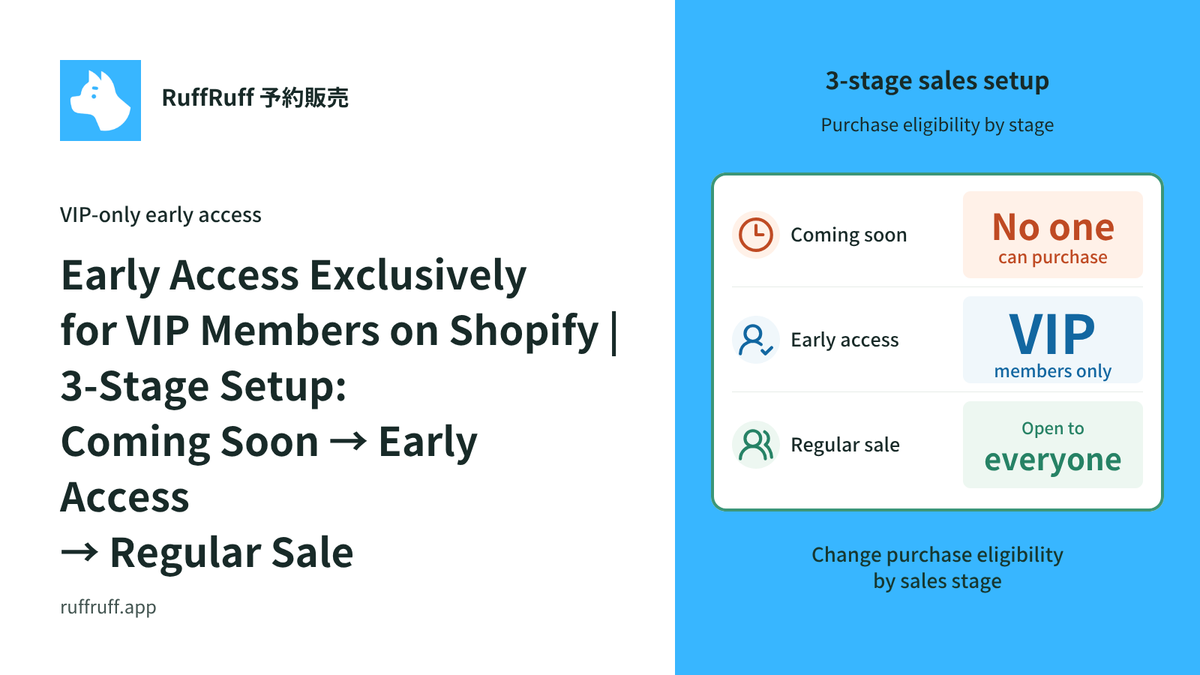
Early Access Exclusively for VIP Members on Shopify | 3-Stage Setup: Coming Soon → Early Access → Regular Sale

Early Access Exclusively for VIP Members on Shopify | 3-Stage Setup: Coming Soon → Early Access → Regular Sale

A detailed explanation of how to run early access exclusively for VIP members on Shopify. Using the RuffRuff Pre Order app, this article introduces step by step how to implement effective member-ex...

Shopify × Purchase Limits

View all articles
How to limit Shopify campaign purchases to 2 items in total

How to limit Shopify campaign purchases to 2 items in total

Limit eligible campaign purchases to 2 items per customer across separate orders. This example covers the date window, purchases outside it, and how to check an additional order.

How to limit a Shopify trial set to one per customer

How to limit a Shopify trial set to one per customer

Use RuffRuff Order Limits to limit a trial set to one per customer across separate orders. Follow the setup and test first purchases, repeat purchases, and guest checkout.

How to limit purchases to 3 items per customer per month in Shopify | Purchase limits that reset each month

How to limit purchases to 3 items per customer per month in Shopify | Purchase limits that reset each month

See how to limit purchases across a collection to 3 items per customer each month, using three fictional cookie tins. Includes rule settings, purchase scenarios, and limitations to consider before ...

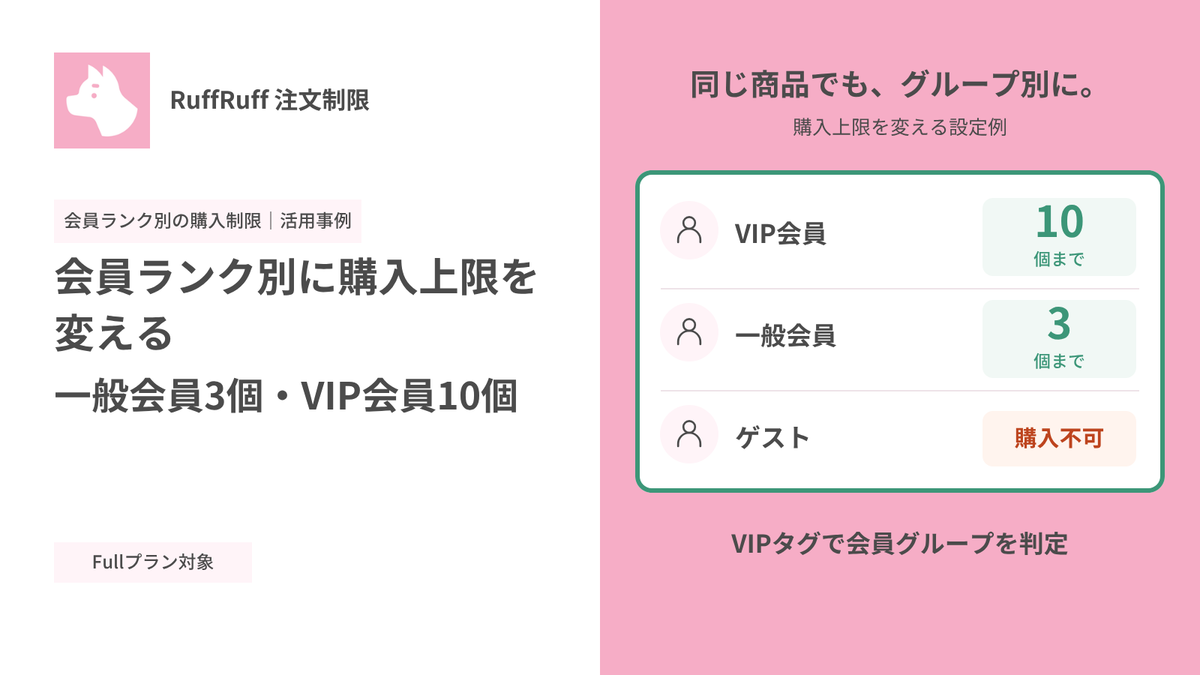
会員ランク別に購入上限を変える|一般会員3個・VIP会員10個

Set Purchase Limits by Membership Tier | 3 for Regular Members, 10 for VIPs

Learn how to use customer tags to limit a selected product to 3 per order for regular members and 10 for VIP members, while preventing guests from purchasing it. Includes setup steps and actual car...

Shopifyでサブスク会員限定販売を実現|GO SUB × RuffRuff 注文制限【対談】

Shopifyでサブスク会員限定販売を実現|GO SUB × RuffRuff 注文制限【対談】

サブスク会員だけに限定商品や先行販売を提供したいShopifyストア向けに、GO SUBの契約者タグとRuffRuff 注文制限を組み合わせる方法を紹介します。

【2026年最新】Shopify購入制限アプリ9選を徹底比較!機能・料金・日本語対応で比較

[2026 Latest] A Thorough Comparison of 9 Shopify Purchase Limiting Apps! Comparing Features, Pricing, and Japanese Language Support

A thorough 2026 comparison of 9 must-have order limiting apps for Shopify stores! From quantity, price, and selling period limits to fraud prevention, find the best app for your store based on feat...

Shopify × Sales Period Settings

View all articles
How to Run Limited-Time Sales on Shopify | Selling Period Setting Apps Compared

[Updated for 2026] How to Run Limited-Time Sales on Shopify | Selling Period Setting Apps Compared

A detailed guide to setting up limited-time sales on Shopify, plus our recommended apps. Learn the strategies for boosting sales in a short period of time!

How to Run Release Announcements on Shopify | Recommended Apps

[Updated for 2026] How to Run Release Announcements on Shopify | Recommended Apps

Learn how to run release announcements on Shopify and which apps to use. We explain concrete techniques and setup methods to build customer anticipation and boost sales on launch day, along with ti...

How to Use the Countdown Timer Feature in the Shopify App "RuffRuff Selling Periods": Setup Guide & Specifications

How to Use the Countdown Timer Feature in the Shopify App "RuffRuff Selling Periods": Setup Guide & Specifications

Learn the basic setup and usage of the RuffRuff Selling Periods countdown timer. Discover how showing the remaining time can create urgency and boost your conversion rate.

Shopify × Gifts

View all articles
Shopifyで注文完了後にノベルティを自動追加する方法|カートに入れず注文へ配布

How to Automatically Add a Promotional Gift After an Order on Shopify | Add It to the Order Without Putting It in the Cart

A setup example for automatically adding a JPY 0 promotional gift after an order is created, without putting the gift in the cart. Covers eligibility requirements and how to verify the addition in ...

How to Set Up a Repeatable Gift on Shopify | Give a Gift Every Time a Condition Is Met

How to Set Up a Repeatable Gift on Shopify | Give a Gift Every Time a Condition Is Met

A guide to setting up a repeatable gift on Shopify, like "1 free gift for every 3 purchased." With the Shopify app "RuffRuff Order Bonus," you can implement automatic gifts based on purchase quanti...

How to Offer a Choice Gift on Shopify | Let Customers Pick Their Favorite Product When a Condition Is Met

How to Offer a Choice Gift on Shopify | Let Customers Pick Their Favorite Product When a Condition Is Met

A guide to setting up a "choice gift" on Shopify, letting customers pick their favorite gift when a condition is met. Learn how to use the Shopify app "RuffRuff Order Bonus" to build a novelty camp...

How to Give Away a Free Digital Product on Shopify When a Condition Is Met

How to Give Away a Free Digital Product on Shopify When a Condition Is Met

A guide to giving away digital products as a gift on Shopify. Learn how to connect the "Digital Downloads" app with "RuffRuff Order Bonus" to automatically send buyers digital content, step by step.

How to Give VIP Customers a Free Gift on Shopify | Gift Distribution Based on Customer Tags

How to Give VIP Customers a Free Gift on Shopify | Gift Distribution Based on Customer Tags

A detailed guide to automatically distributing a free gift to VIP customers based on a customer tag, using the RuffRuff Order Bonus Shopify app. Boost customer satisfaction and repeat purchase rate...

How to Distribute Sample Products on Shopify | Gift Distribution Based on Amount with RuffRuff Order Bonus

How to Distribute Sample Products on Shopify | Gift Distribution Based on Amount with RuffRuff Order Bonus

A guide to automatically distributing sample products on Shopify. Learn how to use the RuffRuff Order Bonus app to give away a sample product on orders of ¥10,000 or more, boosting average order va...

Shopify ✕ Blog

View all articles
Shopifyタグ一覧・絞り込み機能の導入方法|3つの実装アプローチを解説

How to Implement Tag Lists and Tag Filtering in Shopify

A complete guide to Shopify's tag feature. Implement tag list display and filtering using three methods: themes, apps, or code. We also cover setup and customization steps for RuffRuff Product & Bl...

【2025】Shopifyのタグ一覧アプリを徹底比較|表示位置やタグ絞り込み(タグフィルター)機能など

Comparing 3 Shopify Tag List Apps | Pricing, Features, and Setup Explained

Compare the Shopify tag list apps "RuffRuff Product & Blog Tags," "Simple Blog Tag Filter," and "Quick Tag Search." We break down pricing, features, and setup to help you choose the best app for yo...

Shopifyのブログ記事に目次を自動表示|3つの方法と無料アプリの設定手順

3 Ways to Automatically Display a Table of Contents in Shopify Blog Posts | Free App Setup Guide

Learn three methods to display a table of contents in Shopify blog posts (source code customization, app usage, theme usage). Step-by-step instructions focus on setup using the free app RuffRuff Ta...

Shopifyブログの著者プロフィール表示方法【3つの選択肢を比較】

How to Display Author Profiles on Shopify Blog Posts [Comparing 3 Options]

A thorough comparison of three ways to display author profile information on Shopify blog posts. We explain the features, advantages, and disadvantages of the standard feature, source code customiz...

How to Display Shopify Tag Lists by Language | Show Japanese and English Tags Separately Using an App

How to Display Shopify Tag Lists by Language | Show Japanese and English Tags Separately Using an App

Learn how to display tag lists on Shopify collection pages by language. This guide provides step-by-step instructions with screenshots on using the RuffRuff Product & Blog Tags app (Regular Pla...