Skip to content

Add a table of contents to Shopify FAQs and guides

Add a table of contents to Shopify FAQs and guides

To add a table of contents to Shopify FAQs or guides, add headings to the page body and place the Table of Contents block from RuffRuff Table of Contents in the page template. Displaying it on pages requires Regular Plan.

When one page contains information about orders, shipping, and returns, a table of contents lets readers move to the section they need. Decide which topics will be headings and how to order the questions before configuring it.

This guide uses our app with a guide written in a Shopify page body. The steps use an app block in an Online Store 2.0 theme.

Plans and features checked on October 28, 2026.

Example: link to the main sections of a store guide

The fictional page ご利用ガイド(撮影用デモ) is divided into the following four H2 headings. Readers can select a topic such as Shipping to move to its explanation.

  • Orders
  • Shipping
  • Returns and exchanges
  • Contact

For a real page, prepare the body according to the store's actual terms. Do not use the sample descriptions as the store's shipping or return policy.

Completed table of contents generated from four Japanese headings in the guide body
The expanded table of contents shows all four Japanese guide headings at a 900px viewport.

Requirements for a table of contents on pages

Displaying a table of contents on pages is available on Regular Plan. Install and enable the app, then add the block to the relevant page template.

Duplicate the theme before making changes and check the result in the duplicate. When editing the body of a published guide, remember that those edits also affect the published page.

The entries are generated from the body on the page editing screen. Headings in separate theme sections or theme accordion items are not included. Add the headings you want in the table of contents to the page body.

Use H2 for topics and H3 for questions where needed

Decide how much detail to include before adding headings to the body. H2 and H3 are included by default, so questions placed under main topics as H3 headings will also appear.

  1. Open the guide on the page editing screen and use H2 for main topics such as orders, shipping, and returns.
  2. To link to individual questions, add each question as an H3 heading with its answer beneath the relevant H2.
  3. Save and reopen the editing screen to confirm that the text is formatted as headings rather than just bold text.
Japanese Shopify page editor with four guide headings in the page body
The Japanese page body contains headings for orders, shipping, returns and exchanges, and inquiries.

For a page with many questions, the table of contents can show only the main topics. Select only H2 in Headings for that arrangement. “Headings” is a shared setting. Selecting only H2 also excludes H3 on other products, pages, blog posts, and other content displaying the table of contents.

Add Table of Contents to the page template

After saving the guide body, open the page template in the working theme. Check that it is the same template assigned to the guide.

  1. Select the duplicated working theme under Add the app to a theme in RuffRuff Table of Contents.
  2. Open the page template with Add app block beside Pages (Regular Plan).
  3. Add Table of Contents using Add block or Add section.
  4. Save in the theme editor and open the guide in that theme's preview.
Japanese theme editor showing a table of contents block on the page template
The table of contents uses headings in the guide body. The blue notice appears only in the theme editor.

The placement applies to other pages using the same template. Consider using a separate page template if the layout should be specific to the guide.

Adjust the position and length of the table of contents

The default position is Above the first heading. Check the actual page to see whether readers can find the navigation before reading the body.

To use the block's location in the theme editor, change Position to Specify in the theme editor (Online Store 2.0 themes only) in the customization settings. Confirm each save separately rather than assuming that saving the body also saves the position setting.

If including individual questions makes the table of contents long, consider showing only H2 headings or using “Display the show/hide button” and “Items shown initially.” Compare how easy the navigation is to find with how much space it takes before the body.

Check the destinations and mobile layout

  1. Reload the guide and check that the entries match the saved headings.
  2. Select a topic such as Returns and exchanges and check that it moves to the corresponding heading.
  3. If the theme has a fixed header, check that the destination heading is not hidden beneath it.
  4. At mobile width, check wrapping, horizontal overflow, and the readability of questions and answers.
Store guide showing four Japanese table of contents entries at mobile width
At a 390px viewport, the expanded four-entry Japanese table of contents and guide body fit within the screen.

After updating the guide body, check the relationship between its headings and the table of contents again. When adding questions, review whether the number and order of entries still suit the layout.

Check the body and placement if nothing appears

Check the required plan, app activation, assigned page template, and saved theme in that order. The table of contents does not appear when the body contains none of the levels selected in Headings.

Check headings entered in the body separately from headings placed in other theme sections. If the navigation must cover content outside the body, review the page structure first.

Choose a setup that fits the guide's structure

For a guide that brings several topics together on one page, a table of contents can link to main topics or individual questions. Check the requirements and current pricing, then choose a layout that fits the page's length.

Learn more about the app

Shopify × Discounts

View all articles
How to Set Up Discounts on Subscription Products by Membership Rank in Shopify

How to Set Up Discounts on Subscription Products by Membership Rank in Shopify

Learn how to vary subscription prices by membership rank using Shopify Subscription. Using the RuffRuff Order Bonus app, this guide walks through — with screenshots — how to automatically apply a t...

17 Shopify Discount Strategies | From Free Discount Features to Apps — Boost Sales and Drive Repeat Purchases

[2026 Latest] 17 Shopify Discount Strategies | From Free Discount Features to Apps — Boost Sales and Drive Repeat Purchases

The complete guide to Shopify discount strategies. From free built-in features to advanced apps, this article covers 17 strategies that boost sales and drive repeat purchases at the same time. Expl...

How to Set Up Volume Discounts on Shopify | Simple Bulk-Purchase Discount Settings

How to Set Up Volume Discounts on Shopify | Simple Bulk-Purchase Discount Settings

This article explains how to set up volume discounts (bulk-purchase discounts) on Shopify using the easy-to-configure Shopify app "RuffRuff Order Bonus."

How to Set Up Tiered Shipping Discounts Based on Cart Quantity in Shopify | Free Shipping or Half-Price Shipping Based on Item Count

How to Set Up Tiered Shipping Discounts Based on Cart Quantity in Shopify | Free Shipping or Half-Price Shipping Based on Item Count

This article clearly explains, step by step, how to use the Shopify app "RuffRuff Order Bonus" — which is easy to use with simple settings — to set up half-price or free shipping when customers pur...

How to Set Discount Rates by Membership Rank in Shopify | Discounts Using Customer Tags

How to Set Discount Rates by Membership Rank in Shopify | Discounts Using Customer Tags

Learn how to set up membership-rank discounts using the simple, easy-to-configure Shopify app "RuffRuff Order Bonus." This guide walks through the setup steps in detail for applying tiered discount...

How to Offer Free Shipping Exclusively for VIP Members on Shopify | Simple Setup for Free Shipping When Customers Have the VIP Customer Tag

How to Offer Free Shipping Exclusively for VIP Members on Shopify | Simple Setup for Free Shipping When Customers Have the VIP Customer Tag

Boost customer loyalty by offering free shipping exclusively to VIP members! This article gives a beginner-friendly explanation of how to set up shipping discounts using customer tags with the easy...

Shopify × Pre-Orders

View all articles
Shopify Limited-Time Sale Guide: Comparing and Explaining 3 Methods

Shopify Limited-Time Sale Guide: Comparing and Explaining 3 Methods

A thorough guide to the three ways to run a limited-time sale on Shopify. Compares the built-in feature, manual setup, and dedicated apps, along with the pros and cons of each and how to use RuffR...

Implementing VIP Member-Only Sales on Shopify | The Complete Guide with RuffRuff Apps

Implementing VIP Member-Only Sales on Shopify | The Complete Guide with RuffRuff Apps

A detailed guide to implementing VIP member-only sales on Shopify. A complete step-by-step setup guide using the RuffRuff Order Limits and RuffRuff Pre Order apps. Boost customer loyalty and increa...

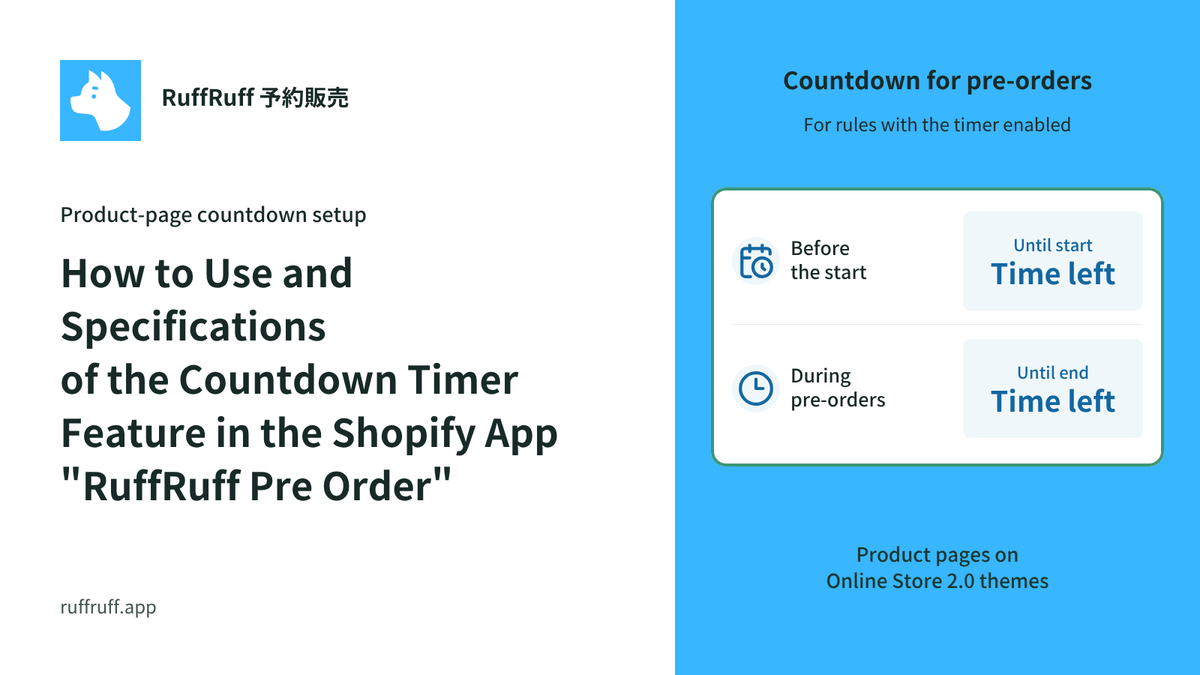
How to Use and Specifications of the Countdown Timer Feature in the Shopify App "RuffRuff Pre Order"

How to Use and Specifications of the Countdown Timer Feature in the Shopify App "RuffRuff Pre Order"

Explains the basic steps for installing the "Countdown Timer" feature of RuffRuff Pre Order on the product page. Assuming an Online Store 2.0 compatible theme, this briefly summarizes the key point...

[Shopify] How to Offer Exclusive Sales for LINE Members | Using CRM PLUS on LINE × RuffRuff Pre Order

[Shopify] How to Offer Exclusive Sales for LINE Members | Using CRM PLUS on LINE × RuffRuff Pre Order

Explains how to combine CRM PLUS on LINE with RuffRuff Pre Order to offer products exclusively to LINE-linked members and sell at discounted prices. This article introduces, step by step, effective...

[Shopify] How to Run Exclusive Sales for LINE-Linked Members | A Use Case of Lipify × RuffRuff Pre Order

[Shopify] How to Run Exclusive Sales for LINE-Linked Members | A Use Case of Lipify × RuffRuff Pre Order

This article explains how to sell products exclusively to LINE-linked members on Shopify. It introduces recommended Shopify apps and shares example settings for exclusive sales and promotions for L...

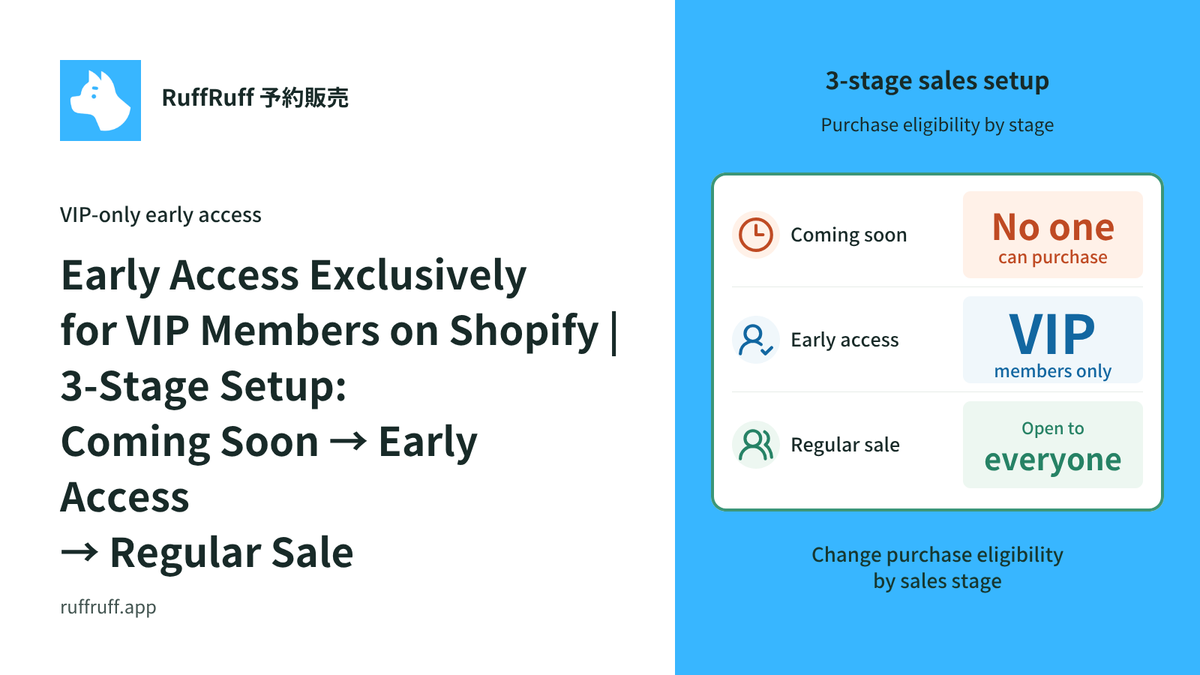
Early Access Exclusively for VIP Members on Shopify | 3-Stage Setup: Coming Soon → Early Access → Regular Sale

Early Access Exclusively for VIP Members on Shopify | 3-Stage Setup: Coming Soon → Early Access → Regular Sale

A detailed explanation of how to run early access exclusively for VIP members on Shopify. Using the RuffRuff Pre Order app, this article introduces step by step how to implement effective member-ex...

Shopify × Purchase Limits

View all articles
How to limit Shopify campaign purchases to 2 items in total

How to limit Shopify campaign purchases to 2 items in total

Limit eligible campaign purchases to 2 items per customer across separate orders. This example covers the date window, purchases outside it, and how to check an additional order.

How to limit a Shopify trial set to one per customer

How to limit a Shopify trial set to one per customer

Use RuffRuff Order Limits to limit a trial set to one per customer across separate orders. Follow the setup and test first purchases, repeat purchases, and guest checkout.

How to limit purchases to 3 items per customer per month in Shopify | Purchase limits that reset each month

How to limit purchases to 3 items per customer per month in Shopify | Purchase limits that reset each month

See how to limit purchases across a collection to 3 items per customer each month, using three fictional cookie tins. Includes rule settings, purchase scenarios, and limitations to consider before ...

Set Purchase Limits by Membership Tier | 3 for Regular Members, 10 for VIPs

Set Purchase Limits by Membership Tier | 3 for Regular Members, 10 for VIPs

Learn how to use customer tags to limit a selected product to 3 per order for regular members and 10 for VIP members, while preventing guests from purchasing it. Includes setup steps and actual car...

Shopifyでサブスク会員限定販売を実現|GO SUB × RuffRuff 注文制限【対談】

Shopifyでサブスク会員限定販売を実現|GO SUB × RuffRuff 注文制限【対談】

サブスク会員だけに限定商品や先行販売を提供したいShopifyストア向けに、GO SUBの契約者タグとRuffRuff 注文制限を組み合わせる方法を紹介します。

A Thorough Comparison of 9 Shopify Purchase Limiting Apps! Comparing Features, Pricing, and Japanese Language Support

[2026 Latest] A Thorough Comparison of 9 Shopify Purchase Limiting Apps! Comparing Features, Pricing, and Japanese Language Support

A thorough 2026 comparison of 9 must-have order limiting apps for Shopify stores! From quantity, price, and selling period limits to fraud prevention, find the best app for your store based on feat...

Shopify × Sales Period Settings

View all articles
How to Run Limited-Time Sales on Shopify | Selling Period Setting Apps Compared

[Updated for 2026] How to Run Limited-Time Sales on Shopify | Selling Period Setting Apps Compared

A detailed guide to setting up limited-time sales on Shopify, plus our recommended apps. Learn the strategies for boosting sales in a short period of time!

How to Run Release Announcements on Shopify | Recommended Apps

[Updated for 2026] How to Run Release Announcements on Shopify | Recommended Apps

Learn how to run release announcements on Shopify and which apps to use. We explain concrete techniques and setup methods to build customer anticipation and boost sales on launch day, along with ti...

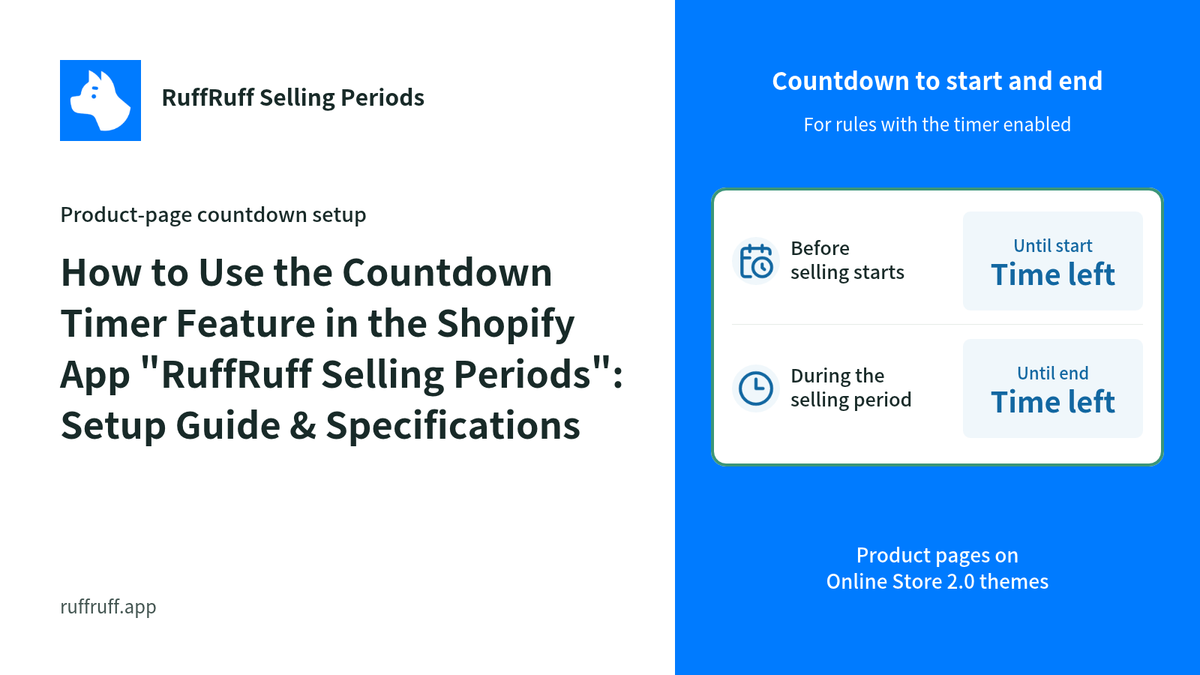
How to Use the Countdown Timer Feature in the Shopify App "RuffRuff Selling Periods": Setup Guide & Specifications

How to Use the Countdown Timer Feature in the Shopify App "RuffRuff Selling Periods": Setup Guide & Specifications

Learn the basic setup and usage of the RuffRuff Selling Periods countdown timer. Discover how showing the remaining time can create urgency and boost your conversion rate.

Shopify × Gifts

View all articles
How to Automatically Add a Promotional Gift After an Order on Shopify | Add It to the Order Without Putting It in the Cart

How to Automatically Add a Promotional Gift After an Order on Shopify | Add It to the Order Without Putting It in the Cart

A setup example for automatically adding a JPY 0 promotional gift after an order is created, without putting the gift in the cart. Covers eligibility requirements and how to verify the addition in ...

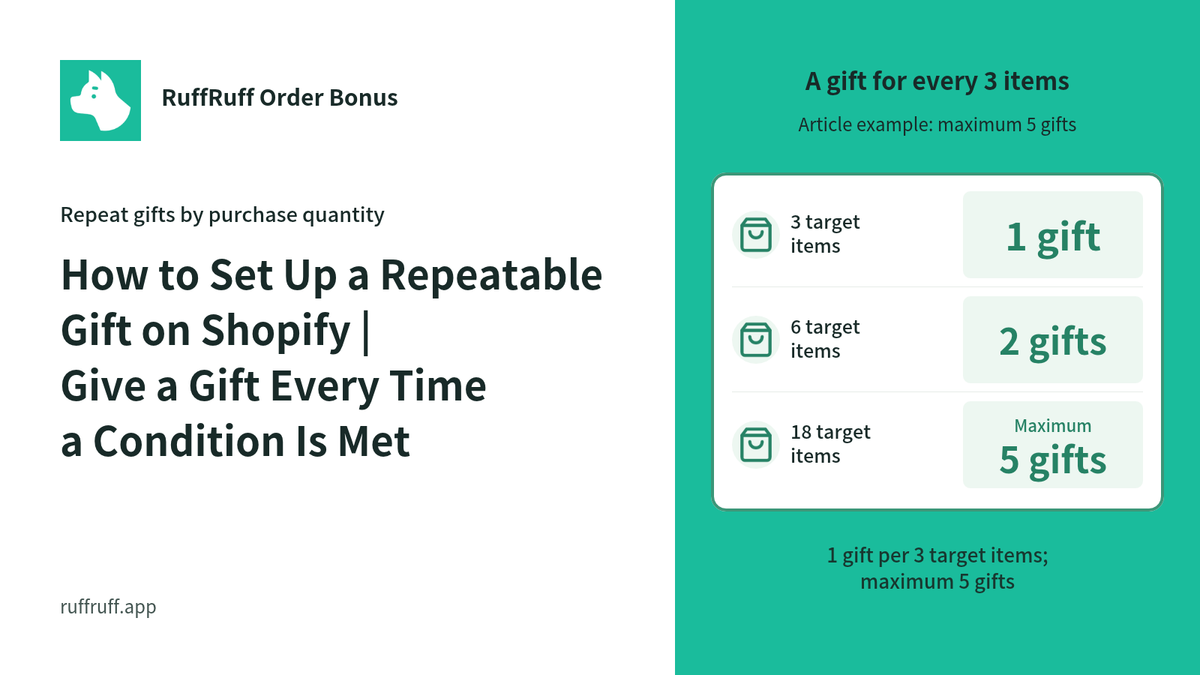
How to Set Up a Repeatable Gift on Shopify | Give a Gift Every Time a Condition Is Met

How to Set Up a Repeatable Gift on Shopify | Give a Gift Every Time a Condition Is Met

A guide to setting up a repeatable gift on Shopify, like "1 free gift for every 3 purchased." With the Shopify app "RuffRuff Order Bonus," you can implement automatic gifts based on purchase quanti...

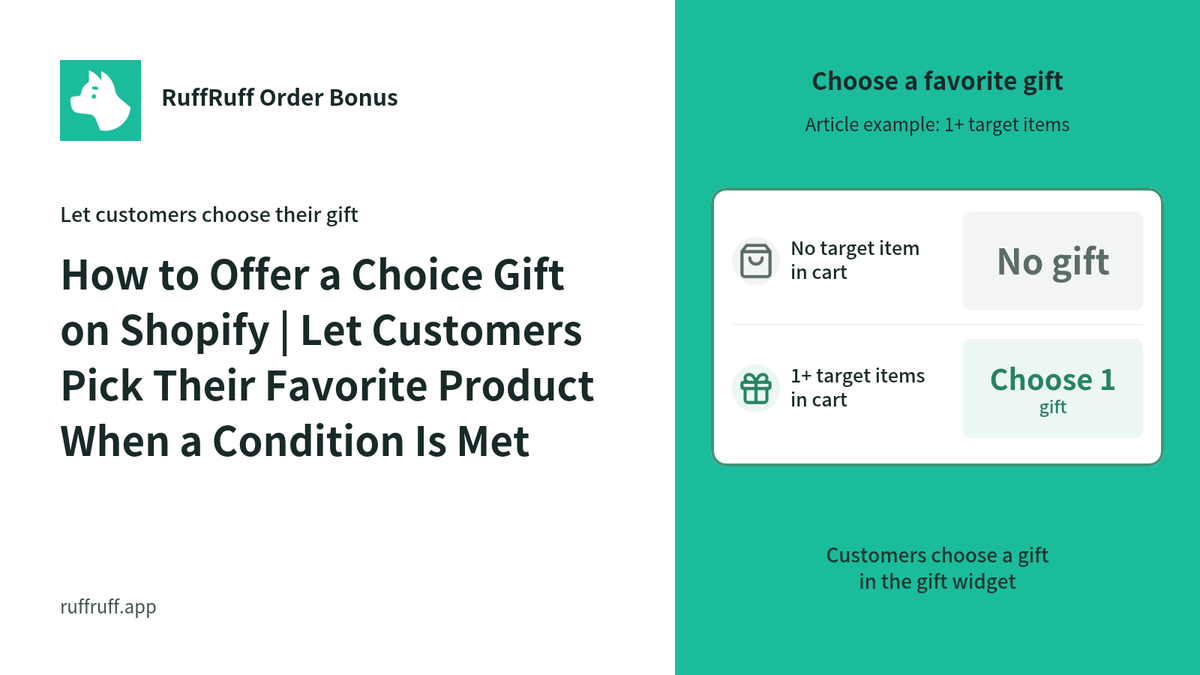
How to Offer a Choice Gift on Shopify | Let Customers Pick Their Favorite Product When a Condition Is Met

How to Offer a Choice Gift on Shopify | Let Customers Pick Their Favorite Product When a Condition Is Met

A guide to setting up a "choice gift" on Shopify, letting customers pick their favorite gift when a condition is met. Learn how to use the Shopify app "RuffRuff Order Bonus" to build a novelty camp...

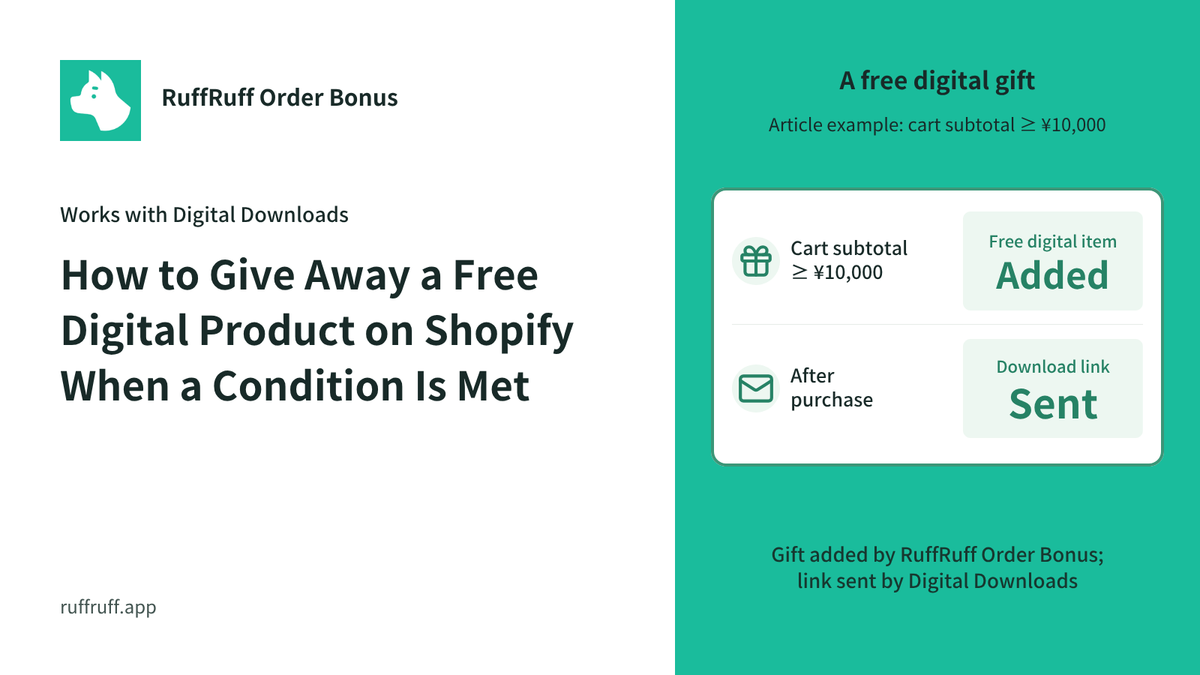
How to Give Away a Free Digital Product on Shopify When a Condition Is Met

How to Give Away a Free Digital Product on Shopify When a Condition Is Met

A guide to giving away digital products as a gift on Shopify. Learn how to connect the "Digital Downloads" app with "RuffRuff Order Bonus" to automatically send buyers digital content, step by step.

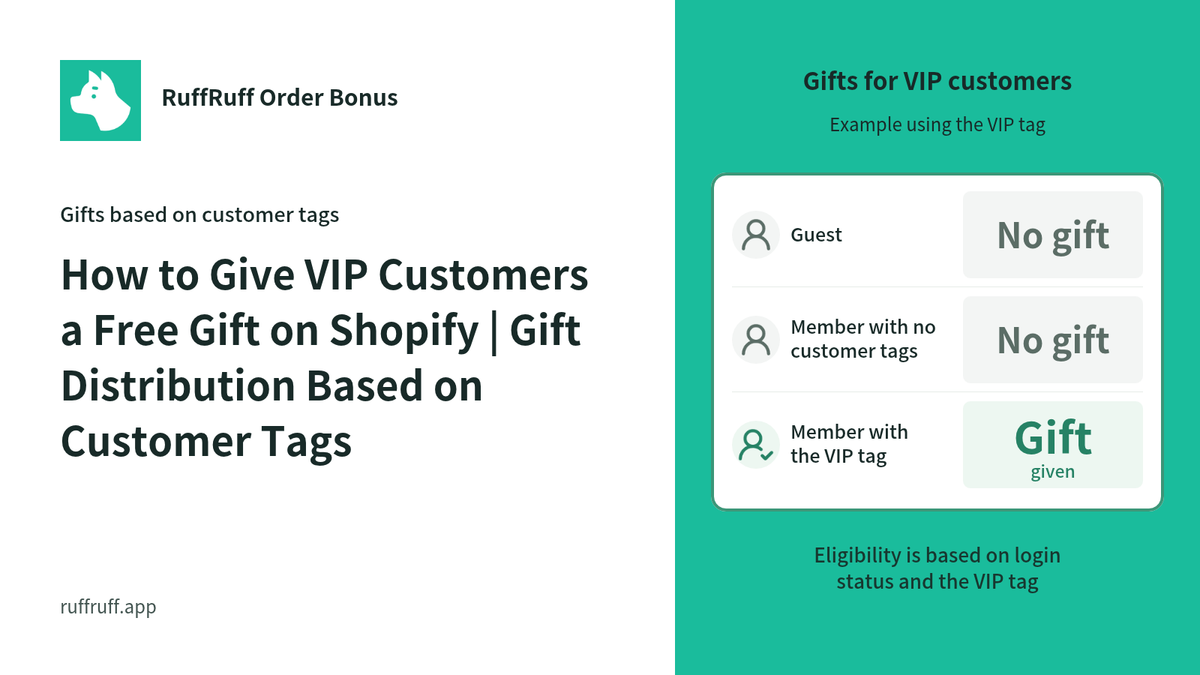
How to Give VIP Customers a Free Gift on Shopify | Gift Distribution Based on Customer Tags

How to Give VIP Customers a Free Gift on Shopify | Gift Distribution Based on Customer Tags

A detailed guide to automatically distributing a free gift to VIP customers based on a customer tag, using the RuffRuff Order Bonus Shopify app. Boost customer satisfaction and repeat purchase rate...

How to Distribute Sample Products on Shopify | Gift Distribution Based on Amount with RuffRuff Order Bonus

How to Distribute Sample Products on Shopify | Gift Distribution Based on Amount with RuffRuff Order Bonus

A guide to automatically distributing sample products on Shopify. Learn how to use the RuffRuff Order Bonus app to give away a sample product on orders of ¥10,000 or more, boosting average order va...