
Many Shopify store owners use the buy-now-pay-later service "Paidy." Paidy is a convenient payment method for customers, but in certain cases, such as pre-orders, you may want to temporarily hide it.
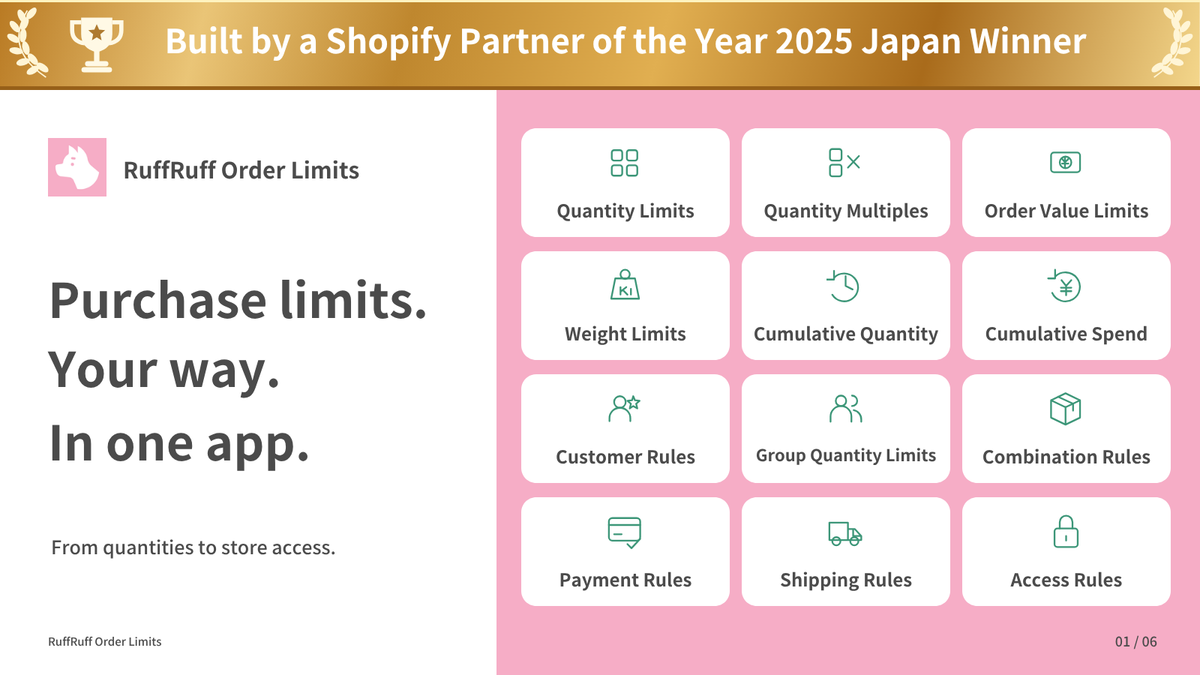
In this article, we explain the specific steps to hide Paidy when the cart contains pre-order items, using the Shopify app "RuffRuff Order Limits."
What Is Paidy (Buy Now, Pay Later)?
Paidy is a buy-now-pay-later service that is also used by Amazon, Qoo10, and other platforms.
When a customer orders a product using Paidy, they can complete the purchase by entering the verification code sent by Paidy. Between the 1st and 3rd of the following month, the customer receives a notice of the billing amount (by email and SMS), and by the 10th of that month, they pay using one of several payment methods (convenience store payment, bank transfer, or direct debit).
Benefits of Offering Buy-Now-Pay-Later
- Attracting younger customers who cannot hold a credit card (for the store)
- Attracting customers who prefer not to use a credit card (for the store)
- Helps reduce cart abandonment (for the store)
- No worries about personal information being leaked (for the customer)
- Can pay after checking the product (for the customer)
- Can pay at a time of their choosing (for the customer)
The blog article below explains the benefits of adoption in more detail, as well as the drawbacks and how to set it up. If you'd like to learn more about Paidy and buy-now-pay-later payments, please use it as a reference.

How to Hide Paidy When the Cart Contains Pre-Order Items
This section introduces how to use RuffRuff Order Limits to "hide Paidy when the cart contains pre-order items."
In this article, "pre-order items" refers to products that are being sold as pre-orders using RuffRuff Pre-Orders.
A demo product is also available, so please use it as a reference to check the behavior.
![[Demo] Hide Paidy when the cart has pre-order items](https://images.weserv.nl/?w=100&url=ruffruff.app/cdn/shop/files/demo-order-limits-hide-paidy-for-pre-orders.webp?v=1791866561)
Step 1: Install the App

First, install RuffRuff Order Limits, introduced above, from the Shopify App Store.
You can find "RuffRuff Order Limits" by searching for "ruffruff" on the Shopify App Store. Once you access the "RuffRuff Order Limits" app page, click "Install."
Step 2: Select a Plan
The payment rule used in this article is available on the Light plan or higher. Choose Light or Full based on your billing period and whether you also need cumulative quantity rules. Annual billing saves the equivalent of two months. See the pricing plans for details.

(1) Select "Pricing plan" in the app
(2) Click "Change plan" for the plan you want to subscribe to

(3) Review the plan details and click "Approve"
Step 3: Create a Payment Rule
After upgrading your plan, set up a payment rule. Using a payment rule, configure the setting to "hide Paidy for specific products."

(1) Go to the checkout page
(2) Copy the display name of "Paidy" on the checkout page
ℹ️ The logic RuffRuff Order Limits uses to hide payment methods is "text match," so you need to register the exact payment method name shown on the checkout page in the payment rule. In this case, copy the text "あと払い(パイディ)."

(3) Select "Payment rule" in the app
(4) Click "Create rule"

(5) Enter any rule name you like for the title
(6) Add the "あと払い(パイディ)" you copied in (2) to the Payment methods section
(7) In the Products section, select "Pre-order items"
ℹ️ "Pre-order items" here only applies to products that are being sold as pre-orders using RuffRuff Pre-Orders.
(8) Click "Save"
Step 4: Enable the App Embed
Enable the app embed in your Shopify theme. This makes it possible to control the quantity picker, display product messages, and more.

(1) From the Shopify admin, go to Online Store > Themes
(2) Click "Customize" for the theme where you want to add the app

(3) Select "App embeds" on the left side of the screen
(4) Enable the app embed named "RuffRuff Order Limits"
(5) Click "Save"
Step 5: Verify the Behavior

(1) Add a regular product to the cart
(2) Go to the checkout page
(3) Confirm that Paidy is displayed

(4) Add a pre-order item to the cart
(5) Go to the checkout page
(6) Confirm that Paidy is hidden
Conclusion
In this article, we explained how to use the Shopify app "RuffRuff Order Limits" to hide the Paidy payment method when the cart contains pre-order items. By following the steps introduced and verifying the behavior, you can achieve more flexible control over payment options. This setup can be expected to improve the efficiency of store operations and enhance the customer experience.


![[Shopify] How to Offer Exclusive Sales for LINE Members | Using CRM PLUS on LINE × RuffRuff Pre Order](http://ruffruff.app/cdn/shop/files/exclusive-sales-conducted-for-line-members-using-crm-plus-on-line-en-thumbnail-20261028-b7.png?v=1793178536&width=1600)
![[Shopify] How to Run Exclusive Sales for LINE-Linked Members | A Use Case of Lipify × RuffRuff Pre Order](http://ruffruff.app/cdn/shop/files/exclusive-sales-conducted-for-line-members-using-lipify-en-thumbnail-20261028-b7.png?v=1793178525&width=1600)