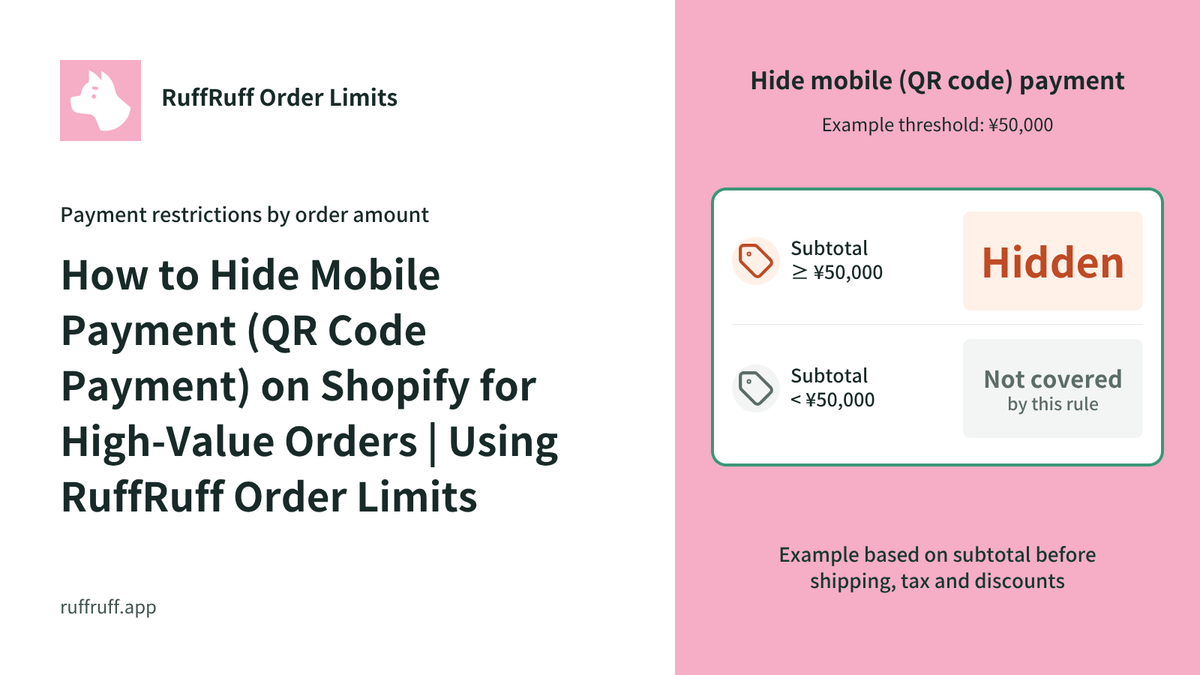
Hello, Shopify store owners. Mobile Payment (QR Code Payment) improves convenience for customers, but have you ever wanted to restrict its use when paying for high-value products? This article explains, using the Shopify app "RuffRuff Order Limits", the concrete steps to hide Mobile Payment (QR Code Payment) under specific conditions. With this setup, you can manage your payment methods more flexibly.
What Is Mobile Payment (QR Code Payment)
Mobile Payment (QR Code Payment) is a cashless payment method in which customers pay by scanning a QR code or barcode using a smartphone app.
In Japan, Mobile Payment (QR Code Payment) can be introduced on Shopify through payment service providers such as KOMOJU, SB Payment Service, and GMO Epsilon, enabling major services such as PayPay, LINE Pay, Rakuten Pay, d Payment, and Merpay.

By offering these payment methods, customers can pay easily using a mobile payment method they're already familiar with, which improves the purchase experience and helps prevent cart abandonment.

How to Hide Mobile Payment (QR Code Payment) Under Specific Conditions
In this section, we'll introduce how to use RuffRuff Order Limits to "automatically hide KOMOJU's Mobile Payment (QR Code Payment) when the cart subtotal is ¥50,000 or more".
ℹ️ KOMOJU's Mobile Payment (QR Code Payment) covers PayPay, LINE Pay, and Merpay.

This method can also be applied with payment service providers other than KOMOJU, so please use it as a reference.
Step 1: Install the App

First, install RuffRuff Order Limits, introduced above, from the Shopify App Store.
You can find "RuffRuff Order Limits" by searching "ruffruff" in the Shopify App Store. Once you're on the RuffRuff Order Limits app page, click "Install".
Step 2: Select a Plan
The payment rule used in this article is available on the Light plan or higher. Choose Light or Full based on your billing period and whether you also need cumulative quantity rules. Annual billing saves the equivalent of two months. See the pricing plans for details.

(1) Select "Pricing plans" in the app
(2) Click "Change plan" for the plan you want to subscribe to

(3) Review the plan details and click "Approve"
Step 3: Create a Payment Rule
Once you've upgraded your plan, set up a payment rule. Use a payment rule to configure "hide Mobile Payment (QR Code Payment) for specific products".

(1) Go to the checkout page
(2) Copy the display name of "Mobile Payment (QR Code Payment)" on the checkout page
In this case, that is the text "Mobile Payment (QR Code)"
ℹ️ Because RuffRuff Order Limits' logic for hiding payment methods relies on "text matching", you need to register the exact payment method name shown on the checkout page in the payment rule.

(3) Select "Payment rules" in the app
(4) Click "Create rule"

(5) Enter any rule name in the title
(6) In the payment methods section, add the display name of "Mobile Payment (QR Code Payment)" that you copied in (2)
(7) In the Orders section, enter "50,000" as the minimum price
(8) Choose how the amount is calculated (in this case, select before shipping, tax, and discounts are applied)
(9) Click "Save"

(10) Click "Enable" in the top right of the screen
(11) A confirmation dialog appears, so click "Enable"
Step 5: Verify It Works

(1) Go to the checkout page while the cart's pre-discount subtotal is under ¥50,000
(2) Go to the checkout page and confirm that Mobile Payment (QR Code Payment) is NOT hidden

(3) Go to the checkout page while the cart's pre-discount subtotal is ¥50,000 or more
(4) Go to the checkout page and confirm that Mobile Payment (QR Code Payment) IS hidden
In Conclusion
In this article, we introduced how to use the Shopify app "RuffRuff Order Limits" to control the display of Mobile Payment (QR Code Payment) based on the cart's total amount.
With this setup, you can, for example, recommend credit card payment only for high-value products or products in a specific category, enabling more strategic store operation. For customers as well, having clear visibility into which payment methods are available leads to a smoother purchasing experience.
The method introduced here can also be applied if you're using a payment service provider other than KOMOJU. Please adjust the settings to fit your own store's situation, and use this to help create a more comfortable and secure online store.


![[Shopify] How to Offer Exclusive Sales for LINE Members | Using CRM PLUS on LINE × RuffRuff Pre Order](http://ruffruff.app/cdn/shop/files/exclusive-sales-conducted-for-line-members-using-crm-plus-on-line-en-thumbnail-20261028-b7.png?v=1793178536&width=1600)
![[Shopify] How to Run Exclusive Sales for LINE-Linked Members | A Use Case of Lipify × RuffRuff Pre Order](http://ruffruff.app/cdn/shop/files/exclusive-sales-conducted-for-line-members-using-lipify-en-thumbnail-20261028-b7.png?v=1793178525&width=1600)