![[Shopify] Hide Rakuten Pay for Specific Products! Easily Customize Payment Methods with "RuffRuff Order Limits"](http://ruffruff.app/cdn/shop/files/ruffruff-how-to-hide-rakuten-pay-en-20261028-b2.png?v=1793162191&width=1500)
When running a Shopify store, it's not uncommon to want to hide a specific payment method for some products. Even with a popular payment service like Rakuten Pay, there may be cases where you want to restrict its use on certain products due to fees or other reasons.
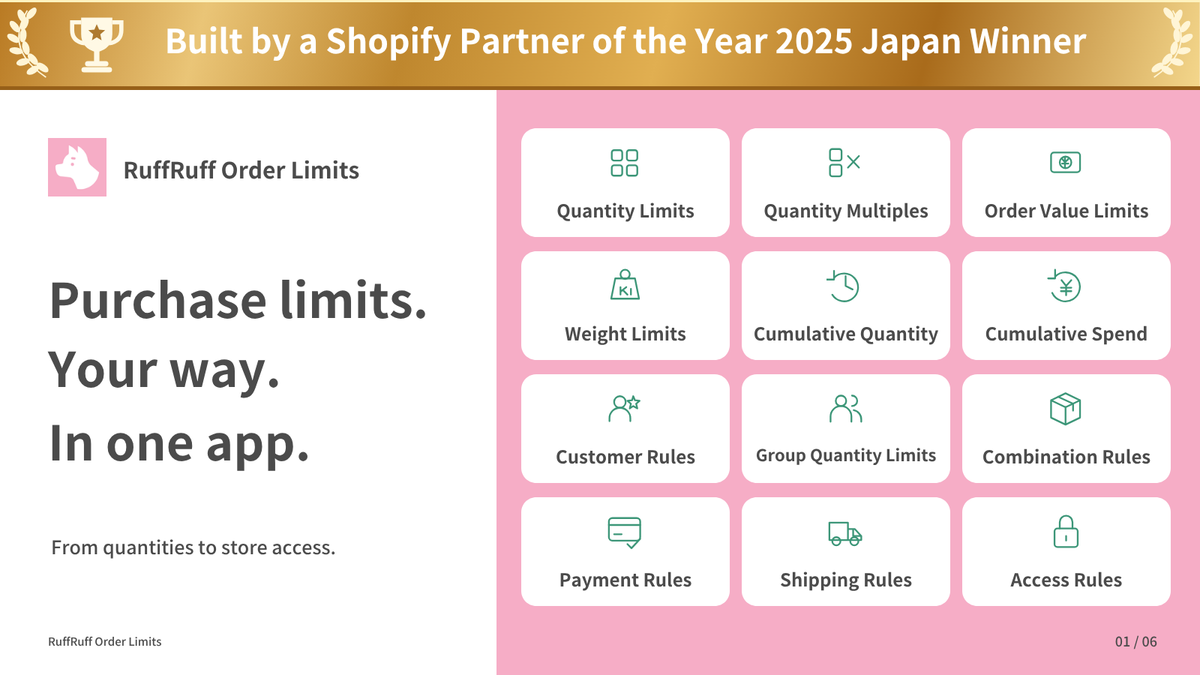
In this article, we'll walk through the concrete steps for using the Shopify app "RuffRuff Order Limits" to control the display of Rakuten Pay when specific products are included in the cart.
What Is Rakuten Pay
Rakuten Pay is a mobile payment service offered by Rakuten Group that can be used both in physical stores and for online shopping. A key feature is that you can earn and use Rakuten Points with it.
The benefits of adding Rakuten Pay to your Shopify store include the following.
- Saves customers the trouble of entering credit card information.
- Customers can earn and use Rakuten Points.
- Helps prevent cart abandonment. (Reduces abandonment caused by reluctance to enter credit card information or a lack of payment options.)
The downside is that there may be payment fees, setup fees, or monthly fees.
To add Rakuten Pay to Shopify, you need to sign a contract with a payment provider such as SB Payment, KOMOJU, or PingPong Checkout.
The blog article below explains the benefits in more detail, along with the drawbacks and how to set it up. If you'd like to learn more about Rakuten Pay, please refer to it.

How to Hide Rakuten Pay Under Specific Conditions
In this section, we'll introduce how to use RuffRuff Order Limits to hide Rakuten Pay when specific products are included in the cart.
Step 1: Install the App

First, install RuffRuff Order Limits, introduced above, from the Shopify App Store.
You can find "RuffRuff Order Limits" by searching "ruffruff" in the Shopify App Store. Once you're on the RuffRuff Order Limits app page, click "Install".
Step 2: Select a Plan
The payment rule used in this article is available on the Light plan or higher. Choose Light or Full based on your billing period and whether you also need cumulative quantity rules. Annual billing saves the equivalent of two months. See the pricing plans for details.

(1)Select "Pricing plans" in the app
(2)Click "Change plan" for the plan you want to subscribe to

(3)Review the plan details and click "Approve"
Step 3: Create a Payment Rule
Once you've upgraded your plan, set up a payment rule. Use a payment rule to configure "hide Rakuten Pay for specific products".

(1) Go to the checkout page
(2) Copy the display name of "Rakuten Pay" on the checkout page
ℹ️ Because RuffRuff Order Limits' logic for hiding payment methods relies on "text matching", you need to register the exact payment method name shown on the checkout page in the payment rule.

(3)Select "Payment rules" in the app
(4)Click "Create rule"

(5) Enter any rule name in the title
(6) In the payment methods section, add the display name of "Rakuten Pay" that you copied in (2)
(7) In the products section, select "Specific products"
(8) Use "Search products" to add the products for which you want to hide Rakuten Pay
(9) Click "Save"
Step 4: Enable the Embedded App
Enable the embedded app on your Shopify theme. This makes it possible to control the quantity picker, display product messages, and more.

(1) From the Shopify admin, go to Online Store > Themes
(2) Click "Customize" for the theme you want to add the app to

(3) Select "App embeds" on the left of the screen
(4) Enable the app embed named "RuffRuff Order Limits"
(5) Click "Save"
Step 5: Verify It Works
(1) Add a product that is NOT configured in the payment rule (i.e. not a target for hiding) to the cart
(2) Go to the checkout page and confirm that Rakuten Pay is NOT hidden
(3) Add a product that IS configured in the payment rule (i.e. a target for hiding) to the cart
(4) Go to the checkout page and confirm that Rakuten Pay IS hidden
In Conclusion
In this article, we introduced the concrete setup steps for using the Shopify app "RuffRuff Order Limits" to hide Rakuten Pay for specific products. Using this feature makes it possible to offer flexible payment options tailored to your store's characteristics and strategy.
The setup proceeds in the following order: installing the app, creating a payment rule, enabling the app embed on your theme, and finally verifying that it works. In particular, when creating the payment rule, it's important to enter the exact name of the payment method you want to hide and to correctly select the target products.
This allows for detailed store operation, such as "I don't want customers to use Rakuten Pay for products in a specific category" or "I want to steer customers toward a different payment method for high-value products". Use "RuffRuff Order Limits" to build a more comfortable purchasing experience for both your customers and yourself as a store operator.


![[Shopify] How to Offer Exclusive Sales for LINE Members | Using CRM PLUS on LINE × RuffRuff Pre Order](http://ruffruff.app/cdn/shop/files/exclusive-sales-conducted-for-line-members-using-crm-plus-on-line-en-thumbnail-20261028-b7.png?v=1793178536&width=1600)
![[Shopify] How to Run Exclusive Sales for LINE-Linked Members | A Use Case of Lipify × RuffRuff Pre Order](http://ruffruff.app/cdn/shop/files/exclusive-sales-conducted-for-line-members-using-lipify-en-thumbnail-20261028-b7.png?v=1793178525&width=1600)