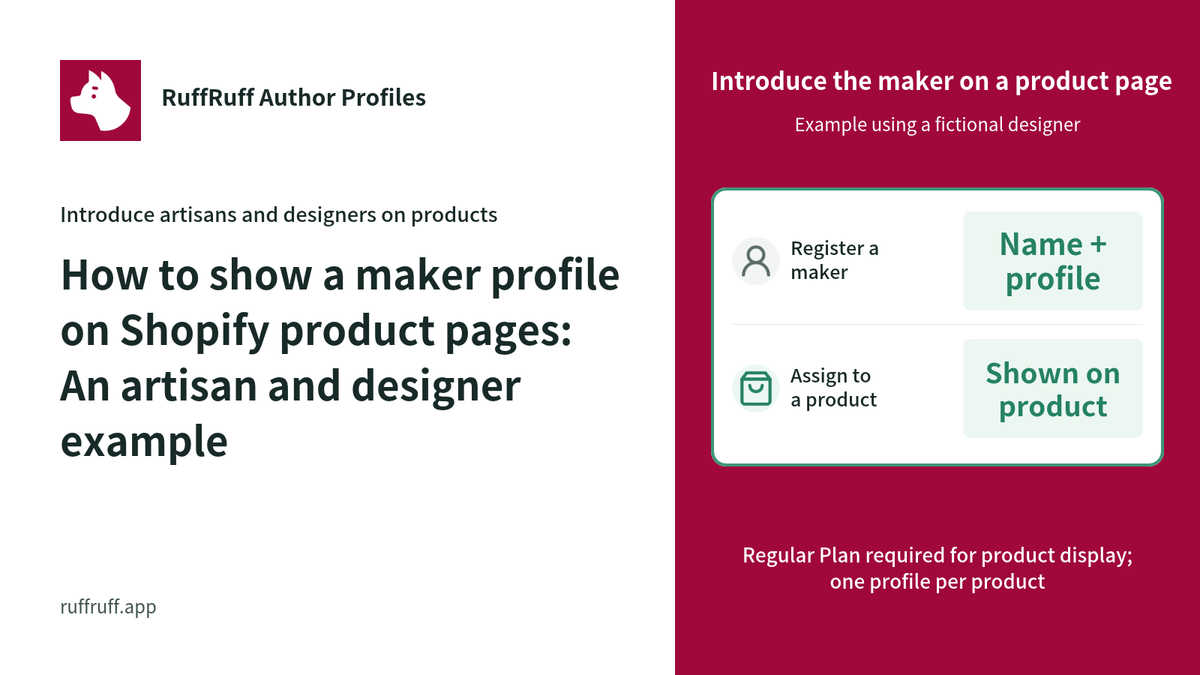
Alongside product photos and specifications, you may also want to introduce the person behind a product. Adding a maker profile to the product page lets you present their name and role together with the product.
Our Shopify app, RuffRuff Author Profiles, lets you assign a saved profile to each product and display it on the product page. Displaying profiles on products requires Regular Plan. You create a profile and add the app to the product template.
This article uses a fictional snowboard and designer to explain profile creation, theme setup, assignment, and display checks. It is a setup example for merchants who want to introduce artisans or designers, rather than a case study of an actual store.
How to connect a product with its maker
In this example, the product “作り手を紹介するデモスノーボード” displays the profile “RuffRuff デモデザイナー,” with the job title “Product designer.” The profile introduces the person responsible for creating the product alongside its description.
The description reads: “This is a sample profile for a maker who considers design and ease of use. It is fictional data for screenshots.” For an actual store, describe the person’s responsibilities and approach to making products after confirming the details with them.

Requirements for displaying a profile on products
Displaying profiles on products is a Regular Plan feature. Being able to create authors on Free Plan or Light Plan does not make product display available on those plans. Plan names and features were checked on October 28, 2026.
- Each product can have one author profile. Applying a different author replaces the previous author.
- You can assign the same maker to multiple products. You can also select several products by that maker and apply the profile to them together.
- Adding the app to a theme and applying an author to a product are separate tasks. Complete both before checking the display.
Create the maker’s profile
In the app, a product’s maker is also registered as an author. For this example featuring an individual, set “Author type” to “Person.” Creating the profile first makes it available when you assign an author to the product.
- Open RuffRuff Author Profiles from Shopify admin and select “Authors” in the app menu.
- Select “Add author” and enter “RuffRuff デモデザイナー” in “Author name.”
- Set “Author type” to “Person” and “Job title” to “Product designer.” Enter the introduction in “Description” and set a “Profile image” if needed.
- Select “Save” and check that you can open the saved name from the authors list.
Author name is required. Optional fields such as a job title or image can be added once the information is ready. You can also create an organization profile, but its job title is not displayed when “Author type” is “Organization.”
The demo uses the RuffRuff Author Profiles app icon as the profile image.

Add the profile block to the product template
On an Online Store 2.0 theme, add the “Author Profiles” app block to the product template. This determines where the profile appears. You do not need to paste the profile into the product description.
- Open the theme editor for the target theme and select the template used by the product.
- From “Add block” or “Add section,” add the RuffRuff Author Profiles block named “Author Profiles.”
- Check the order of the product description and profile, move the block to the desired position, and select “Save.”

If your products use different templates, add the block to the template used by the target product. On a vintage theme, use the product app embed. Avoid enabling it alongside the app block, which could display the profile twice.
Apply the profile and check the online store
After adding the display block, assign the maker from the product list in the app. Check the profile assigned to the actual product in the online store, rather than relying only on the theme editor’s demo display.
- Open “Products” in the app and select “作り手を紹介するデモスノーボード.”
- Select “Apply author,” choose “RuffRuff デモデザイナー,” and select “Apply author” to confirm.
- Open the target product using the configured theme and check that the author name, job title, and description display the intended content.
- On both desktop and mobile, check the spacing from the product description, text wrapping, and profile image appearance.

If the profile does not appear, check your Regular Plan status, the author assigned to the product, and the active theme and template in that order. Also check that the profile has a name. Make sure you are viewing the same theme where you added the block.
Handle maker changes and profile updates
Apply a different author when the maker assigned to a product changes. To stop displaying a profile, select the product in “Products,” choose “Remove author,” and confirm with “Remove author.” Removing an assignment keeps the saved profile.
When several products share a profile, edits to that profile are reflected wherever it is assigned. This is useful for updating a shared job title or introduction. If you want to change the introduction for just one product, check which products use the shared profile before editing it.
Start by choosing one product whose maker you want to introduce, then decide what to include in the profile and where it should appear on the product page. Check our app page for Regular Plan features and current pricing.


![[Shopify] How to Offer Exclusive Sales for LINE Members | Using CRM PLUS on LINE × RuffRuff Pre Order](http://ruffruff.app/cdn/shop/files/exclusive-sales-conducted-for-line-members-using-crm-plus-on-line-en-thumbnail-20261028-b7.png?v=1793178536&width=1600)
![[Shopify] How to Run Exclusive Sales for LINE-Linked Members | A Use Case of Lipify × RuffRuff Pre Order](http://ruffruff.app/cdn/shop/files/exclusive-sales-conducted-for-line-members-using-lipify-en-thumbnail-20261028-b7.png?v=1793178525&width=1600)