Skip to content
Author Profiles

How to Display Author Profiles on Shopify Blog Posts [Comparing 3 Options]

How to Display Author Profiles on Shopify Blog Posts [Comparing 3 Options]

Displaying author information on your Shopify blog posts can increase content credibility and improve user engagement. However, Shopify's standard blog feature has limited flexibility — for example, it can only display the author's name.

This article explains the following three methods for displaying author information on Shopify, comparing their features, advantages, and disadvantages to help you choose the best approach.

  1. Selecting an author using the blog feature
  2. Customizing the source code
  3. Using a Shopify app

What Is Author Information?

Example of author information displayed on a Shopify blog post

Author information refers to details about the writer of a blog post. Displaying it can help increase content credibility and improve user engagement.

Shopify offers several ways to display author information on blog posts, each with its own characteristics, advantages, and disadvantages.

Comparing 3 Ways to Display Author Information on Shopify

Method Characteristics Advantages Disadvantages
Select via blog feature Uses the standard feature as-is Simplest option, no setup required Can only show author name; staff only
Customize the source code Flexible via code editing Highest flexibility, resolves all limitations Requires programming knowledge
Use a Shopify app Can be implemented with no code No knowledge required, no staff limit, flexible design Incurs a monthly fee

Selecting an Author Using the Blog Feature

Selecting an author using the blog feature

This method lets you select an author from Shopify's blog editing screen.

This is the simplest method — when creating or editing a post under "Online Store" > "Blog posts", simply choose an author from the author select box.

Disadvantages

  • Only the author's name can be displayed
  • You can only choose from staff members registered in Shopify

If you want to display a more detailed author profile, or show more authors than you have staff members, you'll need to consider one of the other methods.

Customizing the Source Code

This method involves customizing the source code directly.

By customizing the source code directly, you can add extra information beyond the author's name to the author set via the blog feature, and you can also combine it with metafields and metaobjects to display author profiles for people who aren't Shopify staff members.

  • Advantage: This method offers the highest degree of freedom and resolves all of the disadvantages mentioned above, such as being unable to show information beyond the author's name or unable to show more authors than you have staff.
  • Disadvantage: It requires programming knowledge, which makes it difficult for non-engineers to implement.

Using an App

Finally, there's the option of using a Shopify app.

Using a Shopify app can resolve all of the disadvantages of the two methods above: limited author information, staff-count limits, and the need for programming knowledge.

  • Disadvantage: Shopify apps may cost a monthly fee starting at a few dollars.

Recommended Shopify App: RuffRuff Author Profiles

Shopify app: RuffRuff Author Profiles

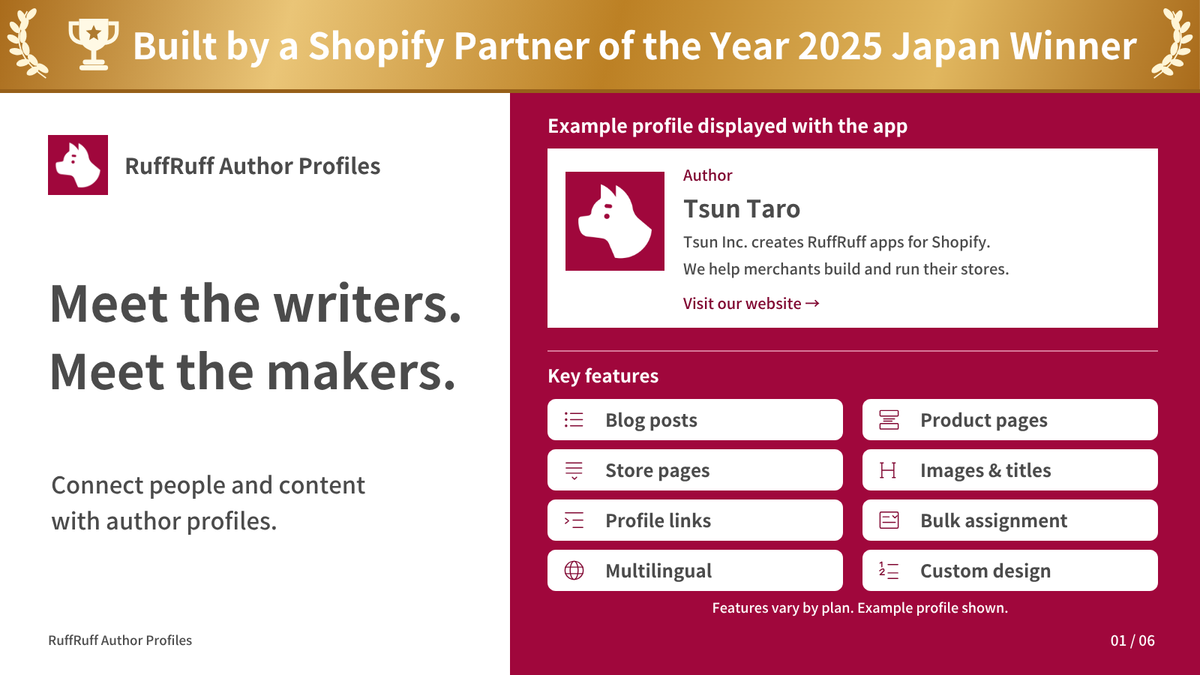
RuffRuff Author Profiles is a Shopify app that makes it easy to display author profiles on blog posts, products, and pages. It's simple to set up with no coding required, and you can register an unlimited number of authors (on the Regular Plan). Note that displaying profiles on products and pages is a Regular Plan feature — on the Free Plan and Light Plan, profiles can only be displayed on blog posts.

There's also a Free Plan, so you can try out the features before deciding whether to upgrade to a paid plan, making it easy to get started.

Using the app can help increase content credibility and improve user engagement.

How to Display Author Profiles on Blog Posts Using RuffRuff Author Profiles

Step 1: Add the App to Your Shopify Theme

(1) From the "1. Enable an app in a theme" section on the home screen, select the theme you want to add the app to

(1) From the "1. Enable an app in a theme" section on the home screen, select the theme you want to add the app to

(2) Click "Access"

(3) Click "Add section" (or "Add block")

(4) Select the app block named "Author Profiles"

(5) (Optional) Move the app section to your preferred location

(6) Click Save

Step 2: Customize the Profile Design

(1) On the app's home screen, click "Customize" in the "2. Customize design" section

(1) On the app's home screen, click "Customize" in the "2. Customize design" section

(2) Adjust the design on the design customization screen

(2) Adjust the design on the design customization screen

(3) Click "Save"

Step 3: Register Author Information

(1) On the app's home screen, click "Add author" in the "3. Add authors" section

(1) On the app's home screen, click "Add author" in the "3. Add authors" section

(2) On the author list screen, click "Add author"

(2) On the author list screen, click "Add author"

(3) On the author information screen, enter the required details

(3) On the author information screen, enter the required details such as the author's name and profile information

(4) Click "Save"

Step 4: Link Authors to Blog Posts

(1) On the home screen, click "Apply author" in the "4. Apply the author" section

(1) On the home screen, click "Apply author" in the "4. Apply the author" section

(2) On the blog post list screen, select the blog posts you want to apply an author to  (3) Click "Apply author"

(2) On the blog post list screen, select the blog posts you want to apply an author to

(3) Click "Apply author"

(4) From the popup that appears, select the author you want to apply  (5) Click "Apply"

(4) From the popup that appears, select the author you want to apply

(5) Click "Apply author"

Conclusion

There are various ways to display author information on Shopify blog posts — from the simple standard feature, to customizing the source code, to using an app. Each method has its own advantages and disadvantages, so it's important to choose the one that best fits your goals, skills, and budget.

In particular, using the Shopify app "RuffRuff Author Profiles" lets you display flexible, detailed author information with no coding, making it a great option for non-engineers too. We hope this article helps you find the right approach.

Shopify × Discounts

View all articles
How to Set Up Discounts on Subscription Products by Membership Rank in Shopify

How to Set Up Discounts on Subscription Products by Membership Rank in Shopify

Learn how to vary subscription prices by membership rank using Shopify Subscription. Using the RuffRuff Order Bonus app, this guide walks through — with screenshots — how to automatically apply a t...

17 Shopify Discount Strategies | From Free Discount Features to Apps — Boost Sales and Drive Repeat Purchases

[2026 Latest] 17 Shopify Discount Strategies | From Free Discount Features to Apps — Boost Sales and Drive Repeat Purchases

The complete guide to Shopify discount strategies. From free built-in features to advanced apps, this article covers 17 strategies that boost sales and drive repeat purchases at the same time. Expl...

How to Set Up Volume Discounts on Shopify | Simple Bulk-Purchase Discount Settings

How to Set Up Volume Discounts on Shopify | Simple Bulk-Purchase Discount Settings

This article explains how to set up volume discounts (bulk-purchase discounts) on Shopify using the easy-to-configure Shopify app "RuffRuff Order Bonus."

How to Set Up Tiered Shipping Discounts Based on Cart Quantity in Shopify | Free Shipping or Half-Price Shipping Based on Item Count

How to Set Up Tiered Shipping Discounts Based on Cart Quantity in Shopify | Free Shipping or Half-Price Shipping Based on Item Count

This article clearly explains, step by step, how to use the Shopify app "RuffRuff Order Bonus" — which is easy to use with simple settings — to set up half-price or free shipping when customers pur...

How to Set Discount Rates by Membership Rank in Shopify | Discounts Using Customer Tags

How to Set Discount Rates by Membership Rank in Shopify | Discounts Using Customer Tags

Learn how to set up membership-rank discounts using the simple, easy-to-configure Shopify app "RuffRuff Order Bonus." This guide walks through the setup steps in detail for applying tiered discount...

How to Offer Free Shipping Exclusively for VIP Members on Shopify | Simple Setup for Free Shipping When Customers Have the VIP Customer Tag

How to Offer Free Shipping Exclusively for VIP Members on Shopify | Simple Setup for Free Shipping When Customers Have the VIP Customer Tag

Boost customer loyalty by offering free shipping exclusively to VIP members! This article gives a beginner-friendly explanation of how to set up shipping discounts using customer tags with the easy...

Shopify × Pre-Orders

View all articles
Shopify Limited-Time Sale Guide: Comparing and Explaining 3 Methods

Shopify Limited-Time Sale Guide: Comparing and Explaining 3 Methods

A thorough guide to the three ways to run a limited-time sale on Shopify. Compares the built-in feature, manual setup, and dedicated apps, along with the pros and cons of each and how to use RuffR...

Implementing VIP Member-Only Sales on Shopify | The Complete Guide with RuffRuff Apps

Implementing VIP Member-Only Sales on Shopify | The Complete Guide with RuffRuff Apps

A detailed guide to implementing VIP member-only sales on Shopify. A complete step-by-step setup guide using the RuffRuff Order Limits and RuffRuff Pre Order apps. Boost customer loyalty and increa...

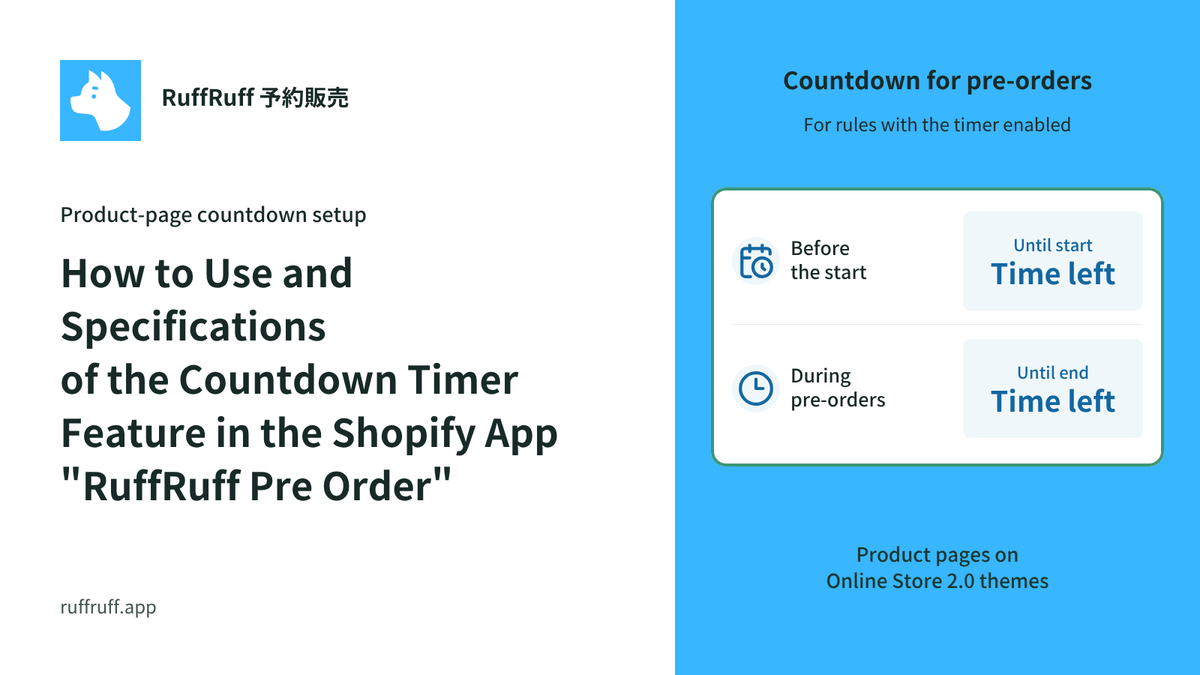
How to Use and Specifications of the Countdown Timer Feature in the Shopify App "RuffRuff Pre Order"

How to Use and Specifications of the Countdown Timer Feature in the Shopify App "RuffRuff Pre Order"

Explains the basic steps for installing the "Countdown Timer" feature of RuffRuff Pre Order on the product page. Assuming an Online Store 2.0 compatible theme, this briefly summarizes the key point...

[Shopify] How to Offer Exclusive Sales for LINE Members | Using CRM PLUS on LINE × RuffRuff Pre Order

[Shopify] How to Offer Exclusive Sales for LINE Members | Using CRM PLUS on LINE × RuffRuff Pre Order

Explains how to combine CRM PLUS on LINE with RuffRuff Pre Order to offer products exclusively to LINE-linked members and sell at discounted prices. This article introduces, step by step, effective...

[Shopify] How to Run Exclusive Sales for LINE-Linked Members | A Use Case of Lipify × RuffRuff Pre Order

[Shopify] How to Run Exclusive Sales for LINE-Linked Members | A Use Case of Lipify × RuffRuff Pre Order

This article explains how to sell products exclusively to LINE-linked members on Shopify. It introduces recommended Shopify apps and shares example settings for exclusive sales and promotions for L...

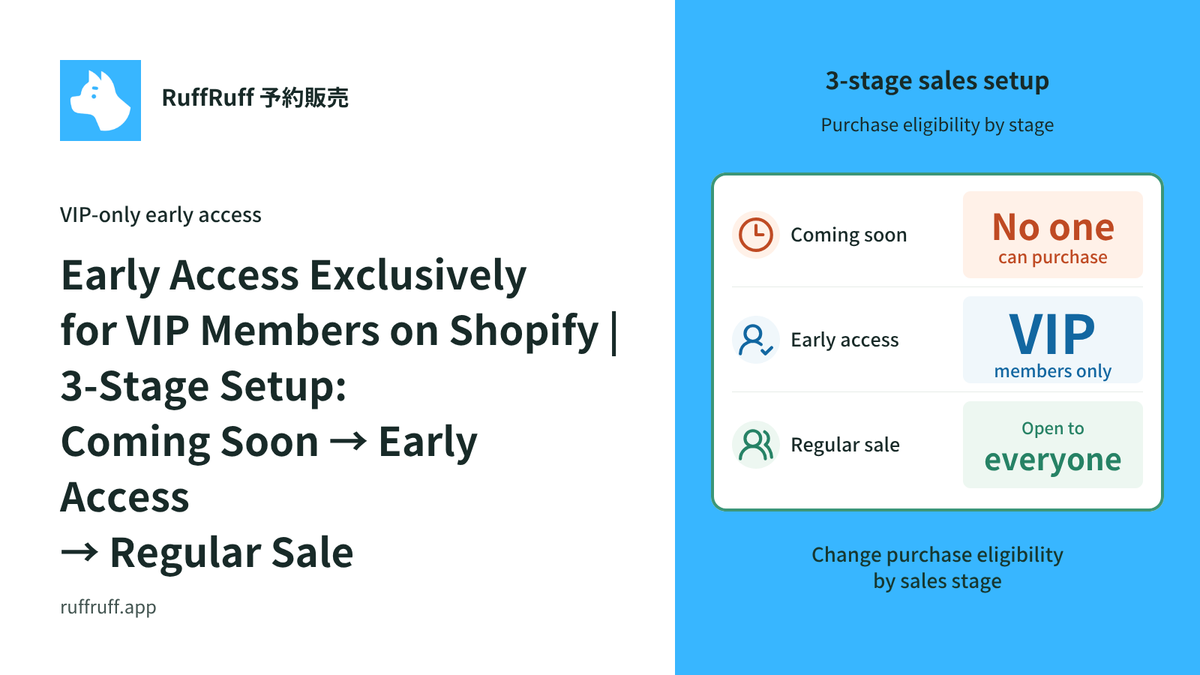
Early Access Exclusively for VIP Members on Shopify | 3-Stage Setup: Coming Soon → Early Access → Regular Sale

Early Access Exclusively for VIP Members on Shopify | 3-Stage Setup: Coming Soon → Early Access → Regular Sale

A detailed explanation of how to run early access exclusively for VIP members on Shopify. Using the RuffRuff Pre Order app, this article introduces step by step how to implement effective member-ex...

Shopify × Purchase Limits

View all articles
How to limit Shopify campaign purchases to 2 items in total

How to limit Shopify campaign purchases to 2 items in total

Limit eligible campaign purchases to 2 items per customer across separate orders. This example covers the date window, purchases outside it, and how to check an additional order.

How to limit a Shopify trial set to one per customer

How to limit a Shopify trial set to one per customer

Use RuffRuff Order Limits to limit a trial set to one per customer across separate orders. Follow the setup and test first purchases, repeat purchases, and guest checkout.

How to limit purchases to 3 items per customer per month in Shopify | Purchase limits that reset each month

How to limit purchases to 3 items per customer per month in Shopify | Purchase limits that reset each month

See how to limit purchases across a collection to 3 items per customer each month, using three fictional cookie tins. Includes rule settings, purchase scenarios, and limitations to consider before ...

Set Purchase Limits by Membership Tier | 3 for Regular Members, 10 for VIPs

Set Purchase Limits by Membership Tier | 3 for Regular Members, 10 for VIPs

Learn how to use customer tags to limit a selected product to 3 per order for regular members and 10 for VIP members, while preventing guests from purchasing it. Includes setup steps and actual car...

Shopifyでサブスク会員限定販売を実現|GO SUB × RuffRuff 注文制限【対談】

Shopifyでサブスク会員限定販売を実現|GO SUB × RuffRuff 注文制限【対談】

サブスク会員だけに限定商品や先行販売を提供したいShopifyストア向けに、GO SUBの契約者タグとRuffRuff 注文制限を組み合わせる方法を紹介します。

A Thorough Comparison of 9 Shopify Purchase Limiting Apps! Comparing Features, Pricing, and Japanese Language Support

[2026 Latest] A Thorough Comparison of 9 Shopify Purchase Limiting Apps! Comparing Features, Pricing, and Japanese Language Support

A thorough 2026 comparison of 9 must-have order limiting apps for Shopify stores! From quantity, price, and selling period limits to fraud prevention, find the best app for your store based on feat...

Shopify × Sales Period Settings

View all articles
How to Run Limited-Time Sales on Shopify | Selling Period Setting Apps Compared

[Updated for 2026] How to Run Limited-Time Sales on Shopify | Selling Period Setting Apps Compared

A detailed guide to setting up limited-time sales on Shopify, plus our recommended apps. Learn the strategies for boosting sales in a short period of time!

How to Run Release Announcements on Shopify | Recommended Apps

[Updated for 2026] How to Run Release Announcements on Shopify | Recommended Apps

Learn how to run release announcements on Shopify and which apps to use. We explain concrete techniques and setup methods to build customer anticipation and boost sales on launch day, along with ti...

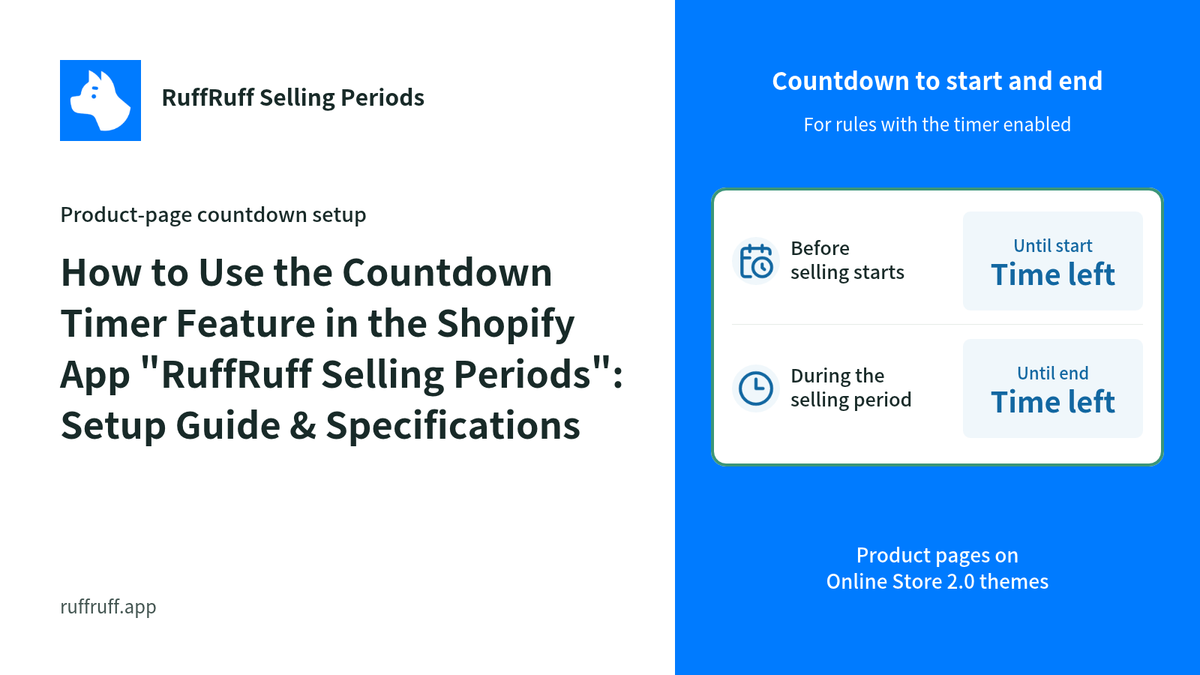
How to Use the Countdown Timer Feature in the Shopify App "RuffRuff Selling Periods": Setup Guide & Specifications

How to Use the Countdown Timer Feature in the Shopify App "RuffRuff Selling Periods": Setup Guide & Specifications

Learn the basic setup and usage of the RuffRuff Selling Periods countdown timer. Discover how showing the remaining time can create urgency and boost your conversion rate.

Shopify × Gifts

View all articles
How to Automatically Add a Promotional Gift After an Order on Shopify | Add It to the Order Without Putting It in the Cart

How to Automatically Add a Promotional Gift After an Order on Shopify | Add It to the Order Without Putting It in the Cart

A setup example for automatically adding a JPY 0 promotional gift after an order is created, without putting the gift in the cart. Covers eligibility requirements and how to verify the addition in ...

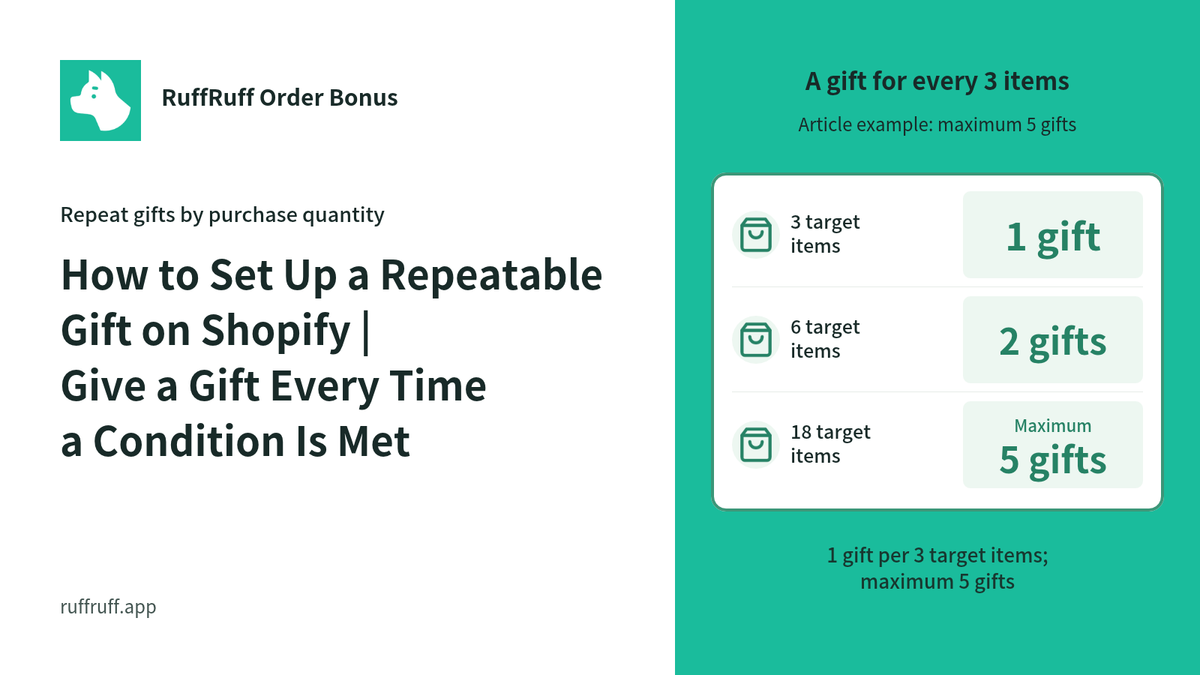
How to Set Up a Repeatable Gift on Shopify | Give a Gift Every Time a Condition Is Met

How to Set Up a Repeatable Gift on Shopify | Give a Gift Every Time a Condition Is Met

A guide to setting up a repeatable gift on Shopify, like "1 free gift for every 3 purchased." With the Shopify app "RuffRuff Order Bonus," you can implement automatic gifts based on purchase quanti...

How to Offer a Choice Gift on Shopify | Let Customers Pick Their Favorite Product When a Condition Is Met

How to Offer a Choice Gift on Shopify | Let Customers Pick Their Favorite Product When a Condition Is Met

A guide to setting up a "choice gift" on Shopify, letting customers pick their favorite gift when a condition is met. Learn how to use the Shopify app "RuffRuff Order Bonus" to build a novelty camp...

How to Give Away a Free Digital Product on Shopify When a Condition Is Met

How to Give Away a Free Digital Product on Shopify When a Condition Is Met

A guide to giving away digital products as a gift on Shopify. Learn how to connect the "Digital Downloads" app with "RuffRuff Order Bonus" to automatically send buyers digital content, step by step.

How to Give VIP Customers a Free Gift on Shopify | Gift Distribution Based on Customer Tags

How to Give VIP Customers a Free Gift on Shopify | Gift Distribution Based on Customer Tags

A detailed guide to automatically distributing a free gift to VIP customers based on a customer tag, using the RuffRuff Order Bonus Shopify app. Boost customer satisfaction and repeat purchase rate...

How to Distribute Sample Products on Shopify | Gift Distribution Based on Amount with RuffRuff Order Bonus

How to Distribute Sample Products on Shopify | Gift Distribution Based on Amount with RuffRuff Order Bonus

A guide to automatically distributing sample products on Shopify. Learn how to use the RuffRuff Order Bonus app to give away a sample product on orders of ¥10,000 or more, boosting average order va...