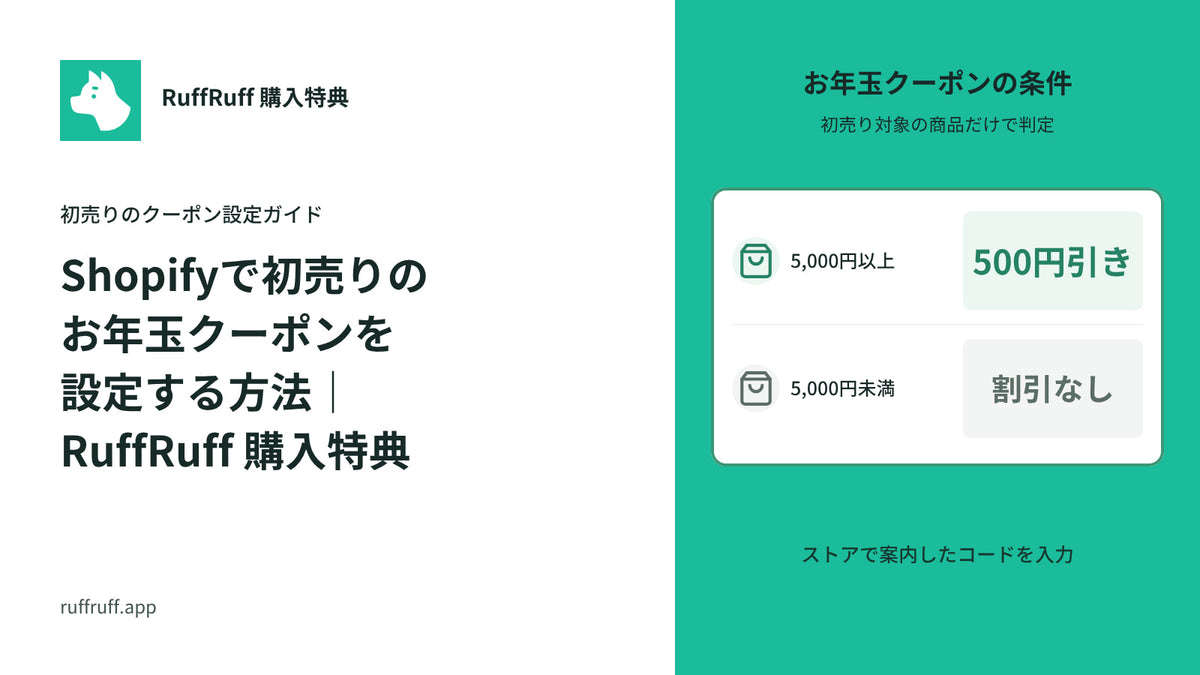
Use RuffRuff Order Bonus to create a New Year coupon, known in Japan as an otoshidama coupon that takes ¥500 off the order when a customer spends ¥5,000 or more on New Year sale products. Customers find the code on the storefront panel or the product page, copy it, and enter it at checkout. Each customer can use it once, and the campaign can be used 100 times in total.
Decide the terms of your New Year coupon
Choose a New Year sale discount, a coupon for the next order, or a novelty gift
To encourage orders during the New Year sale, offer a coupon that applies to that order. If you want customers who buy at the start of the year to come back, consider a coupon they can use on their next order. If you want to add a sense of occasion with an extra item, prepare a novelty gift and decide how you will stock and ship it.
Choose the eligible products, the discount amount, and the usage limit
In this example, name the collection of eligible products, such as mug sets, “New Year sale items”. The discount is ¥500 per order, and the campaign allows 100 uses in total, so the maximum amount discounted is ¥50,000. In an example that compares ¥6,000 of sales with a ¥3,200 cost on the same tax basis, gross profit after the ¥500 discount is ¥2,300. Include the shipping you pay, payment processing fees, and advertising costs in the campaign budget.
Set up the New Year coupon in RuffRuff Order Bonus
Choose between Shopify’s built-in discounts and RuffRuff Order Bonus
The coupon in this guide takes ¥500 off the order when the subtotal of New Year sale products alone is ¥5,000 or more. If a customer buys ¥4,999 of eligible products together with ¥1,000 of ineligible products, the eligible products do not reach ¥5,000, so the discount does not apply. If the eligible products alone reach ¥5,000, the ¥500 order discount applies even when the same cart also contains ineligible products.
Shopify’s built-in discounts can also set a fixed-amount discount, active dates, a usage limit, and whether the discount combines with other discounts. Which products are counted, and where the discount is applied, depends on the discount type.
- A discount applied to the order (Order discount) uses cart totals to check the minimum purchase amount. For this discount type, Shopify does not let you limit that calculation to a specific collection.
- A discount applied to eligible products (product discount) can check the minimum purchase amount using only products in a specified collection, and the discount is also applied to products in that collection.
With RuffRuff Order Bonus, you can check the minimum purchase amount using only New Year sale products, then apply ¥500 off to an order that meets the condition.
You can show the coupon code you create in the panel customers open on the storefront (the widget) and in the message on the product page (Product message). While they shop, customers can review the terms, copy the code, and enter it at checkout.
Amount off discounts in the Shopify Help Center
View the appView the demo pageCreate the coupon code customers enter
- In the Shopify admin, open RuffRuff Order Bonus and create a campaign in “Discounts”.
- Under “Method”, select “Manual”, which customers use by entering a code. Set “Campaign name” to “New Year sale – ¥500 off” and enter
OTOSHIDAMA500as the “Discount code”.
Take ¥500 off the order when the subtotal of New Year sale products is ¥5,000 or more
- Under “Eligibility conditions”, add “Cart subtotal price”. This condition uses product prices and excludes shipping. Select “Is greater than or equal to” and enter ¥5,000.
- Set the target to “Specific collection” and select “New Year sale items”.
- Under “Discount”, add “Order discount”, select “Fixed amount”, and enter ¥500.
Eligibility conditions in RuffRuff Order Bonus · Discount settings
Set one use per customer, 100 total uses, and the active period
- In “Restrictions”, turn on “Limit number of times this campaign can be used in total” and enter 100, then turn on “Limit to one use per customer”.
- Turn off combining with order, product, and shipping discounts. If you already have automatic discounts, check which discount applies to the same cart before you publish.
- Set the active period from January 1, 2027 at 00:00 through January 4, 2027 at 00:00 (Japan time). So that customers can use it through the evening of January 3, 2027, set the end time in the admin to 00:00 on the next day.
- Save, set the campaign status to “Active”, and save. Activating a campaign requires a paid plan for the app. On a development store created with a Partner account, you can check the behavior with a free test subscription.
Customers who have purchased before can also use this coupon on a qualifying order if they have not used it yet. Official help for Restrictions
Announce the coupon with the widget and a Product message
In your theme’s app embeds, enable “RuffRuff Order Bonus”. To announce it in the widget, open the campaign’s “Display settings”, turn on “Show in widget”, and enter a title and message. To align the announcement with the discount period, set the display period to “Follow active dates”.

To show a message on the product page, use a theme that supports Online Store 2.0.
- In the theme editor, add a “Product message” block to the product template used by the eligible products, then save.
- Return to RuffRuff Order Bonus. In the campaign’s “Display settings”, turn on “Show product message”. Under “Applies to”, choose the products that should show the message, and enter the copy in the “Product message” field. Check the display period, then save.
Whether the Product message is shown and whether the discount applies are decided separately. If you set the campaign title and description, the Product message shows a details button. When the campaign has a discount code, customers can copy the code from the details screen.

Before you publish, confirm on your storefront that the announcement appears and that copying the code works. On the New Year sale page, publish the eligible products and the terms, for example:
Enter coupon code OTOSHIDAMA500 to take ¥500 off an order when the tax-inclusive subtotal of New Year sale products is ¥5,000 or more. One use per customer, and only the first 100 uses. This coupon cannot be combined with other discounts. Available from January 1, 2027 through January 3, 2027 at 23:59 (Japan time). Even during that period, the discount from this coupon ends once it has been used 100 times.
This sample notice is for stores that use tax-inclusive prices. Test the minimum purchase amount with your own product prices and tax settings before you publish the notice. How to set up the widget · How to set up the Product message
Before you publish, check that the coupon applies and that the usage limits work
Before payment, check the subtotal, the code, combining discounts, and the dates
On a test store set to Japan’s 10% tax-inclusive pricing, a ¥500 discount applied when the tax-inclusive price of the eligible products was exactly ¥5,000. In a cart that combined ¥4,999 of eligible products with ¥1,000 of ineligible products, the discount did not apply even though the subtotal was ¥5,999.


When you try this in your own store, also check an order of only ineligible products, a checkout with no code entered, and a cart that has a discount which cannot be combined, before you complete payment.
Complete the order and check the breakdown and the usage count
We added one eligible New Year mug set at ¥5,000 and one ineligible color mini tray at ¥1,000, then completed the order with a test payment. In the Shopify order details, we confirmed a product subtotal of ¥6,000, a ¥500 order discount from the coupon, shipping of ¥800, and a total of ¥6,300 (of which ¥500 is consumption tax). On the screen, the coupon appears in the discount field under the payment details.

We set the total usage limit for this test to 2 and completed guest orders for two customers. After the first order, entering the code again with the same email address showed that it had already been used. After another guest completed the second order, checkout told a third customer that the usage limit had been reached. During the test, the Discounts list in the Shopify admin showed the usage count as 0. In a test, check the count in the list and also whether the code can actually be used at the next checkout.

If you need to know what a cancellation or refund does to the remaining uses, check that in your own test environment. Create the code you will publish separately from the test code, and check the usage count and settings before you publish. Placing a test order in the Shopify Help Center
Check the announcement after the limit is reached and after the campaign ends
When the display period was set to “Follow active dates”, this campaign’s announcement disappeared from the widget before the start and after the end, and the code could not be used at checkout either. When the usage limit was reached during the active period, the widget announcement remained after the discount could no longer be used. Once the limit is reached, turn off “Show in widget” in the campaign’s display settings, and change the New Year sale page to say “The coupon discount has ended.” If you also use a product message, check whether it is still showing and hide it if needed.

After the New Year sale, review coupon use and gross profit
Count online store orders that used the coupon and divide by the number of online store orders in the same period to see what share of orders used it. Also record the purchase rate from visits to the New Year sale page and gross profit after the discount. If you can compare with the previous year, note any differences in the reporting period and in the eligible products.
If you are planning the whole New Year sale, see How to plan year-end and New Year promotions, with a roundup of tactics. If you also sell lucky bags, see How to sell lucky bags (fukubukuro) on Shopify.