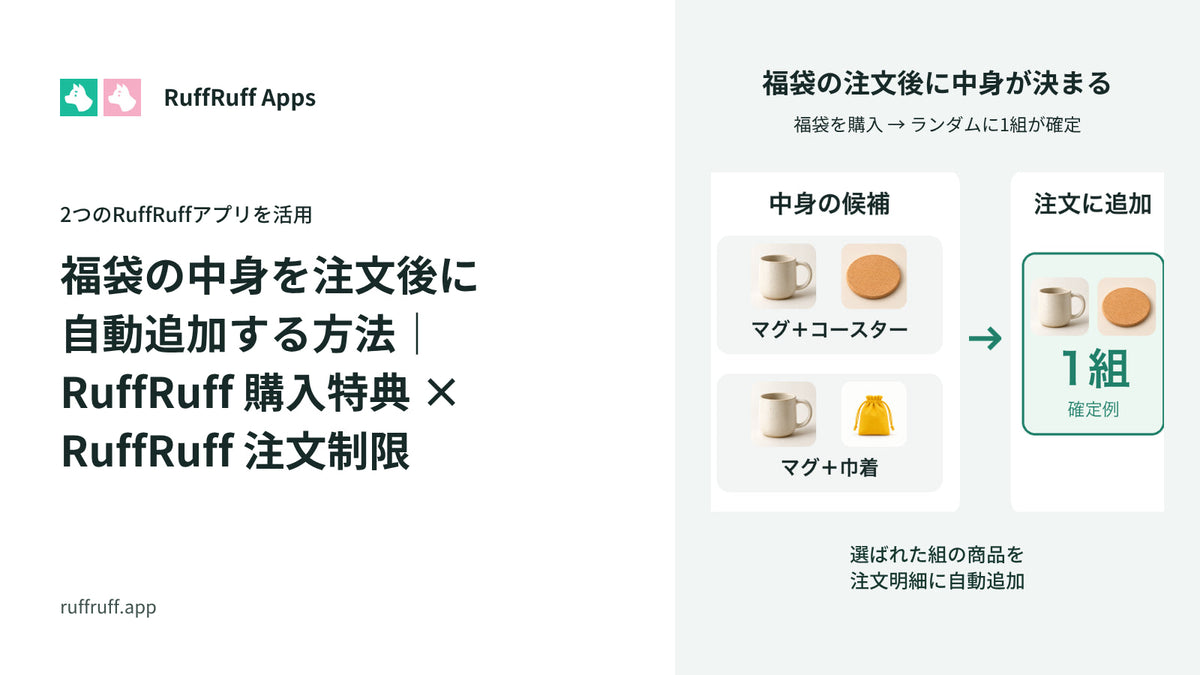
This guide shows how to limit lucky bags (fukubukuro) to one per order with RuffRuff Order Limits and add one assortment after the order with RuffRuff Order Bonus. Each bag comes with one assortment. Using a ¥3,300 lucky bag with a mug and an accessory, we’ll walk through both apps’ settings and show you what to check in a test order.
Prepare the lucky bag and its component products
In Shopify, create a paid product called “New Year Surprise Lucky Bag” as a regular product. Also prepare the ivory mug, cork coaster, and yellow drawstring pouch as component products. Set a price and the number of bags you can sell, then select the same lucky bag product in both apps. If you’re starting from scratch, see how to create the lucky bag and its component products in Shopify.
Limit lucky bags to one per order with RuffRuff Order Limits
First, set a purchase limit for the lucky bag product using “Quantity limits by product” in RuffRuff Order Limits.
- Under “Quantity limits”, open “Quantity limits by product”. If “Start using” appears, select it. Then open “Settings” and enable “Quantity limits by product”.
- Find “New Year Surprise Lucky Bag” in the product list. Set its quantity limit to “Enabled,” enter “1” in “Maximum quantity,” and save. Leave “Minimum quantity” blank for this example.
- Place a test order to confirm that customers can buy one bag and that two bags exceed the limit.
This example uses a lucky bag with one variant. To limit customers to one bag across colors or sizes, use “Total quantity limit” to count eligible variants of the same product together.
See Quantity Limits by Product: Settings for each setting. If you’re considering multiple types of lucky bags or a cumulative limit per customer, see how to choose purchase limits for lucky bags.
Set up a random gift in RuffRuff Order Bonus
Once you’ve limited lucky bag purchases to one per order with RuffRuff Order Limits, set up a random gift for the same product. This campaign adds one assortment per order.
The RuffRuff Order Bonus overview video introduces the app’s main features, including gift distribution and discounts.
Enable gift distribution after the order
- Decide which products and quantities go into each possible assortment.
- Open RuffRuff Order Bonus and go to “Settings” → “Automation.”
- If you see “Additional permissions required” under “Post-order gifts,” select “Grant permissions.” Select “Distribute gifts after the order” and save your settings.
- Go to “Gifts” → “Create campaign.”
Initial Setup: Gift in RuffRuff Order Bonus
Apply the campaign to orders with at least one lucky bag
- Under “Eligibility conditions,” click “Add condition” and select “Cart item quantity.”
- Set the comparison to “Is greater than or equal to” and enter “1” as the quantity.
- Choose “Specific products,” click “Select products,” and select “New Year Surprise Lucky Bag.”
Orders containing both a lucky bag and regular products also qualify. Orders containing only regular products don’t receive an assortment.

Set up the possible assortments
Group the products into one-bag assortments, as shown below. To give customers good value whichever assortment they receive, check that the combined regular prices in each assortment exceed the lucky bag price and keep the two assortments close in value.
| Variant title | Component products and quantities |
|---|---|
| Mug and coaster | 1 ivory mug and 1 cork coaster |
| Mug and pouch | 1 ivory mug and 1 colorful mini drawstring pouch (yellow) |
- In the “Gift” section, set “Gift type” to “Random gift” and enter “New Year Surprise Lucky Bag Contents” in “Gift product title.”
- Use “Add variant” to create the two candidates shown in the table. Select the two products for each candidate and use “Update quantity” to set each to one unit.
- Under “Distribution method by channel,” confirm that “Online Store” is set to “After the order.”
- Set “Active dates” to cover your testing window and save the campaign. Before placing a test order, set the campaign’s “Status” to “Active” and save again.


Once the order is placed, the app picks one assortment from the candidates that meet the inventory requirements. If it picks “Mug and coaster,” it adds one ivory mug and one cork coaster. In this example, the lucky bag costs ¥3,300 and the two items are added for ¥0. Leave the price of the gift candidates created by the app at ¥0.
On the product page, you can write: “This lucky bag contains one mug and one accessory. The accessory is selected after you place your order.”
Customers may be able to see items added after the order on the order status page or on the packing slip included in the shipment. To keep the contents a surprise until delivery, pack the bags in advance and sell them under a dedicated SKU.
Manage inventory for the lucky bag and its contents
The lucky bag product’s stock sets the maximum number of bags you can sell. Component stock determines which assortments you can fulfill after an order. Checkout doesn’t reserve the component products, and selling a component separately doesn’t automatically adjust the lucky bag product’s stock.
For example, if your fulfillment location has 20 mugs, 12 coasters, and 5 pouches available for lucky bags, you can prepare up to 17 bags from these two assortments. Both candidates need one mug, so if mug stock drops to 10, you can make up to 10 bags. When setting the number of bags available for sale, account for stock needed for regular sales and for orders whose contents haven’t been added yet.
Track inventory for the lucky bag product and each component, and turn off “Continue selling when out of stock.” During the sale, check remaining component stock, adjust the number of bags available for sale, and stop selling when you can no longer fulfill either assortment. For orders already placed, check for “Review required” in the “Post-order gift” app block before shipping and arrange a replacement or contact the customer as appropriate.
Shopify Help Center: Initial inventory setup
Check the storefront and packing slip with a test order
Check the price of items added after the order in the Shopify order details. Compare the product names and quantities on the packing slip with the order details. If you use SKUs, compare those as well.
Check each step from the product page to the order details
- Add the lucky bag to the cart on your online store. At checkout, check that the price and quantity of the lucky bag appear.
- Check the shipping rates and methods when ordering just the lucky bag and when ordering it alongside regular products.
- Place the order, then go to Orders in your Shopify admin and check the SKUs, quantities, and unfulfilled line items.
- From the order details, go to More actions → Print packing slips to check which items and quantities your team will pack.
To test the payment as well, choose a method that works with your payment provider. If you enable payment test mode on a live store, customers cannot place real orders while it is on.
Shopify Help Center: Placing a test order
Check the purchase limit and the items added after the order
With Quantity limits by product and the Random gift campaign enabled for the lucky bag, test orders with and without the bag. Vary the quantity ordered and the stock available for each assortment.
| Test order | What to check |
|---|---|
| Buy 1 lucky bag | The lucky bag appears at checkout. After the order, check that the selected assortment adds 1 unit of each of its 2 products, with ¥0 charged for those items. |
| Try to buy 2 lucky bags | With 1 lucky bag in the cart, try to add another from the product page. Check that the limit message appears and the cart still contains 1 bag. If the rule is set to Checkout only, check at checkout. |
| Buy a lucky bag with regular products | Check that 1 assortment is added for the lucky bag. Confirm you can ship it with the regular products or separately, as described on the product page. |
| Buy regular products only | Check that you can place an order containing only regular products and that no lucky bag contents are added. |
| Only one assortment is in stock | If only the coaster is out of stock, check that the available mug-and-pouch assortment is added. |
| All assortments are out of stock | No lucky bag contents are added. Check the Review required status and its reason in the Post-order gift block, then take action before shipping. |
In the test store, we placed an order for 1 lucky bag with Quantity limits by product enabled. For this test, we used test discount codes for the bag and shipping, which brought the payment total to ¥0.
When we tried to add a second lucky bag to the cart, the product page showed a message asking us to order no more than 1 New Year Surprise Lucky Bag (demo).

We used a separate test order to verify that RuffRuff Order Bonus adds the bag contents.
On November 25, 2026, we placed an order for 1 lucky bag through Shopify’s test payment gateway without applying a discount code. The lucky bag was ¥3,300 and shipping was ¥800, for a total of ¥4,100. No payment was taken because this was a test transaction. After the order, the “Mug and coaster” assortment was selected. RuffRuff Order Bonus added 1 ivory mug and 1 cork coaster to the order, each at ¥0. The packing slip for the same order listed 1 lucky bag and 1 unit of each of the 2 items inside it.


If you do not see Post-order gift in the order details, click + Block at the bottom of the page. From the list of available app blocks, select Post-order gift. Pin it and save to keep it visible the next time you open an order.
If you see Review required, read the reason before confirming fulfillment and follow the policy you describe on the product page.
Check what customers see and what your warehouse receives
Check what customers see after purchase. Open the order status page for your test order and look for the added product names and quantities. If you include a packing slip with the shipment, check the version customers will receive.
Shopify Help Center: Order status page
If the order confirmation email goes out before the gift is added, it may omit those items. Compare the email you receive for the test order with the order details. If the items are missing from the email, explain on the product page that they are added after the order is placed.
Check whether your warehouse management system (WMS) or order management system imports orders as soon as they are created or on a schedule. If it issues shipping instructions before the gift is added and does not pick up the subsequent order edit, you could ship without the bag contents or end up with a shipment on hold.
For the same test order, check that after the gift is added, the warehouse instructions reflect the product names, quantities, and SKUs if configured. If those details are missing, ask your integration provider whether it supports order edits and set up a process to compare the shipping instructions with the updated order details before confirming them.
Shopify Help Center: Considerations for editing orders
If you choose to assign contents after the order is placed, review the requirements for each app and start with a test order for 1 lucky bag. Before shipping, make sure all the items in the assortment appear in the order details.