With the Quantity rules in RuffRuff Order Limits, you can set the minimum and maximum quantity a customer can purchase in one order, as well as purchase increments such as three at a time. You can also choose whether to total different variants of the same product or count multiple eligible products together.
Before you start, decide which quantities and purchase increments to allow, and which items to count together. This article walks through a basic setup that limits an eligible variant to one item, plus five examples: a minimum of three, a range of two to five, multiples of three, a product total of five, and a collection total of five.
This article covers quantitieswithin a single order. For cumulative quantities that include a customer’s past orders, or limits that vary by customer tier, see the related articles at the end.
Purchase conditions you can set with Quantity rules
Combine minimums, maximums, and increments to set conditions like these. The examples in the table illustrate each rule on its own.
| Purchase condition | Example that meets the condition | Example that does not meet the condition |
|---|---|---|
| Up to 1 item per eligible variant | 1 unit of the eligible red variant | 2 units of the eligible red variant |
| Minimum of 3 items | 3 of the same eligible variant | 2 of the same eligible variant |
| Between 2 and 5 items | 2 or 5 of the same eligible variant | 1 or 6 of the same eligible variant |
| In multiples of 3 | 3 or 6 of the same eligible variant | 2 or 4 of the same eligible variant |
| Up to 5 of the same product | 3 units of the red variant + 2 units of the blue variant of Product A | 3 units of the red variant + 3 units of the blue variant of Product A |
| Up to 5 items from an eligible collection | 3 of eligible Product A + 2 of eligible Product B | 3 of eligible Product A + 3 of eligible Product B |
First, choose what to count together
Applicability sets the unit used to count quantities. Choose Variant, Product, or Cart. This determines the unit used to total the products or variants selected under Eligible items.
| Applicability | What is counted together | Use it for |
|---|---|---|
| Variant | Each eligible variant | Up to 5 units of the red variant and up to 5 units of the blue variant |
| Product | Eligible variants of the same product | Up to 5 of Product A across colors and sizes |
| Cart | Eligible items in the cart for this rule | Up to 5 items across products in an eligible collection |
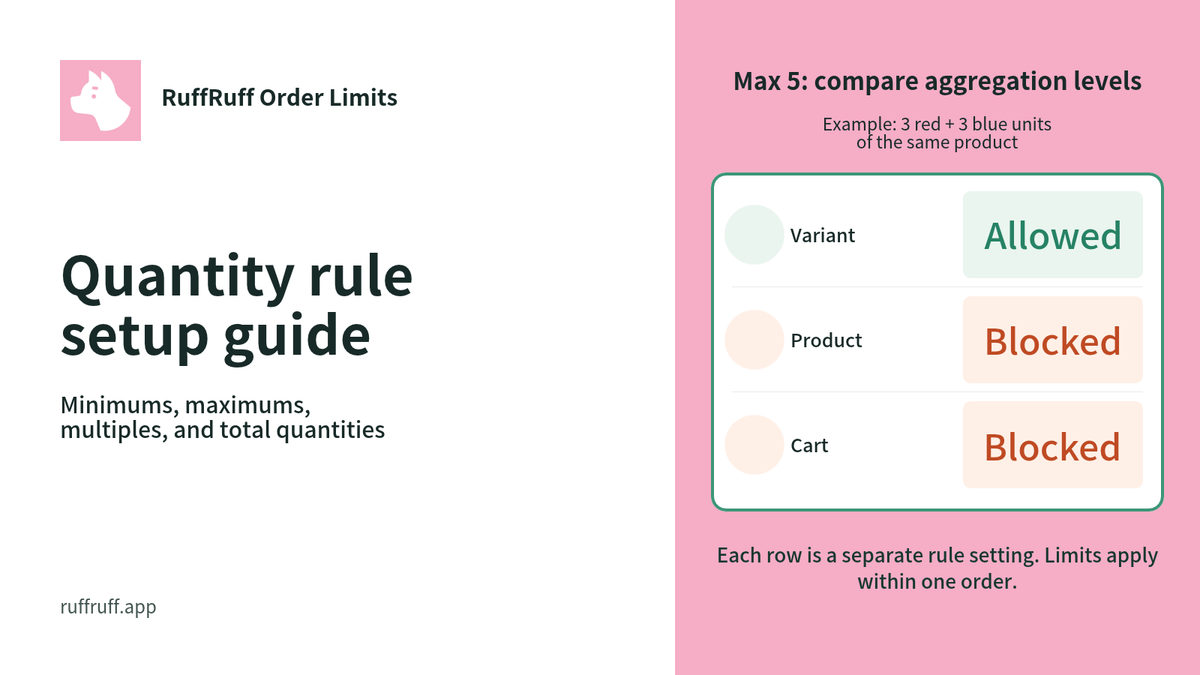
For example, select both the red and blue variants of Product A and set the maximum to 5. If a cart contains 3 red and 3 blue, each variant is within the limit when Applicability is Variant. With Product, the total for Product A is 6, which exceeds the limit.
When Applicability is Cart, the rule checks the combined quantity of its eligible items in the cart. If Product B is also eligible, its quantity is added to Product A’s. Ineligible products are not included in this rule’s total.
Use a collection to select eligible items. To cap the combined quantity of items in a collection at 5, set Applicability to Cart.If you select multiple collections for one rule, the combined eligible totalis capped at 5. This does not allow 5 items from each collection.
For details on how quantities are counted, see the Japanese help article “Applicability (Quantity rules).”
Check your plan and theme before setting up
Quantity rules are available on the Light plan and above for RuffRuff Order Limits. Cumulative quantity rules that count across multiple orders are a separate feature on the Full plan. Plan requirements last checked: November 4, 2026. For prices and plan details, see the Japanese help article “Plans and pricing.”
To show product messages or control the quantity selector on product pages, enable the RuffRuff Order Limits app embed in your theme. The app embed is not required if you only use quantity limits at checkout. Check storefront display and controls separately from purchase restrictions in the cart and at checkout.
To choose a plan or prepare your theme, see the Japanese help article “Initial setup (quantity limits).” The steps below start with creating a Quantity rule in the app admin.
Basic setup: limit an eligible variant to one per order
In this example, the selected variant is limited to one per order. To limit different colors of the same product to a combined total of one, use the Product applicability described below.
1. Open the Quantity rule creation page
- In RuffRuff Order Limits, open “Quantity limits.”
- Click “Manage” for “Quantity rules,” then select “Add quantity rule.”
- In “Title,” enter a name that identifies the eligible items and limit.
Choose a title that will help you identify the rule in the list. For example, “Product A - Red: 1 per order” makes the eligible item and condition clear.

2. Set the eligible items and limit details
- Under “Eligible items,” select the products or variants to limit.
- Under “Limit details,” enter 1 for “Minimum quantity” and 1 for “Maximum quantity.”
- Leave the “Set increment” option for purchase increments unchecked and choose “Variant” for “Applicability.”
This setting allows up to one of each eligible variant per order. Selecting multiple variants does not limit their combined total to one.
| Setting | Basic example |
|---|---|
| Eligible items | The variant to limit |
| Minimum quantity | 1 |
| Maximum quantity | 1 |
| Increment | Not set |
| Applicability | Variant |

The minimum of 1 is the lower limit for buying an eligible variant. For a cart without that item, a purchase is not required.
3. Review the messages and display timing
- In “Product message,” enter the condition you want to explain before purchase.
- Under “Alert message,” enter the guidance to show when the limit is exceeded in “Message for maximum order quantity.”
- Set “Display timing” to “Cart updated and checkout.”
State the counting unit in the product message, for example, “You can purchase up to one of this variant per order.” Make sure it cannot be mistaken for a limit on the whole product.
Use the product message to explain the condition before purchase and the alert message when the condition is not met. Seeing a message alone does not confirm that the checkout restriction works.

4. Save and enable the rule
- Review your entries and click “Save.”
- On the details page after saving, click “Enable.”
- Click “Enable” in the confirmation dialog.
- Return to the list and confirm the new rule’s status is “Enabled.”
Saving and enabling are separate actions. Even with the right eligible items and values, a disabled rule will not apply.

5. Check the behavior with one and two items
- Open the product page and check the selected variant and message.
- Add one unit of the eligible variant to the cart and check that you can continue to checkout.
- Try increasing the total to two of the same variant and check whether the restriction message appears.
Also test adding one item, then adding another. If the same variant appears on multiple cart lines, the rule checks the total quantity of that variant.


If the quantity selector does not allow two, you have confirmed the product page control. Check cart updates and checkout validation separately.
Five more setups for different purchase conditions
Change “Eligible items,” “Limit details,” and “Applicability” from the basic setup to create these conditions. Each example describes a separate rule. If you switch between examples, check that no other test rules remain on the same product.
Require a minimum purchase of 3
To require customers to buy at least three together, set “Minimum quantity” to 3. If you leave “Maximum quantity” unset, this rule has no upper limit.
| Setting | Value |
|---|---|
| Minimum quantity | 3 |
| Maximum quantity | Not set |
| Increment | Not set |
| Applicability | Variant |

This example requires at least three of the same variant. Two units of the red variant and one unit of the blue variant make three items in total, but do not meet the minimum for either variant. To combine colors toward a minimum of three, include the variants in Eligible items and set Applicability to Product.
After saving, check that two of the same eligible variant is restricted and that three and four meet the minimum.

Allow purchases from 2 to 5
To restrict orders that are too small or exceed the limit, set both a minimum and a maximum. In this example, the allowed range is 2 through 5 items.
| Setting | Value |
|---|---|
| Minimum quantity | 2 |
| Maximum quantity | 5 |
| Increment | Not set |
| Applicability | Variant |

Both 2 and 5 are included. Also test 1, just below the minimum, and 6, just above the maximum. Checking only the upper limit can miss an incorrectly entered minimum.


Sell in multiples of 3
To sell in set quantities such as 3, 6, or 9, use “Increment.” Select “Set increment” and enter 3.
| Setting | Value |
|---|---|
| Minimum quantity | 3 |
| Maximum quantity | Not set |
| Increment | 3 |
| Applicability | Variant |

When setting an increment, set the minimum to a multiple of that increment. If you set a maximum, it must also be a multiple of the increment. This example uses a minimum of 3 and an increment of 3. If you add a maximum, set it to a multiple such as 6 or 9.
With only a minimum of 3, a quantity of 4 meets the condition. Adding an increment of 3 means 4 no longer meets it. Test 2, 3, 4, and 6 to check both the minimum and the increment.


Limit combined variants of the same product to 5
To set one limit for a product across colors or sizes, set Applicability to Product. Under Eligible items, make sure to include the variants you want to count together.
| Setting | Value |
|---|---|
| Eligible items | The variants of Product A to total |
| Minimum quantity | 1 |
| Maximum quantity | 5 |
| Increment | Not set |
| Applicability | Product |

Three units of the red variant and two units of the blue variant of Product A total 5. Three units of the red variant and three units of the blue variant total 6. The latter exceeds the product-wide limit even though neither variant exceeds 5 on its own.
When multiple products are eligible, Product applicability counts each product separately. To combine Product A and Product B in one total of 5, choose Cart.


Limit items in an eligible collection to 5 combined
This example lets customers mix items such as canned drinks from the same collection, up to a combined total of 5. Select the collection under “Eligible items” and set Applicability to Cart.
| Setting | Value |
|---|---|
| Eligible items | The collection to limit |
| Minimum quantity | 1 |
| Maximum quantity | 5 |
| Increment | Not set |
| Applicability | Cart |

Three eligible items of Product A and two of Product B total 5. Increasing Product B to 3 makes the total 6, exceeding the limit. Adding ineligible Product C does not add its quantity to this rule’s total.
If you select two collections for the same rule, it counts the eligible products together. If you want a limit of 5 for each collection, create separate rules and review their settings.


For the requirements for minimum, maximum, and increment values, see the Japanese help article “Quantity rule settings.”
Before publishing, check quantity conditions throughout the purchase flow
After setup, test quantities that meet and do not meet the condition in the same environment. The table below lists expected results for your checks. If multiple rules apply, all applicable conditions must be met.
| Setup | Quantities or combinations to test | Expected result for this rule |
|---|---|---|
| Up to 1 item | 1 / 2 of the same eligible variant | 1 meets the condition / 2 is restricted |
| Minimum 3 | 2 / 3 / 4 items | 2 is restricted / 3 and 4 meet the condition |
| 2–5 items | 1 / 2 / 5 / 6 items | 1 and 6 are restricted / 2 and 5 meet the condition |
| Multiples of 3 | 2 / 3 / 4 / 6 items | 2 and 4 are restricted / 3 and 6 meet the condition |
| Product total: 5 | Product A: 3 red + 2 blue / 3 red + 3 blue | Total of 5 meets the condition / total of 6 is restricted |
| Eligible total: 5 | 3 eligible A + 2 eligible B, then add ineligible C | Eligible total remains 5 |
| Minimum does not require a purchase | Cart with no eligible items | This Quantity rule does not require a purchase |
On the product page, check the selected variant, messages, and quantity selector. In the cart, also try increasing or decreasing an item already added. At checkout, confirm that the eligible items and quantities are checked against the intended condition.
Check on both desktop and mobile, and look for display or behavior differences caused by your theme or other apps. If a page that was open before the settings changed does not show the new result, check the rule and product, then reopen the page.
If the limit does not work as expected
First determine whether the purchase condition is being evaluated incorrectly or only the product page display differs. Then check the items below based on the symptom.
| Symptom | What to check | What to do |
|---|---|---|
| Purchase is still possible above the limit | Plan, whether the rule is enabled, eligible items, and display timing | Open the Quantity rule and review its values. After saving, enable it, then check the cart and checkout again. |
| The combined quantity across color variants is not restricted even when it exceeds the limit | Whether Applicability is set to Variant | Choose Product to limit a product total, or Cart to limit all eligible items together. |
| Purchase is blocked within the limit | Whether another Quantity rule or the Quantity limits by product feature applies | List the conditions that apply to the same product and check a quantity that meets all of them. |
| A quantity of 4 is blocked when you expected 3 or more | Whether an increment is set | Check whether you need only a minimum or also a multiple condition, and remove any increment you do not need. |
| Only the product message or quantity selector is unchanged | App embed, theme compatibility, and whether the eligible collection is published | Check the theme display conditions. Test whether this is only a display issue or whether purchase restrictions also fail. |
| Settings changes are not reflected on the page | Eligible items, saved rule values, and the page being checked | Reopen the product page and check the settings and display again. If the issue remains, follow the Japanese help article troubleshooting steps. |
| A limit error appears when enabling a rule | The number of active checkout rules, including rules from other apps | A store can have up to 25 in total. Check the Japanese help article “Quantity limit methods and how to choose” and review the impact on other restrictions before making adjustments. |
Collection publication status and the app embed relate to theme features such as product messages and quantity selectors. Do not conclude that cart or checkout purchase restrictions are also failing based only on these display features being unchanged.
If the issue continues, see the Japanese help article “The app is not working.” When contacting support, include the rule’s eligible items, minimum, maximum, increment, and applicability. Also describe the product and quantity involved and whether the issue occurred on the product page, in the cart, or at checkout.
For cumulative limits or limits in another app
Use Cumulative quantity rules for limits that count monthly purchases or past orders. Limits that differ for regular and VIP customers also use a different setup from the shared limits in this article.
- Set different purchase limits by customer tier in Shopify: 3 for regular customers and 10 for VIPs
- Set a monthly limit of 3 per customer in Shopify: a purchase limit that resets each month
- Limit Shopify trial sets to one per customer
To compare other methods and apps, see “How to set quantity limits in Shopify.” To limit quantities with RuffRuff 予約販売, see “How to limit quantities for pre-orders.”
Explore the app and demo
Visit the app page for features and pricing, or try the public demo to see how purchase limits work.