Skip to content
RuffRuff Apps

Color Picker Now Supports 3-Digit Shorthand Color Codes

カラーピッカーで3桁の短縮カラーコードに対応しました

We've improved the color picker in RuffRuff apps so that entering a 3-digit shorthand HEX color code like #FFF or #ABC no longer causes an error and works correctly.

Issue Before the Fix

Entering a 3-digit shorthand color code prevented saving.

Behavior After the Fix

  • #FFF → correctly processed as #FFFFFF (white)
  • #000 → correctly processed as #000000 (black)
  • All other 3-digit HEX codes are automatically expanded to 6 digits and processed

Affected Apps

  • RuffRuff Order Limits
  • RuffRuff Selling Periods

RuffRuff apps related to this article

Reading next

アクション(条件外)の処理を一部改善しました|RuffRuf 予約販売
キャンペーン一覧の表示項目を改善しました|RuffRuff 購入特典

Changelog

View more articles
注文後に配布するランダムギフトを追加しました|RuffRuff 購入特典

Random gifts are now available for post-order distribution | RuffRuff Order Bonus

RuffRuff Order Bonus now supports random gifts. For an eligible order, the app randomly selects one in-stock, free gift from your candidates and adds it to the order.

カートボタンの色を予約販売・販売不可・通常販売で分けて設定できるようになりました|RuffRuff 予約販売

Separate Cart Button Colors for Pre-Orders, Unavailable Items, and Regular Sales | RuffRuff 予約販売

RuffRuff 予約販売 now lets you set cart button colors separately for pre-orders, unavailable items, and regular sales. You can use your theme’s design for regular sales, and your existing colors carry ...

再入荷通知ボタンの配色設定を分かりやすくしました|RuffRuff 予約販売

Clearer Color Settings for Back-in-Stock Buttons | RuffRuff 予約販売

The back-in-stock alert settings in RuffRuff 予約販売 now show the button color fields only when design customization is on. Your saved colors are kept when you turn customization off.

コレクションを指定して販売期間ルールを一括適用・解除できるようになりました|RuffRuff 販売期間

Apply and remove selling period rules in bulk by collection | RuffRuff Selling Periods
You can now apply and remove selling period rules in bulk by collection in RuffRuff Selling Periods. Before running the update, you can review the variant count and see which rules will be replaced.

チャットでのお問い合わせの受付条件を変更しました|RuffRuff 販売期間

We changed which stores can contact us by chat|RuffRuff Selling Periods
Live chat with the RuffRuff Selling Periods support team is available only in Japanese, for stores that use the app in Japanese and are on the Light plan with Shopify Advanced or Plus. Other stores...
チャットでのお問い合わせの受付条件を変更しました|RuffRuff 購入特典

We changed which stores can contact us by chat|RuffRuff Order Bonus

Live chat with the RuffRuff Order Bonus support team is available only in Japanese, for stores that use the app in Japanese and are on the Light plan with Shopify Advanced or Plus. Other stores can...

GUIDE

Shopify guides

Clear, easy-to-follow, and accurate guides to Shopify sales tactics and how to use our apps.

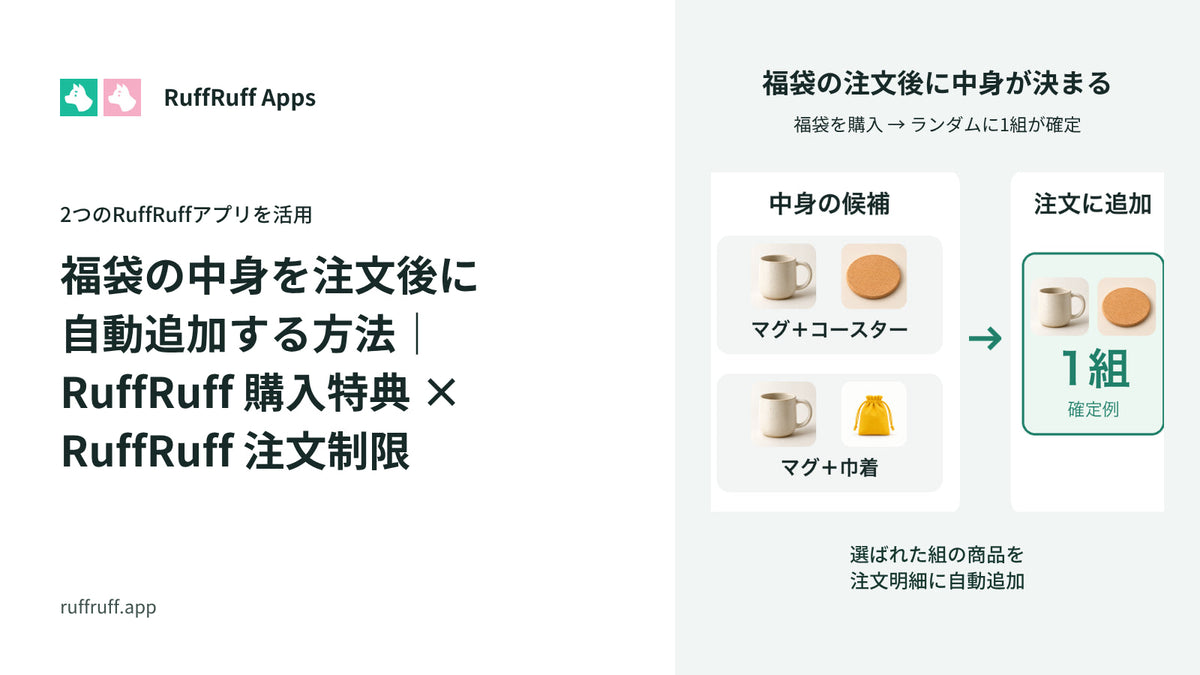
福袋の中身を注文後に自動追加する方法|RuffRuff 購入特典 × RuffRuff 注文制限

How to Automatically Add Lucky Bag Contents After an Order | RuffRuff Order Bonus × RuffRuff Order Limits

Use RuffRuff Order Limits to cap lucky bag purchases at 1 per order, then use RuffRuff Order Bonus to add one assortment of 2 products after the order. Follow the setup steps and see the details of...

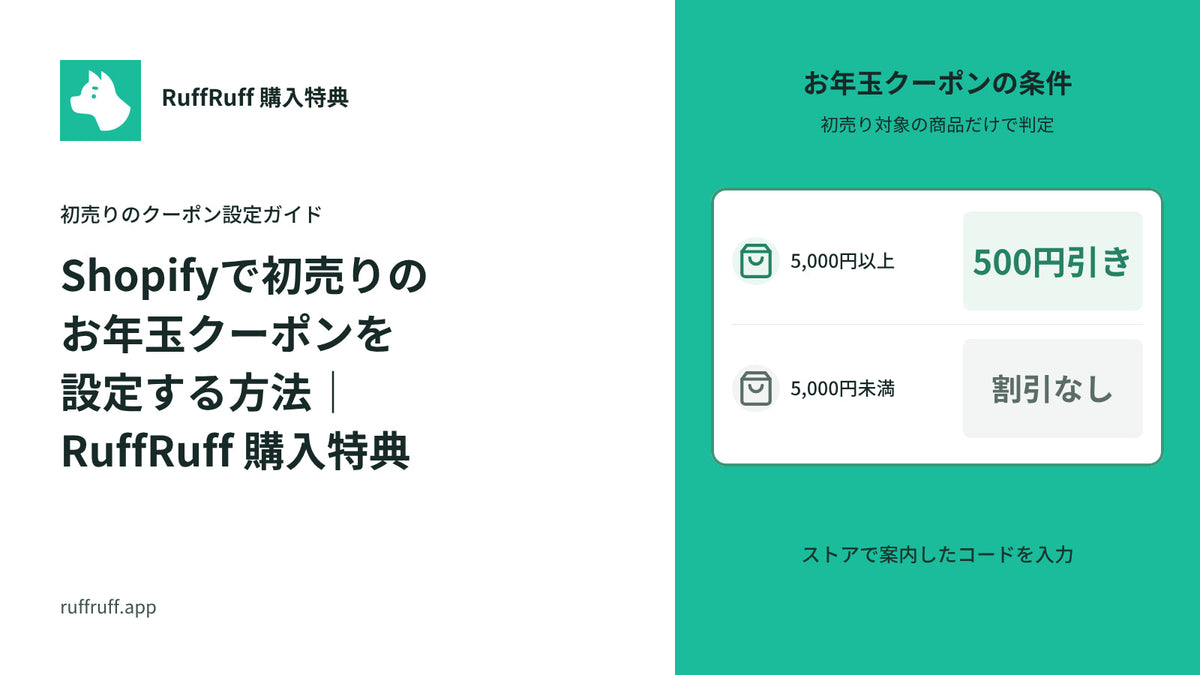
初売り対象の商品を5,000円以上購入し、クーポンコードを入力すると500円引きになる設定例

How to set up a Shopify New Year coupon | RuffRuff Order Bonus

Create a New Year coupon that takes ¥500 off the order when a customer buys ¥5,000 or more of New Year sale products. This article covers usage limits, active dates, how to announce it in your stor...

How to Automatically Add a Promotional Gift After an Order on Shopify | Add It to the Order Without Putting It in the Cart

How to Automatically Add a Promotional Gift After an Order on Shopify | Add It to the Order Without Putting It in the Cart

A setup example for automatically adding a JPY 0 promotional gift after an order is created, without putting the gift in the cart. Covers eligibility requirements and how to verify the addition in ...

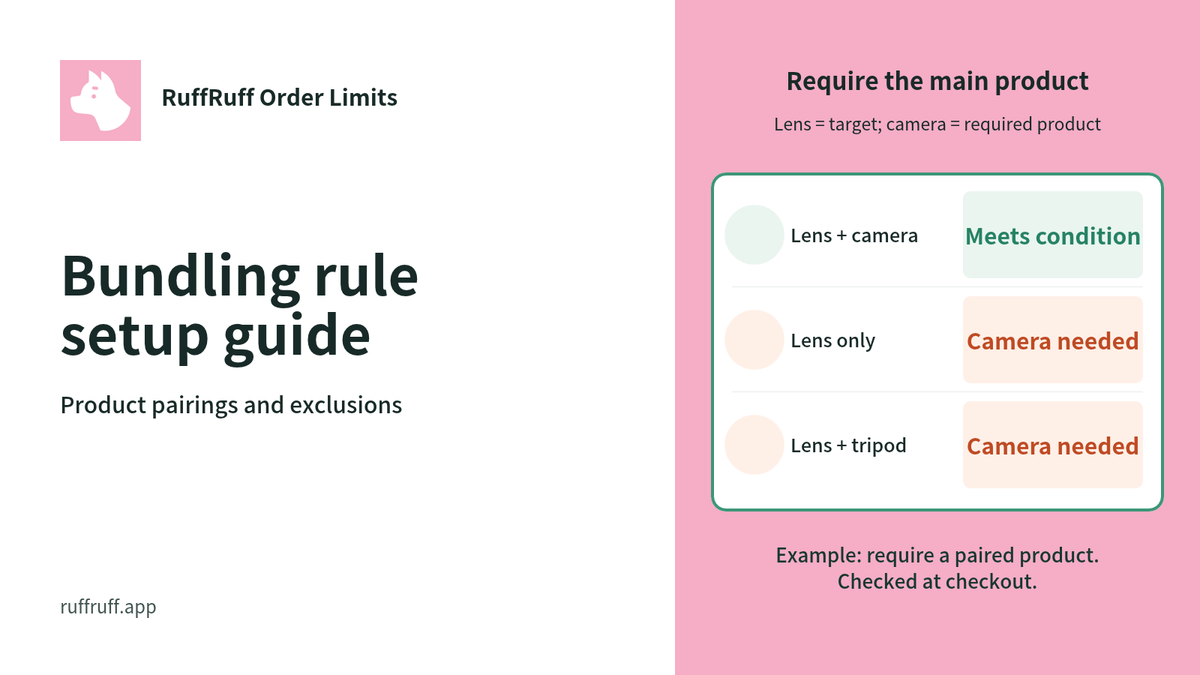
How to set bundle rules in RuffRuff Order Limits | Combinations and excluded items

Explains standalone purchases, allowing or requiring bundles with selected items, and exclusions such as catalogs, using the actual settings screens. It covers how to choose eligible items, how to ...

Shopify Limited-Time Sale Guide: Comparing and Explaining 3 Methods

Shopify Limited-Time Sale Guide: Comparing and Explaining 3 Methods

A thorough guide to the three ways to run a limited-time sale on Shopify. Compares the built-in feature, manual setup, and dedicated apps, along with the pros and cons of each and how to use RuffR...

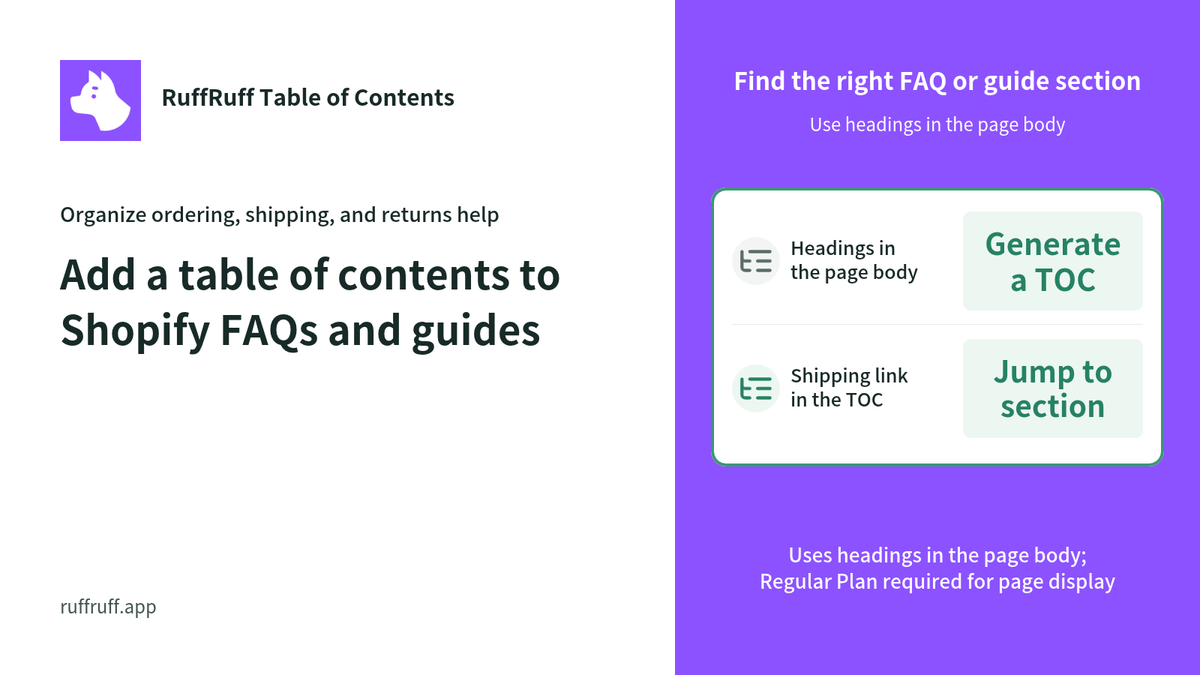
Add a table of contents to Shopify FAQs and guides

Add a table of contents to Shopify FAQs and guides

Use headings in FAQs and store guides to link readers to topics and questions. Covers page requirements, template placement, and checks after updates.

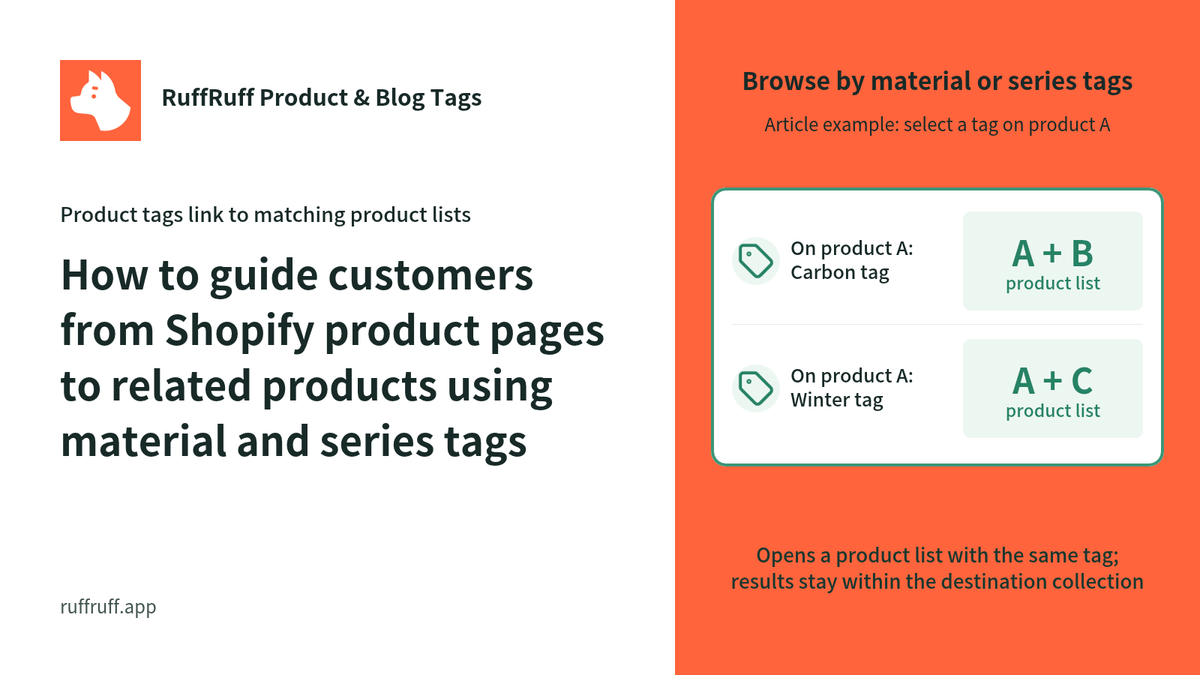
How to guide customers from Shopify product pages to related products using material and series tags

How to display tags on Shopify product pages so customers can find products by material or series

Display material or series tags on product pages to link to products sharing those tags. Learn how product URLs affect the filter scope, how to hide internal tags, and what to test after setup.

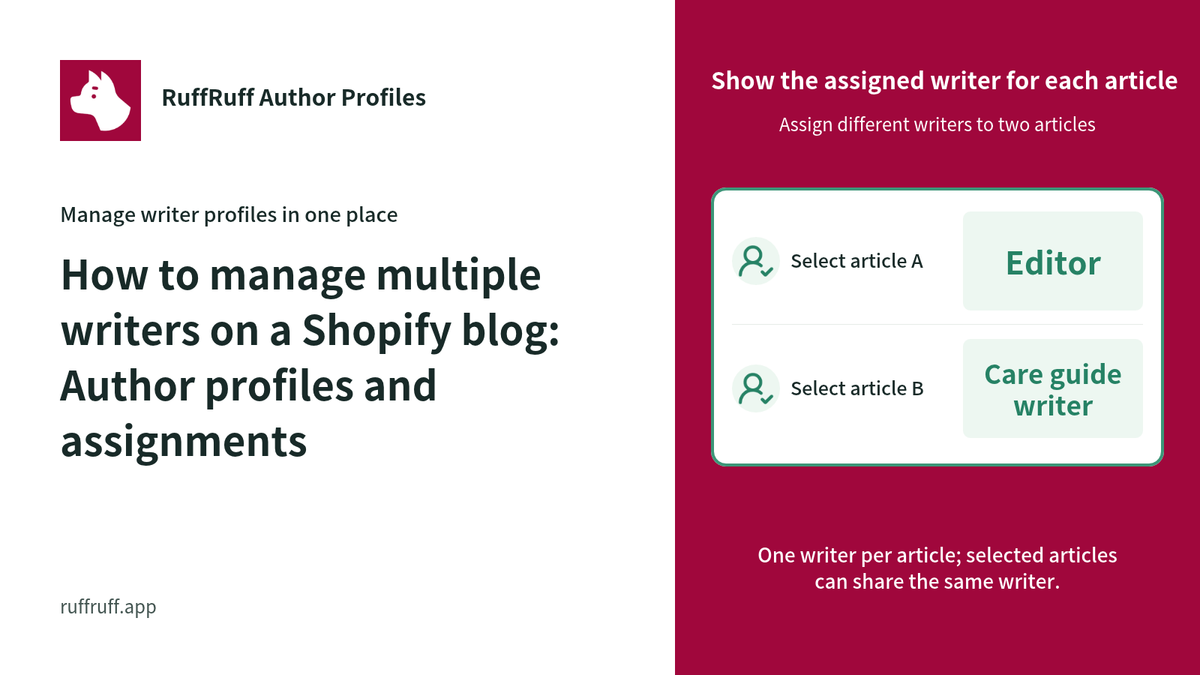
How to manage multiple writers on a Shopify blog: Author profiles and assignments

How to manage multiple writers on a Shopify blog: Author profiles and assignments

Assign the right writer to each post. This example explains author profiles, bulk assignment and removal, the one-author-per-post limit, and Shopify’s native author name.

How to Set Up Limited-Time Sales with RuffRuff Selling Periods | Start, End, and Testing

How to Set Up Limited-Time Sales with RuffRuff Selling Periods | Start, End, and Testing

Learn how to sell a product for a fixed period with RuffRuff Selling Periods, from setting start/end times and product messages to enabling and applying rules and testing purchase restrictions outs...