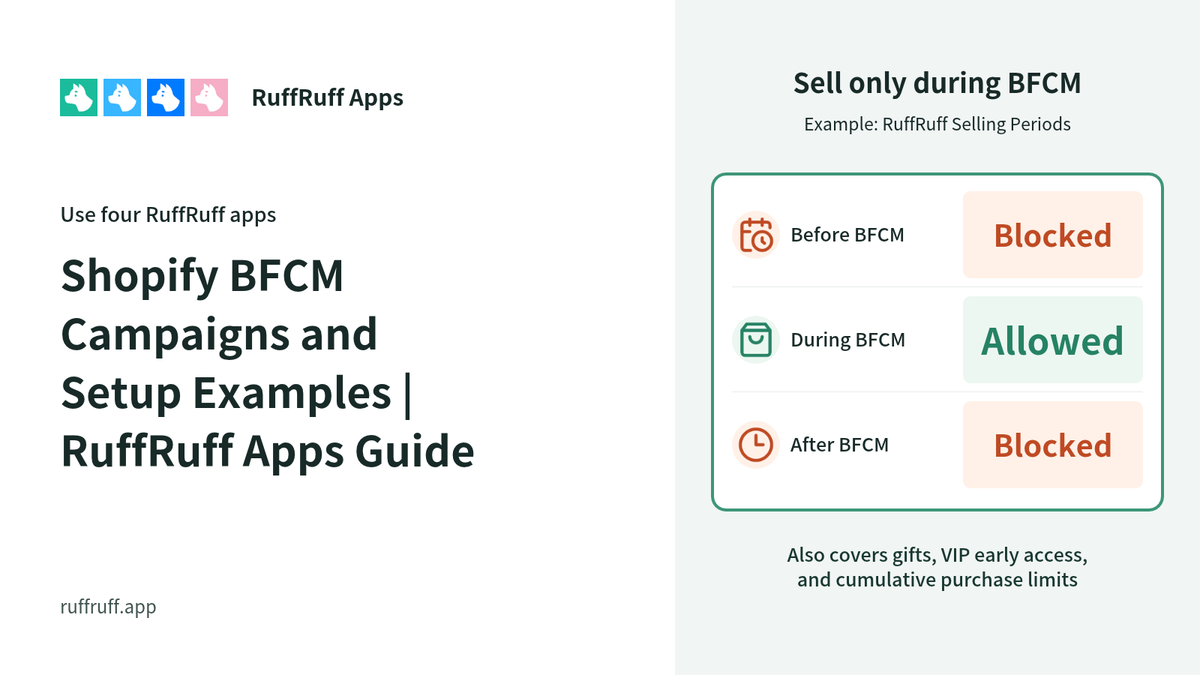
Limited-time sales are a highly effective sales strategy for online stores on Shopify. By offering products for only a limited period, you create a sense of urgency and scarcity for customers, boosting their purchase intent.
This article explains in detail how to run effective limited-time sales on Shopify. We'll cover everything from setting up the selling period to how to use proven, convenient Shopify apps, so you have everything you need to succeed.
What Is a Limited-Time Sale?
A limited-time sale is a distinctive sales strategy in which an online store offers products for a specific period only.
The appeal of this approach is that, by offering products or services only within a limited window of time, it creates a sense of urgency and scarcity for customers. Unlike a regular sale, a clear start date and end date are set, which stimulates the customer's desire to buy.
Shopify Apps That Help With Limited-Time Sales
RuffRuff Selling Periods
RuffRuff Selling Periods is a Shopify app that makes it easy to run release announcements for new products and limited-time sales. It supports setting the selling period at the variant level, displaying messages, translation, and showing a countdown timer.
RuffRuff Pre-orders

RuffRuff Pre-orders is a Shopify app that makes it easy to run pre-orders on your online store. It's the only pre-order app in Japan selected as a top-quality app by Shopify itself.
Beyond pre-orders, it can also handle limited-time sales, limited-time sales, VIP member-only sales, early-bird discounts, deferred payment, purchase limits, and quantity limits, all in a single app.
Differences Between RuffRuff Selling Periods and RuffRuff Pre-orders
This section introduces the differences between RuffRuff Selling Periods and RuffRuff Pre-orders when it comes to features related to limited-time sales.
What Both Apps Can Do
Setting the Selling Period (Start Date/Time and End Date/Time)

RuffRuff Selling Periods settings screen
You can set a start date/time and end date/time for a product's selling period.
Selling Period Can Be Set Per Variant
You can set a start date/time and end date/time per product variant.
For example, if apparel product A has red, yellow, and blue color variants, you can run a limited-time sale on just the yellow variant.
Cart Button Is Hidden Outside the Selling Period

The cart button can be hidden outside the selling period. Hiding the cart button prevents the product from being purchased before the sale starts or after it ends.
Different Product Messages Per State
The product message is any message you can display before or after the cart button. You can show a message tailored to the customer for before the selling period starts, during the selling period, and after it ends.
Message Translation

Product messages and alert messages can be translated into a variety of languages.
Limited-Time Sales Outside the Product Page

An example of a limited-time sale being run outside the product page
Other selling-period apps can only run limited-time sales on the product page, but both RuffRuff Selling Periods and RuffRuff Pre-orders can run limited-time sales on the following pages as well:
- Collection pages
- Search results pages
- Pages using a featured product section
- Pages using a featured collection section
Countdown Timer

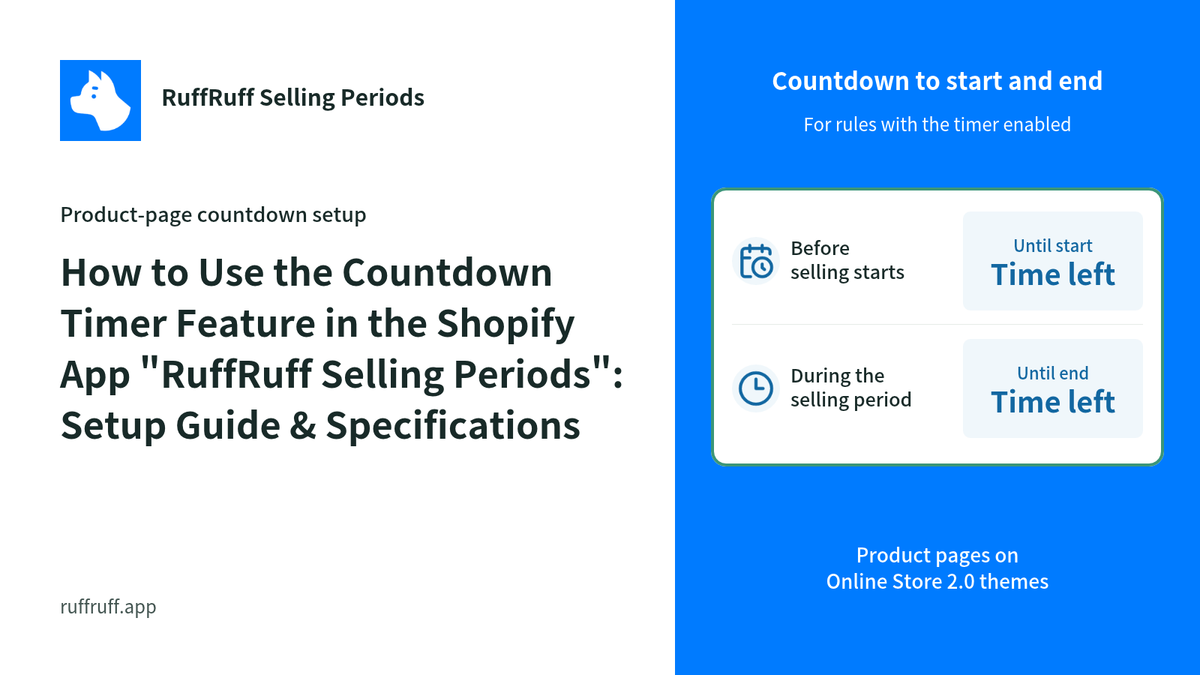
Both apps can display a countdown timer showing the remaining time, before the sale starts and after it ends.
Blocking Unintended Orders Outside the Selling Period
Both apps support the Cart and Checkout Validation API, so orders placed outside the selling period can be blocked at checkout. With RuffRuff Pre-orders, orders can also be blocked on the cart page and elsewhere.
What Only RuffRuff Selling Periods Can Do
Customizable Product Message Design

With RuffRuff Selling Periods, you can customize the product message color separately for each of the "Before selling period", "During selling period", and "After selling period" states. You can also choose whether the product message is positioned above or below the cart button. *For RuffRuff Pre-orders, only below the cart button is supported.
What Only RuffRuff Pre-orders Can Do
Disabling the Cart Button

With RuffRuff Pre-orders, instead of hiding the cart button outside the selling period, you can disable it instead. The cart button's text can also be changed to any wording you like.
Customizable Cart Button Design
With RuffRuff Pre-orders, you can change the cart button's color during the limited-time sale versus outside the selling period.
Discounted Sales (Limited-Time Deals)

Because RuffRuff Pre-orders has a discount feature, you can combine it with the selling period setting to also run a limited-time deal.
Quantity Limits

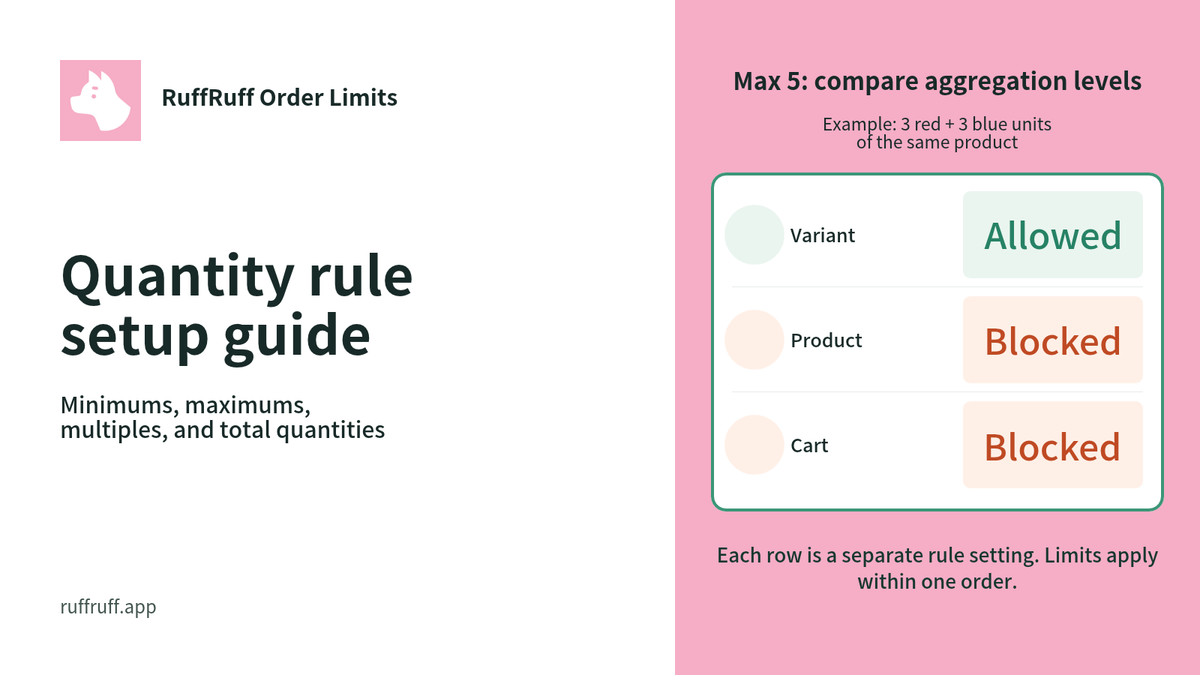
Because RuffRuff Pre-orders has a feature for limiting purchase quantity, in addition to a limited-time sale you can also cap purchases at, for example, a maximum of 1 unit.
Member-Only Sales

Because RuffRuff Pre-orders lets you set conditions based on customer information, you can also run a limited-time sale exclusively for VIP members.
Bundling Restrictions
Because RuffRuff Pre-orders has a bundling-restriction feature, you can prevent a product that's part of a limited-time sale from being ordered together with a regular product in the same order.
Automatic Order Tagging
Because RuffRuff Pre-orders has an automatic order-tagging feature, when a product in a limited-time sale is ordered, you can automatically apply any order tag you like, such as "Limited-Time Sale".
How to Run a Limited-Time Sale With RuffRuff Selling Periods [Video]
This video shows you how to run a limited-time sale using RuffRuff Selling Periods. Please use it as a reference as you follow along.
⚠️ This video contains audio. Please be mindful of your volume when playing it.
How to Run a Limited-Time Sale With RuffRuff Selling Periods [Text]

Here we'll walk through the steps from installing the app to running a "limited-time sale from January 1, 2026 through December 31, 2026".
With the settings in this section, the product will be in the following states depending on the date it's accessed:
- Through December 31, 2025 (before the selling period)
- The cart button is hidden
- The "before selling period" product message is shown
- January 1, 2026 through December 31, 2026 (during the selling period)
- The cart button is shown
- The "during selling period" product message is shown
- January 1, 2027 onward (after the selling period)
- The cart button is hidden
- The "after selling period" product message is shown
Below is a demo product running a limited-time sale with RuffRuff Selling Periods. Check out how it works.

Prerequisites: Install the App and Enable the App Embed
* If you've already completed the prerequisites for RuffRuff Selling Periods, skip this section and go to Step 1.

(1) Install RuffRuff Selling Periods from the Shopify App Store
You can find RuffRuff Selling Periods by searching for "ruffruff" in the Shopify App Store.

(2) Select Pricing in the app
(3) Click Change plan for your desired plan
A paid plan is required to use the app. Choose an appropriate plan based on your business size and required features.

(4) Review the plan details and click Approve

(5) Select the theme where you want to enable the app
(6) Click Access

(7) Select App embeds on the left of the screen
(8) Enable the app embed named "RuffRuff Selling Periods"
(9) Click Save
Step 1. Create a Selling Period Rule
Set up a selling period rule. A selling period rule lets you define "when a specific product should go on sale (and/or when it should stop being sold)".

(1) Select Selling period rules in the app
(2) Click Create rule
(3) Enter a custom name in Title
(4) Enter "2026-01-01 00:00" for Starts at
(5) Enter "2026-12-31 23:59" for Ends at
* With this setting, the end date/time is treated as "2026-12-31 23:59:00". If you want the limited-time sale to run right up until the day changes, enter "2027-01-01 00:00" for Ends at instead.

(6) Enter the product messages you want to show before the selling period, during the selling period, and after the selling period
(7) Enter the alert messages to show when an unintended order is blocked before or after the selling period
(8) Click Save
Step 2. Apply the Selling Period Rule to Your Products

(1) Select Products in the app
(2) From Products, check the products you want to run the limited-time sale on
(3) Click Apply rule

(4) From the popup, select the selling period rule you created
(5) Click Apply rule
Step 3. Verify It's Working
Visit a product you've set up for the limited-time sale and check the following:
- The product message is displayed as intended
- The cart button is hidden outside the selling period (and shown during the selling period)

How to Run a Limited-Time Sale With RuffRuff Pre-orders
Here we'll walk through the steps from installing the app to running a "limited-time sale from January 1, 2026 through December 31, 2026".
With the settings in this section, the product will be in the following states depending on the date it's accessed:
- Through December 31, 2025 (before the selling period)
- The cart button is disabled
- The cart button's text changes to "Before selling period"
- The "before selling period" product message is shown
- January 1, 2026 through December 31, 2026 (during the selling period)
- The cart button is enabled
- The cart button's text changes to "Add to cart"
- The "during selling period" product message is shown
- January 1, 2027 onward (after the selling period)
- The cart button is disabled
- The cart button's text changes to "Sale ended"
- The "before selling period" product message is shown
Below is a demo product running a limited-time sale with RuffRuff Pre-orders. Check out how it works.

Prerequisites. Install the App and Enable the App Embed
* If you've already completed the prerequisites for RuffRuff Pre-orders, skip this section and go to Step 1.

(1) Install RuffRuff Pre-orders from the Shopify App Store
You can find RuffRuff Pre-orders by searching for "ruffruff" in the Shopify App Store.

(2) Open the app and select Pricing from the left menu
(3) Review the terms of service and check "I agree to the terms of service"
(4) Click Change plan for your desired plan

(5) Review the plan details and click Approve

(7) From the Shopify admin, go to Online Store > Themes
(8) Click Customize on the Shopify theme you want to add the app to

(9) Select App embeds on the left of the screen
(10) Enable the app embed named "RuffRuff Pre-orders"
(11) Click Save in the upper right of the screen
Step 1: Create a Pre-order Rule
First, create a pre-order rule. This defines the release date and what message to show before it.

(1) Click "Pre-order rules" in the left menu
(2) From the pre-order rules list page, click Create rule

(3) Select "Simple pre-order" from the pre-order rule types

(3) Set a name of your choice for the rule name
(4) Enter "2026-01-01 0:00" for the start date/time
(5) Enter "2026-12-31 23:59" for the end date/time
* With this setting, the end date/time is treated as "2026-12-31 23:59:00". If you want the limited-time sale to run right up until the day changes, enter "2027-01-01 00:00" for the end date/time instead.

(5) Configure the action for during the selling period, under Action (while pre-order applies)
For this example, we've configured the following:
- Cart button text: "Add to cart"
- Product message: "Limited-time sale from January 1, 2026 through December 31, 2026"

(6) Configure the pre-release action, under Action (before start date)
For this example, we've configured the following:
- Check the box to enable the before-start-date action
- Cart button state: "Disable the cart button"
- Cart button text: "Before selling period"
- Product message: "Sale starts on January 1, 2026"

(7) Configure the pre-release action, under Action (after end date)
For this example, we've configured the following:
- Check the box to enable the after-end-date action
- Cart button state: "Disable the cart button"
- Cart button text: "Sale ended"
- Product message: "Sales for this product have ended"

(8) Optional: Enable robust restriction on the checkout page
With this setting, if a product is unintentionally added to the cart outside the selling period, the order can be blocked on the checkout page.
(9) Click Save
Step 2: Apply the Pre-order Rule to a Product
Apply the pre-order rule you created to the product you want to run the limited-time sale on.

(1) Click "Products" in the left menu
(2) From the pre-order products list page, select the product you want to apply the pre-order rule to
(3) Click Apply rule, shown at the bottom of the screen

(4) From the popup, select the pre-order rule you created
(5) Click Apply rule
Step 3: Verify It's Working
Visit the product and check that the cart button and product message are displayed as set in the pre-order rule.
Conclusion
Using RuffRuff apps lets you strengthen your online store's sales strategy and deliver effective messaging to your customers. By setting up your selling period and customizing your product messages, you can improve the customer experience while also setting up alert messages to prevent unintended orders. This lets you meet customer expectations while achieving a smooth sales process. Make use of these features to provide an even better online shopping experience.
Related Article